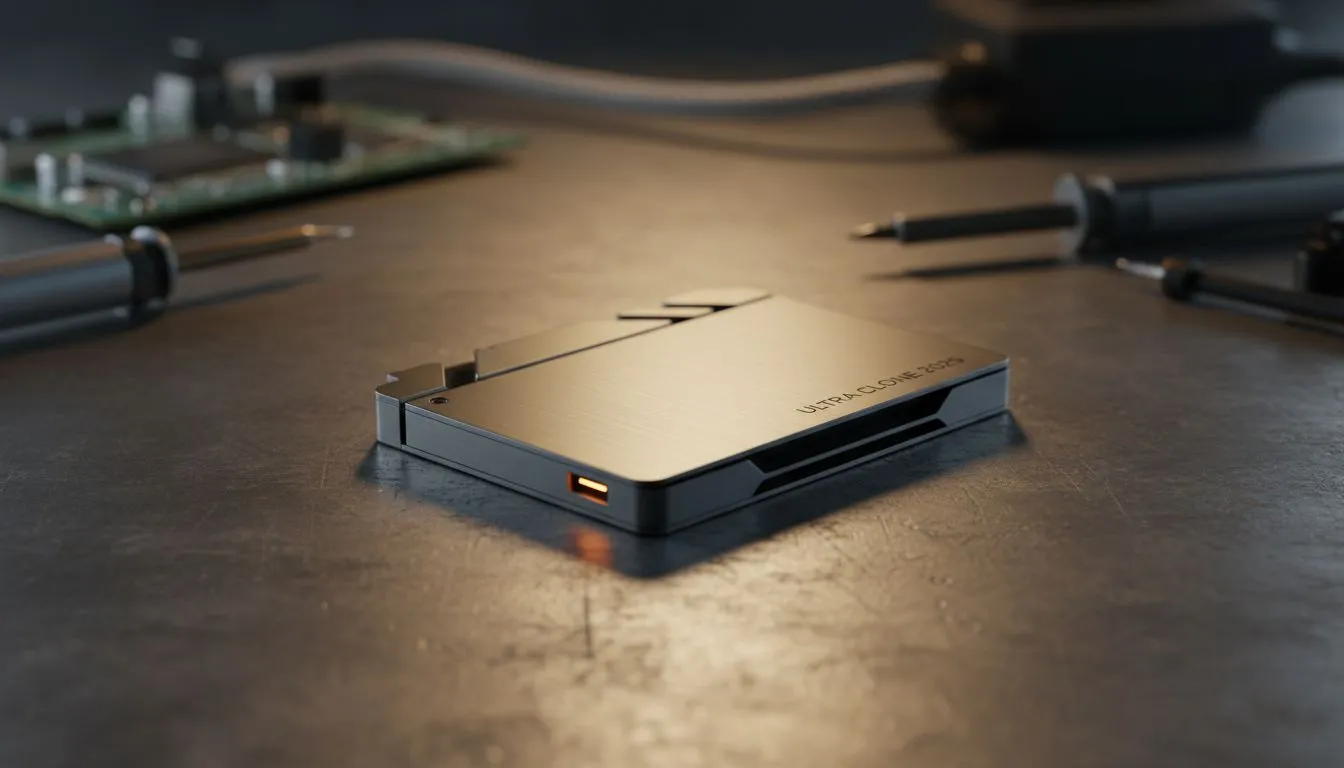
Is your PC feeling a bit sluggish? Staring at the Windows loading circle for what feels like an eternity is a classic sign your old hard drive is holding you back. Many South African gamers think upgrading means a full, painful reinstall of Windows and all their games. What if you could get that lightning-fast SSD speed without losing a single file or setting? This guide will show you how to safely clone Windows to an SSD and get back in the game faster. 🚀
Why Clone Your Windows Drive to an SSD?
Switching from a traditional Hard Disk Drive (HDD) to a Solid-State Drive (SSD) is the single most impactful upgrade you can make for your PC's performance. But why clone instead of starting fresh?
- Time-Saving: A clean install means reinstalling Windows, drivers, all your apps (like Steam, Discord, and Adobe Suite), and then re-downloading terabytes of games. Cloning moves everything over in one go.
- Keep Everything: Your settings, files, saved games, and desktop layout are perfectly preserved. Your PC will look and feel exactly the same... just incredibly faster.
- Simplicity: With modern software, the process to clone Windows to an SSD is surprisingly straightforward and much less intimidating than a full system build.
The difference in speed is night and day. Boot times drop from minutes to seconds, games load instantly, and the entire system feels more responsive. If you're ready to feel that difference, exploring the latest solid-state drives is your first step.
What You'll Need Before You Start 🔧
Before you begin the cloning process, a little preparation ensures everything goes smoothly. Here’s your checklist:
- Your New SSD: The star of the show! Ensure the new SSD has enough capacity to hold everything from your old drive. For maximum performance, consider one of the blazing-fast NVMe SSDs if your motherboard supports it.
- Connection Method: You need to connect both drives to your PC at the same time. For a desktop, this is usually a spare SATA or M.2 port. For a laptop, a simple USB-to-SATA adapter or an external SSD enclosure is essential.
- Cloning Software: You don't need to spend a cent here. Excellent free tools like Macrium Reflect Free, AOMEI Backupper Standard, or Clonezilla can handle the job perfectly.
Check Your Capacity! ✨
buying your new SSD, check how much space you're currently using on your old C: drive. Right-click the drive in Windows Explorer and go to 'Properties'. Your new SSD must be at least this large. It’s always a good idea to get a slightly bigger drive for future-proofing.
The Step-by-Step Guide to Clone Windows to an SSD
Ready to go? Let's walk through the cloning process. While the exact steps vary slightly depending on the software you choose, the core principles are the same.
Step 1: Connect and Initialise
Physically connect your new SSD to your computer. Once connected, Windows might not see it immediately. Type "Disk Management" into the Start Menu, open it, and you'll likely be prompted to initialise the new disk. Choose "GPT" (GUID Partition Table) if prompted, as it's the modern standard.
Step 2: Install and Launch Your Cloning Software
Download and install your chosen cloning tool (like Macrium Reflect). Launch the application and look for an option like "Clone this disk..." or "Disk Clone". This is the feature you'll be using to clone Windows to an SSD safely.
Step 3: Select Source and Destination Drives
This is the most critical step.
- Source Drive: Select your current Windows drive (usually C:).
- Destination Drive: Select your new, empty SSD. Double-check this! Getting it wrong could wipe your main drive. The software will usually show you a graphical layout of the drives, making it easy to identify them by size and name.
Step 4: Start the Cloning Process
Once you've confirmed your selections, proceed with the clone. The software will copy everything block-for-block from the old drive to the new one. This can take anywhere from 30 minutes to a few hours, depending on the amount of data and the speed of your drives. Now is a good time to grab a coffee. With so many incredible SSD deals available, this small investment of time pays off massively in performance.
Step 5: Set the New SSD as the Boot Drive
After the clone is complete, shut down your PC. You now need to tell your computer to boot from the new SSD. You can either:
- Physically remove the old hard drive.
- Enter your PC’s BIOS/UEFI (usually by pressing DEL, F2, or F12 on startup) and change the boot priority to your new SSD.
Post-Cloning Checks and Optimisation
Once you've successfully booted into Windows from your new SSD, you're almost done! A couple of final checks will ensure you're getting peak performance.
First, confirm that everything is working as expected. Your desktop, files, and programs should be exactly where you left them.
Next, it's a good idea to enable TRIM. This is a crucial feature that helps maintain your SSD's performance over time. To check if it's on, open Command Prompt as an administrator and type: fsutil behavior query DisableDeleteNotify. If the result is 0, you're all good! If it's 1, type fsutil behavior set DisableDeleteNotify 0 to enable it.
Finally, once you're 100% certain the clone was successful and your system is stable, you can format your old hard drive and use it as secondary storage for games, media, or backups. You now have a super-fast boot drive and extra storage space—the best of both worlds. This upgrade is a fantastic way to breathe new life into any PC, complementing Evetech's entire range of SSDs.
Ready for Warp Speed? Cloning your Windows install to a new SSD is the single biggest performance boost you can give your PC. Stop waiting and start playing. Explore our massive range of PC components and find the perfect drive to unleash your machine's true potential.