Unlock Your Laptop's True Potential: Connect 4K Monitor to USB-C Laptop Without Buying New
Lagging behind with a single screen? Craving that crisp 4K visual experience for gaming, design, or content creation, but stuck with an older USB-C laptop? Good news, Mzansi! You don't need to break the bank on a brand-new machine to connect your dream 4K monitor to your current USB-C laptop. It's often simpler and more affordable than you think to unlock your setup's full potential. Let's dive in.
Why Upgrade to 4K? The Visual Feast Awaits ✨
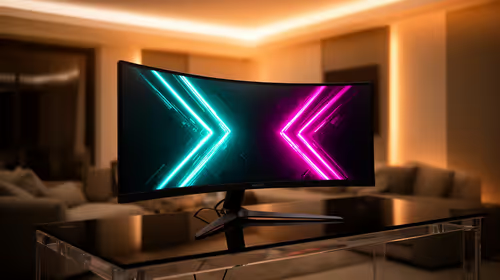
Imagine your favourite open-world game rendered in breathtaking detail, or editing high-resolution photos with pinpoint precision. A 4K monitor delivers four times the pixels of a Full HD screen, offering unparalleled sharpness, colour accuracy, and screen real estate. For South African gamers, this means deeper immersion; for professionals, enhanced productivity. Whether you're a designer, video editor, or just someone who appreciates a stunning display, upgrading to 4K is a game-changer. The only hurdle often seems to be compatibility with existing hardware.
Understanding Your USB-C Laptop's Power
Your laptop's USB-C port is far more versatile than a traditional USB-A connection. Many modern USB-C ports support what's called "DisplayPort Alternate Mode" (Alt Mode), which allows them to transmit video signals directly. Some even boast Thunderbolt 3 or 4 capabilities, offering incredible bandwidth for multiple displays, external GPUs, and blazing-fast data transfer.
This capability is the key to how you can connect a 4K monitor to a USB-C laptop without needing a dedicated graphics card output on your notebook itself. It's about leveraging the existing technology within your current machine.
The Secret Weapon: High-Performance Docking Stations 🔧
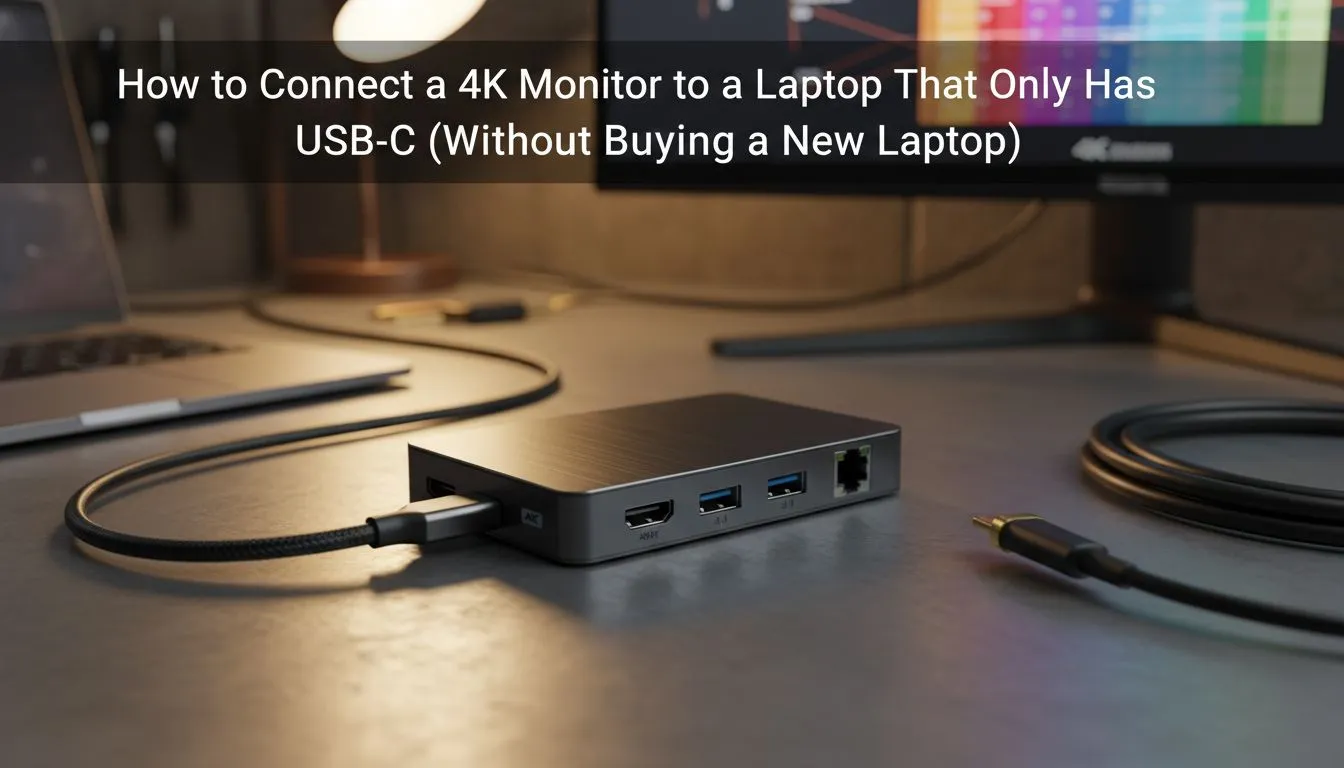
The magic really happens with a high-quality docking station. These clever hubs transform a single USB-C port on your laptop into a multitude of connections, including HDMI, DisplayPort, USB-A, Ethernet, and often power delivery. This means you can power your laptop, connect peripherals, and, crucially, connect a 4K monitor to your USB-C laptop all through one convenient cable.
Evetech offers a comprehensive selection; you can explore the full range of docking stations available right here. Think of it as giving your laptop a super-powered expansion port, ready to handle all your high-resolution display needs.
Choosing the Right Dock to Connect Your 4K Monitor
Not all docking stations are created equal, especially when it comes to driving a 4K display. Here’s what to look for:
- 4K @ 60Hz Support: Ensure the dock explicitly states it supports 4K resolution at a 60Hz refresh rate for smooth visuals. Some older or cheaper docks might only manage 30Hz, which can feel choppy.
- Power Delivery (PD): If you want the dock to charge your laptop, check its power delivery rating (e.g., 60W, 100W).
- Port Variety: Do you need multiple USB-A ports for peripherals, an Ethernet port for stable internet, or an SD card reader?
- Brand Reputation: Stick to reputable brands for reliability and driver support. Brands like Promate offer robust options to connect your 4K monitor with ease.
If you're looking for an affordable way to connect your 4K monitor to your USB-C laptop, check out docking stations under R1000. For more features, higher power delivery, and additional port options, explore docking stations up to R2000.
Optimising Your Workspace 💡
Always use high-quality cables! A cheap HDMI or DisplayPort cable can be the bottleneck preventing your 4K monitor from displaying at its full potential, even with a premium docking station. Invest in certified cables for the best experience.
Setup Success: Getting Your 4K Display Running
Connecting your 4K monitor to your USB-C laptop via a docking station is typically straightforward:
- Connect the Dock: Plug the docking station into your laptop's USB-C port.
- Connect the Monitor: Use a high-quality HDMI or DisplayPort cable to connect your 4K monitor to the docking station.
- Power Up: If your dock supports power delivery, connect your laptop's power adapter to the dock, or connect the dock's own power supply.
- Configure Display Settings: Once connected, your laptop should automatically detect the new monitor. Go to your display settings (Windows:
Display Settings/ macOS:System Settings > Displays) to arrange your screens, set the resolution to 3840x2160 (4K), and adjust the refresh rate to 60Hz.
That's it! You've successfully upgraded your visual experience without the need for a costly new laptop.
Elevate Your View Without The Upgrade Bill 🚀
You don't need to feel limited by your current laptop. By understanding the power of your USB-C port and investing in the right docking station, you can easily connect a 4K monitor to your USB-C laptop and transform your gaming or work setup. It's a smart, cost-effective upgrade that brings significant benefits, from stunning visuals to a more organised workspace.
Ready to Upgrade Your View? Don't let your current laptop hold back your visual ambitions. Evetech has the perfect docking station to connect your 4K monitor and unleash your setup's full potential. Explore our wide range of docking stations today and find the ideal solution for your needs.