

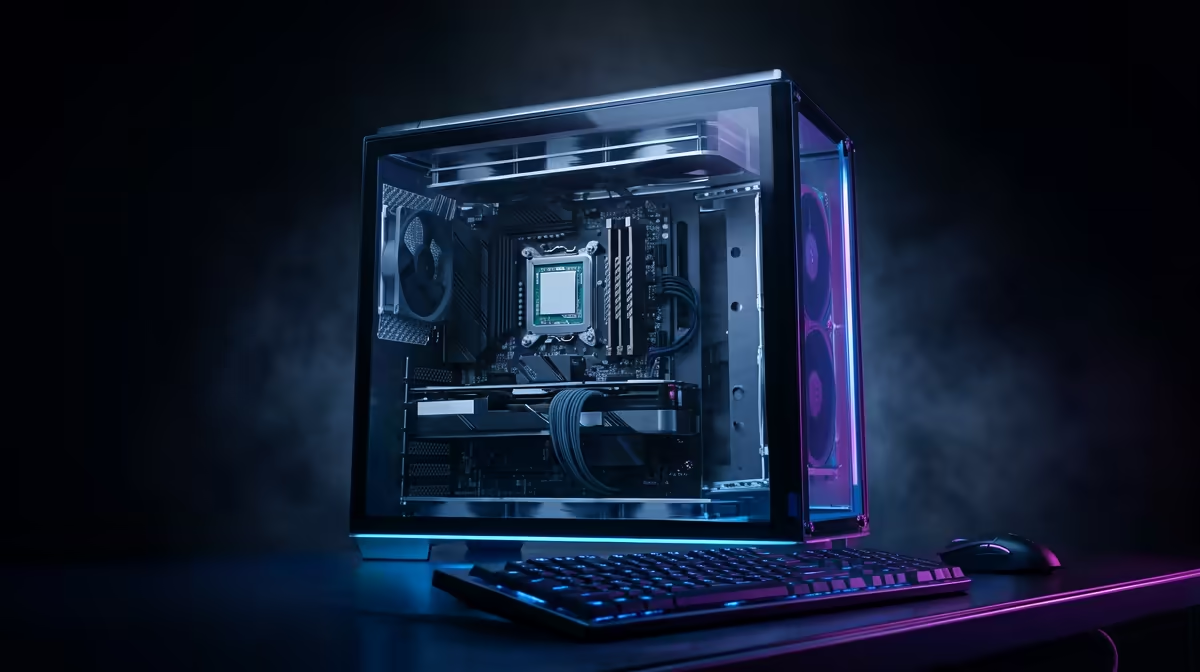
Staring at a render bar that moves slower than rush-hour traffic on the N1? You're not alone. Editing PC problems in South Africa can bring your creative flow to a grinding halt, turning passion projects into painful chores. From stuttering 4K timelines to random crashes that lose you precious work, these issues cost you time, money, and sanity. But don't throw your mouse just yet... this quick-fix guide is here to help you troubleshoot and get back to creating.
Diagnosing Common Editing PC Problems ⚡
Before you can fix the issue, you need to know what you're up against. Most editing computer issues in SA boil down to a few common culprits. Identifying the symptom is the first step to finding the right solution.
The Dreaded Timeline Stutter
Is your playback lagging or dropping frames the moment you add a colour grade or transition? This is one of the most frequent editing PC problems creators face. It often points to one of three things:
- Insufficient RAM: Your PC can't hold all the preview files in active memory.
- Slow Storage: Your hard drive can't read the high-bitrate video files fast enough.
- Underpowered CPU/GPU: Your processor or graphics card is struggling to decode and render effects in real-time.
Export Times That Take Forever
You've finished the masterpiece, hit "Export," and... now you can go make coffee, do your laundry, and maybe watch a movie. Extremely slow render times are a classic sign that your CPU is buckling under the pressure. While modern software uses the GPU for some tasks, the Central Processing Unit (CPU) still does the heaviest lifting during the final export. For intense rendering, a processor with more cores and threads makes a world of difference. Exploring the latest AMD Ryzen PC deals can reveal powerful multi-core options perfect for this task.
Random Software Crashes
Nothing is more frustrating than your editing software crashing mid-session. These crashes can be caused by outdated drivers, software bugs, overheating components, or unstable hardware. Ensuring your graphics drivers and editing software are up-to-date is the first, easiest fix.
Pro Tip: Use Proxies! ✨
A proxy workflow is your best friend for smooth 4K or 6K editing. It involves creating low-resolution copies of your media to edit with. Your PC only uses the full-resolution files for the final export. In Premiere Pro, just right-click your footage in the Project panel and select "Proxy" > "Create Proxies." It's a massive performance booster on almost any machine.
Smart Upgrades to Eliminate Bottlenecks 🚀
Sometimes, software tweaks aren't enough. If you're consistently running into issues, a strategic hardware upgrade might be the only real solution to your editing PC problems.
CPU: The Brain of Your Operation
For video editing, your CPU is king. A faster processor directly translates to quicker exports and a more responsive experience. Features like Intel's Quick Sync Video can also dramatically speed up encoding for popular formats. If your processor is a few years old, checking out the current Intel PC deals could be the single most impactful upgrade you make.
RAM and Storage: The Unsung Heroes
Think of RAM as your computer's short-term memory. For 1080p editing, 16GB is the minimum, but for 4K, you should be aiming for 32GB or more.
Equally important is storage speed. Editing directly from a traditional Hard Disk Drive (HDD) is a recipe for frustration. Your primary drive for software and active projects should be a Solid State Drive (SSD), preferably an NVMe M.2 SSD, for lightning-fast load times. You don't have to break the bank to see a huge improvement; you can find fantastic powerful PCs under R20k that come standard with speedy SSDs.
Ready to Stop Fixing and Start Creating? While these tips can breathe new life into your machine, sometimes the best fix is a fresh start. If you're tired of battling lag and want a PC built for modern creative workflows, we've got you covered. Explore our range of custom-built editing PCs and find the perfect rig to unleash your creativity.











