To transfer data to a new MSI Claw, use OneDrive or Google Drive for documents, Steam Cloud Sync for game saves, and a USB-C external SSD for large game installs. The Claw's 1 TB NVMe fills up fast with modern AAA titles, so plan storage before transferring.
💾 Transfer methods by data type
Documents, photos, music: sign into OneDrive or Google Drive on both devices, let them sync. Game saves: enable Steam Cloud Sync on both, launch each game on the old device, then on the Claw. Large installs (100+ GB games): copy via USB-C external SSD from old PC to Claw rather than re-downloading.
🎮 Game library migration
Install Steam, GOG Galaxy, or Epic Games Store on the Claw. For Steam, use "Install" then pick "Install from existing folder" if you copied via external drive. This avoids re-downloading, saving hours of fibre data.
🔋 Configuring the Claw for SA play
Set SteamOS-like "Performance" profile in MSI Centre M. Turn TDP to 20 W for balanced battery life, or 30 W for plugged gaming. Enable AMD FSR 4 globally in MSI Centre to extend battery runtime in undemanding titles. Our handheld accessories include docking stations that make the Claw a mini desktop.
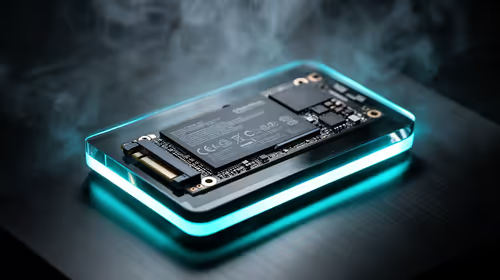
The MSI Claw's 1 TB internal NVMe is the only one that's fast. Any microSD card added later runs at 100-200 MB/s which is slow for modern games. If you need more storage, upgrade the internal 2280 NVMe SSD - the Claw has a user-accessible slot. A 2 TB Gen 4 NVMe doubles your library.{{/TipBox}}
🔌 Loadshedding considerations
The Claw's battery lasts 2-4 hours gaming depending on TDP. For Stage 4 cuts, one full charge plus a 20,000 mAh USB-C power bank with 100 W PD output will keep you gaming through the whole outage window.
{{CALLTOACTION}}