How to Install a 2.5-Inch SATA SSD for Faster Boot Times… in a South African Budget-Friendly Way 🚀
If your PC takes forever to boot, you’re not alone. Between heavy launchers, updates, and Windows doing its thing… waiting is painful. Gamers feel it too, because every restart cuts into playtime. The good news? A 2.5-inch SATA SSD is one of the simplest upgrades you can do at home. 🔧 In this guide, I’ll walk you through installing one safely, what to expect, and how to get faster boot times without breaking your budget.
2.5-inch SATA SSD install steps (the “no surprises” path) ⚡
Before you start, grab the right tools: a small Phillips screwdriver, an anti-static wrist strap (optional but smart), and a USB stick for cloning or Windows recovery tools. Then follow these steps.
1) Confirm your PC supports a 2.5-inch SATA drive
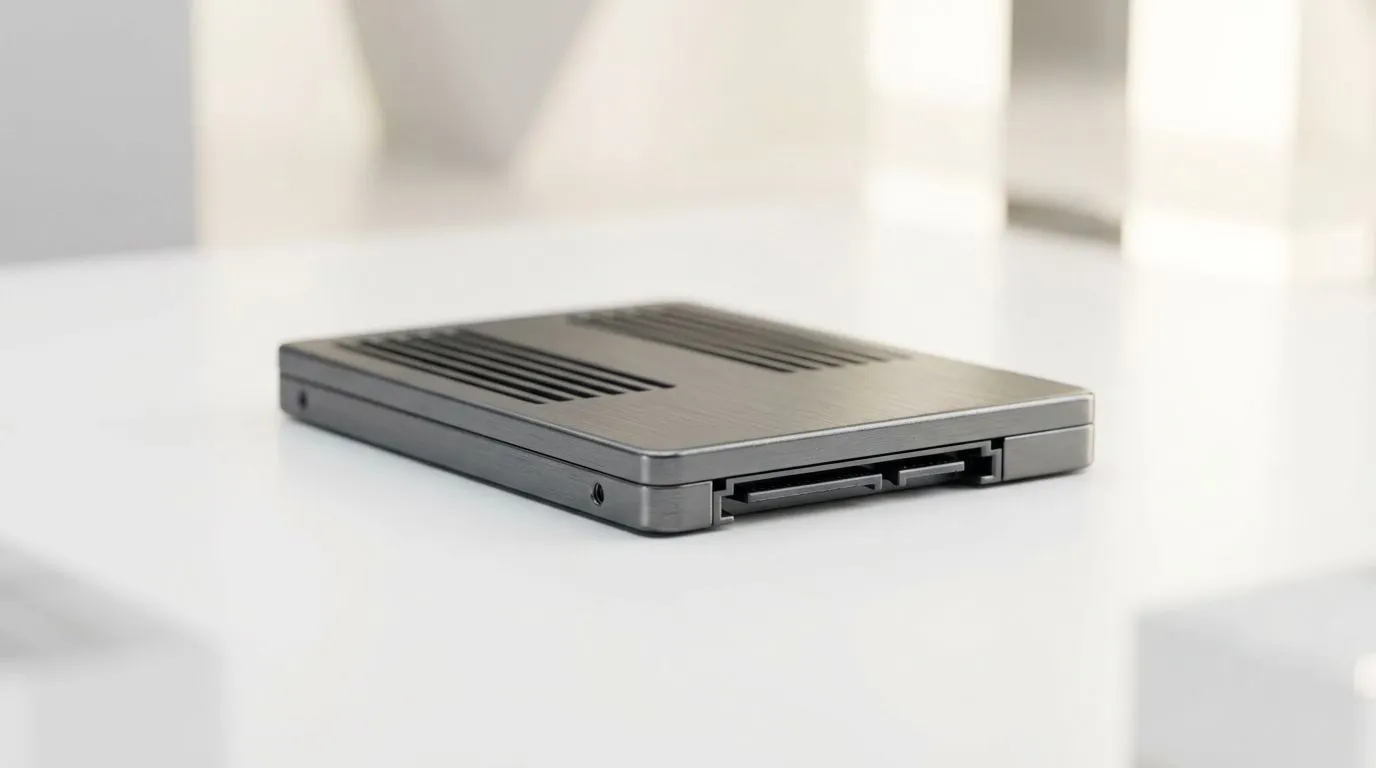
A 2.5-inch SSD uses the SATA interface and fits in a 2.5-inch bay. Most desktops and many laptops support it via a SATA connector or drive bay. If you’re buying new storage, check the SSD specs on Evetech so you match form factor and interface correctly.
For 2.5-inch SATA SSD options, you can browse solid-state drives here:
2) Choose the drive that fits your needs
If you’re after a known brand, Evetech has brand-filtered SSD listings you can use to narrow choices fast:
Or for Kingston options:
Quick note for gamers: SATA SSDs are usually a clear upgrade from HDDs. If you already have an SSD, you may want to consider whether you’re targeting capacity, speed, or both.
3) Power down and open the case
Shut down completely, switch off the PSU, and unplug the power cable. Hold the power button for a few seconds to discharge leftover power. Then open your PC case.
4) Find the 2.5-inch SATA slot and connect cables
Locate the existing hard drive bay. If you’re replacing an HDD, you’ll likely remove the HDD first. Slide in the new SSD using the correct mounting brackets or sled (many cases use the same rails for 2.5-inch drives).
Connect:
- SATA data cable to the SSD
- SATA power cable from the PSU to the SSD
Then route cables neatly so they don’t interfere with fans.
5) Set the SSD as your boot drive
When you restart, enter BIOS/UEFI. Look for boot order settings and select the SSD. Save and exit.
If you’re migrating your OS, you can clone instead of reinstalling. Cloning keeps your setup and game launchers intact, but always verify the final boot order.
6) Enable/verify storage health in Windows
After booting:
- Check drive presence in Disk Management
- Confirm Windows recognises the partition(s)
- Consider running a health check tool (SMART) through your SSD software or standard Windows utilities
Productivity Pro Tip 🔧
On Windows, before you reinstall anything, check your current drive layout in Disk Management. If you see important partitions (like recovery or system reserved), clone first. That keeps your game library settings and avoids headaches with launcher paths after migration.
Boot time expectations (and how to make the SSD “feel” faster) ✨
A SATA SSD won’t turn a budget PC into a NASA workstation… but it can make the difference between “waiting” and “almost instant.” The most noticeable improvements usually include:
- faster Windows sign-in
- quicker game load screens
- faster app launches after restarts
To make those gains last:
- keep enough free space (aim for some breathing room for wear levelling)
- avoid filling the drive to 99%
- if you’re on a very old system, update BIOS/UEFI when possible (only if the update is reputable)
Also, if you’re tempted by M.2 instead: M.2 uses a different form factor, and it’s often faster. If you’re considering that route, you can compare M.2 options here (but this article focuses on 2.5-inch SATA installation):
And if you’re comparing newer interfaces (like Gen 5 for M.2), note that SATA vs PCIe speeds differ:
Ready for the upgrade? Let’s get the right SSD, cables, and guidance
If you’re unsure whether your build uses SATA power and data cables, or which SSD is compatible with your bay, ask before you buy. We’ve seen too many “it fits physically, but it won’t be detected” moments. The right SSD choice plus a clean install makes the difference.
Ready to Find Your Perfect Match? The Mac vs Windows debate is complex, but for maximum power, choice, and value in South Africa, Windows is hard to beat. Explore our massive range of laptop specials and find the perfect machine to conquer your world.