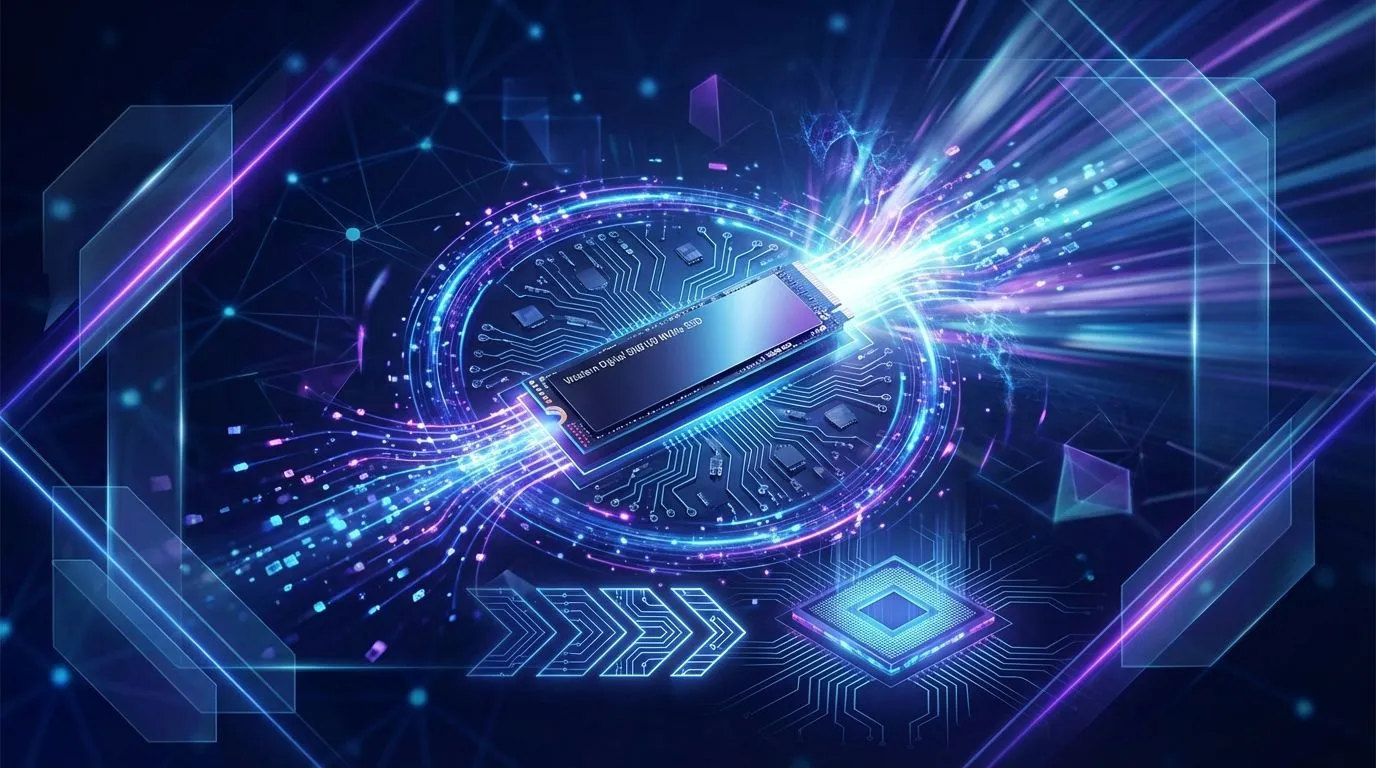
That slow crawl from a black screen to your desktop is a relic of the past. The secret to lightning-fast startups and snappy game loads isn't a whole new PC… it's upgrading your boot drive. Learning how to migrate your OS to a WD SN8100 NVMe SSD—or a similarly powerful drive—is one of the best upgrades you can make. ⚡
Why an OS Migration to an NVMe SSD is Worth It
Moving your operating system (like Windows 10 or 11) from an old hard disk drive (HDD) or even a slower SATA SSD to a modern NVMe drive is like swapping a bicycle for a supercar. The difference is staggering.
Your OS is constantly reading and writing small files. An NVMe SSD handles these tasks at incredible speeds, resulting in:
- Drastically Faster Boot Times: Go from powered off to ready-to-game in seconds.
- Instant Application Loading: Apps like Discord, Chrome, and your game launchers will pop open instantly.
- A Snappier System: Everything from opening folders to searching for files feels more responsive.
If your rig still relies on older storage, you're leaving a massive amount of performance on the table. Exploring the latest high-speed SSDs is the first step to unlocking your PC's true potential.
Preparing to Migrate Your OS to an NVMe Drive
A successful OS migration is all about preparation. Before you start cloning, you need to get your tools and your current drive in order. This process works whether you're aiming to migrate your OS to a WD SN8100 NVMe SSD or another top-tier drive from a trusted brand.
### Your Pre-Flight Checklist 🔧
- The New NVMe SSD: You'll need the drive itself. While the SN8100 is a popular OEM drive, retail options from reliable brands like Klevv South Africa offer fantastic performance and local warranty support.
- Cloning Software: Great free options exist. Macrium Reflect Free (legacy version) and AOMEI Backupper Standard are two of the most popular and reliable choices for cloning your drive.
- An M.2 Slot: Ensure your motherboard has a free M.2 slot. If you only have one and it's occupied by your current drive, you may need an external NVMe-to-USB enclosure to perform the clone.
First-Timer Tip ✨
Before you can clone to your new SSD, Windows needs to see it. After installing the drive, open Disk Management (right-click the Start button), find the new unallocated drive, right-click it, and select 'Initialize Disk'. Choose the GPT partition style for modern systems. Now your cloning software will be able to detect it properly.
The Simple Steps to Clone Your Windows OS
With your data backed up and your tools ready, it's time for the main event. While every software's interface is slightly different, the core process of cloning your OS to a new NVMe SSD is generally the same.
- Install the New Hardware: Power down your PC, unplug it, and carefully install your new NVMe SSD into a vacant M.2 slot on your motherboard.
- Launch Your Cloning Software: Install and run your chosen cloning application (like AOMEI or Macrium). Select the 'Disk Clone' or 'Clone' option.
- Select Source & Destination: Choose your current OS drive as the 'Source Disk' and your new NVMe SSD as the 'Destination Disk'. Be very careful here—getting this wrong could wipe your OS! For this step, a blazing-fast drive like the Klevv CRAS C925G 1TB Gen4 NVMe SSD is an excellent destination target.
- Start the Clone: Confirm the settings (ensure 'SSD Alignment' is checked for best performance) and begin the process. It can take anywhere from 20 minutes to over an hour, depending on the amount of data.
- Change Boot Priority: Once complete, restart your PC and enter the BIOS/UEFI (usually by pressing DEL or F2 on startup). Go to the 'Boot' section and set your new NVMe SSD as the primary boot device.
- Boot and Enjoy! 🚀 Save the changes and exit the BIOS. Your PC will now boot from your new, incredibly fast drive. You can format your old drive later to use it for extra storage.
Ready to Unleash True Speed? Migrating your OS to a new NVMe SSD is one of the most impactful upgrades you can make. Stop waiting and start playing. Explore our massive range of high-speed SSDs and find the perfect drive to supercharge your PC today.