DisplayPort 2.1 vs HDMI 2.1: Which Port for High Refresh?
Quick Answer
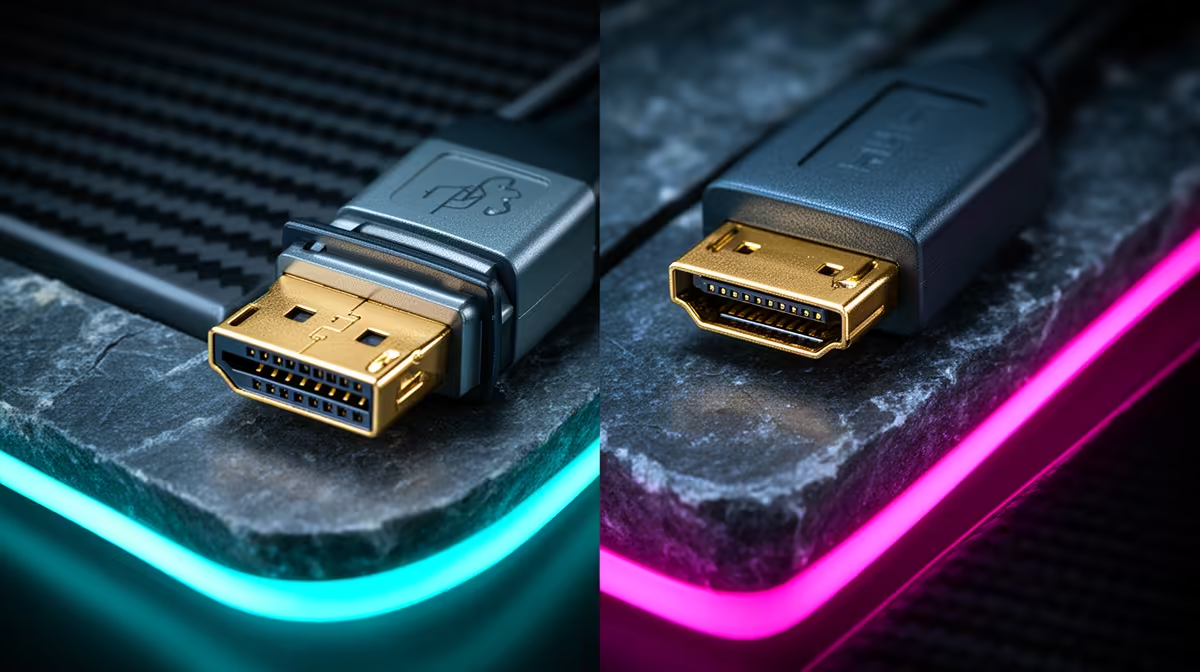
Use the port that carries your complete target mode. DisplayPort 2.1 at UHBR20 has more raw link bandwidth than HDMI 2.1 at its maximum rate, but many DisplayPort 2.1 products implement UHBR10 or UHBR13.5 instead.
HDMI 2.1 can handle demanding PC modes and is the required route for current consoles. Display Stream Compression can allow 4K 240Hz and other high modes over either supported path.
Do not compare version numbers alone. Check GPU output, monitor input, link rate, compression, colour depth and the exact cable.
Start With the Display Mode
Write resolution, refresh, colour depth, HDR and chroma. "4K high refresh" leaves several different data rates.
A 1440p 240Hz mode is lighter than 4K 240Hz. Ten-bit colour uses more data than eight-bit at the same timing.
The monitor manual lists supported modes by input. Begin there rather than calculating from a standard maximum the product may not use.
DisplayPort 2.1 Has Several UHBR Rates
DisplayPort 2.1 includes Ultra-High Bit Rate link modes. UHBR10, UHBR13.5 and UHBR20 describe per-lane signalling rates across four lanes.
UHBR20 reaches the highest class and provides 80Gbps raw signalling. UHBR13.5 and UHBR10 provide lower totals.
A GPU or monitor can be labelled DisplayPort 2.1 without UHBR20. Look for the stated UHBR level on both ends.
HDMI 2.1 Also Varies
HDMI 2.1 Fixed Rate Link can run at several rates up to 48Gbps raw signalling. Devices can implement a lower FRL rate.
The label also covers optional features. HDMI VRR, eARC and every maximum timing do not appear on every port.
Read the exact product mode table. The useful question is whether it carries your selected output, not whether the connector has the newest name.
Raw Bandwidth Is Not Picture Bandwidth
Links use encoding and control data, so the raw signalling number is not all available for image pixels.
Display timing also includes blanking intervals. A simple resolution multiplied by refresh and colour bits is an incomplete requirement.
Use the maker's supported timing or a reliable bandwidth calculator for planning. Then confirm the negotiated link in the driver or monitor information screen.
Display Stream Compression Changes the Result
DSC compresses the video stream at low latency and is designed to be visually lossless. It lets a high-resolution, high-refresh mode fit into a smaller link.
GPU and monitor both need support. The cable still has to carry the underlying link rate.
Some buyers prefer an uncompressed path on principle. In ordinary use, a properly implemented DSC mode is intended to preserve the visual image.
When DisplayPort Wins
DisplayPort is the natural PC connection for high refresh, adaptive sync and multi-monitor use. UHBR20 offers the greatest headroom of the two standards in this comparison.
It can carry demanding 4K and ultrawide modes with less or no compression depending on timing. Higher link headroom can also preserve ten-bit colour.
The win applies only when both GPU and monitor expose the same high UHBR rate. An UHBR10 output cannot become UHBR20 through a cable.
When HDMI Wins
HDMI connects current consoles and fits TVs, sound systems and capture equipment. A high-bandwidth HDMI monitor can serve console and PC from one input family.
HDMI 2.1 supports 4K 120Hz console modes, VRR and HDR when the exact devices implement them. PC GPUs can reach higher modes with FRL and DSC.
If your monitor's HDMI port has the better supported timing than its DisplayPort input, use HDMI. Product design beats category preference.
Console Gamers Need HDMI
PlayStation, Xbox and Switch 2 docks output video over HDMI. DisplayPort on the monitor cannot help unless an active conversion is used, and conversion can remove features.
Verify 4K 120Hz, 1440p 120Hz, HDR and VRR according to the console. Not every console supports every combination.
Use the supplied or specified HDMI cable and run the console display check.
PC Gamers Should Compare Both
Your GPU can have DisplayPort and HDMI outputs with different limits. The monitor can do the same.
DisplayPort may carry maximum PC refresh while HDMI is reserved for a console. Another 4K display can expose its full 240Hz mode on both.
Check adaptive-sync support on each input. G-SYNC Compatible, FreeSync and HDMI VRR paths do not always match.
Cables Need a Real Rating
For high DisplayPort 2.1 rates, use a VESA-certified DP40 or DP80 cable as the required link dictates. Cable length and quality matter.
For HDMI's highest FRL modes, use a certified Ultra High Speed HDMI cable.
Avoid unknown extensions and wall plates during setup. Sparkles, black screens and intermittent drops can point to a marginal cable.
Adapters Can Remove the Advantage
A DisplayPort-to-HDMI adapter contains an active or passive conversion path depending on the devices. It can cap refresh, colour, HDR or VRR.
Bidirectional support is not automatic. An adapter designed for DisplayPort source to HDMI display may not work in reverse.
Use a native common port where possible. When conversion is necessary, verify the exact input, output and timing in the adapter specification.
Multi-Monitor Use Favors Planning
DisplayPort can support Multi-Stream Transport on suitable hardware, while high-refresh monitors often use one direct link each for best compatibility.
GPU total display-engine limits can affect several high-bandwidth screens. Check maximum concurrent modes.
Docks can share upstream bandwidth across displays and USB data. A port with a high maximum does not mean the dock gives all of it to one monitor.
Colour Depth and HDR Can Hide a Limit
Windows may offer the target refresh at eight-bit colour and remove ten-bit. The driver can switch chroma to fit the link.
Check output colour format and bit depth after selecting refresh. Do not assume the same image mode remained active.
DSC can preserve full RGB and higher colour depth when supported. Use the intended link rather than accepting a silent compromise.
Check Wake and Handshake Behaviour
A mode can pass a benchmark and still wake poorly from sleep. High-rate links are sensitive to firmware, cable and device negotiation.
Test cold start, restart and sleep wake. Switch between SDR and HDR and between inputs.
Use official firmware and GPU drivers. Keep the known sound cable available during troubleshooting.
Shop From the Port Table
Browse current high-refresh monitors and compare popular display options.
Shortlist by resolution and refresh, then read the exact DisplayPort UHBR and HDMI FRL support. Record whether DSC is required for the top mode.
Check how many high-bandwidth inputs exist. One can be enough for PC, while two help a console-sharing desk.
Set Up the Chosen Link
Connect directly with the certified cable. Select native resolution, top refresh and intended bit depth.
Enable adaptive sync and HDR one at a time. Open the display information page and verify what resolution, rate and colour mode actually arrived.
Run a high-motion game, a dark VRR scene and a sleep-wake cycle. A stable daily link matters more than a theoretical maximum.
Which Port Should You Choose?
Choose DisplayPort UHBR when your PC and monitor share a rate that provides the cleanest top mode. It is the first place to look for extreme PC refresh.
Choose HDMI when it carries the same mode, connects a console or fits the wider audio and living-room chain.
If both deliver identical output and VRR, use the one that leaves the other input free for the next device.
FAQ
Which carries more bandwidth?
DisplayPort 2.1 UHBR20 has a higher raw rate than maximum HDMI 2.1 FRL. Lower DisplayPort 2.1 UHBR levels can narrow or change the comparison.
Does every DisplayPort 2.1 port run UHBR20?
No. Check for UHBR10, UHBR13.5 or UHBR20 on the exact source and display.
Can HDMI 2.1 run 1440p 240Hz?
It can on compatible devices and timings. Verify colour, VRR and the exact monitor input.
Should console users care about DisplayPort?
Not for direct current-console output. HDMI is the native connection.
Will an adapter reduce bandwidth?
It can cap modes or remove VRR and HDR. Use a native common port when possible.
Write the complete display mode, match UHBR or FRL rates on both ends, and prove it with one certified direct cable before choosing the port.