


How to Fix FPS Drops on an RTX 5090 Build
FPS drops on an RTX 5090 build often have a fixable cause. Check settings, drivers, thermals, background tasks, network conditions, and bottlenecks before assuming a part must be replaced.
Read moreHow to fix low FPS on 240Hz monitor starts with refresh rate, GPU load, and game caps. In South Africa, also check power mode, thermals, and display cable quality before assuming your PC cannot keep up.
A 240Hz Monitor should not cause low fps on its own, so the fix is usually in Windows, the driver, or a single overlooked toggle.
To fix low fps on a 240Hz Monitor setup, enable G-Sync or FreeSync so frames below 240fps still feel smooth. Most cases clear up once these are right, and you should be back to the frames your parts are capable of.
Once the software side is clean, focus on the display. Confirm Windows is actually set to 240Hz under Display, Advanced display, not stuck at 60Hz. If the problem only appears under heavy load, watch the temperatures and clocks, because thermal throttling can masquerade as low fps. The aim throughout is the frames your parts are capable of.
Start with the basics. Enable G-Sync or FreeSync so frames below 240fps still feel smooth. Confirm Windows is actually set to 240Hz under Display, Advanced display, not stuck at 60Hz. These two steps resolve the majority of low fps cases on a 240Hz Monitor, because the default Windows and driver settings are often the real cause rather than the display itself.
Sometimes the 240Hz Monitor is a red herring. Low fps often hides a CPU bottleneck, a background process, or memory running below its rated speed. Run the RAM at EXPO or XMP, close startup clutter, and confirm the GPU sits in the CPU-linked slot before blaming the display.
A new display often resets a setting or adds a driver that conflicts with your game. enable G-Sync or FreeSync so frames below 240fps still feel smooth, and the issue usually clears.
Usually not. Low fps on a 240Hz Monitor setup is almost always settings, drivers or thermals. Only suspect hardware after the checks above come back clean.
Watch temperatures with a monitoring overlay while you play. If low fps appears only after a few minutes and the clocks drop as temps climb, cooling is the issue, not the display.
Work through the driver, Windows power plan and the 240Hz Monitor settings above, then verify you are back to the frames your parts are capable of before changing anything else.
FPS drops on an RTX 5090 build often have a fixable cause. Check settings, drivers, thermals, background tasks, network conditions, and bottlenecks before assuming a part must be replaced.
Read more
31.5-inch 4K OLED gives SA gamers sharp work space and rich contrast for play. It suits buyers who want one high-end display for study, streaming, or editing by day, then immersive gaming after hours. Check desk depth and panel care first.
Read more
All-in-One PCs are niche in SA because they package the display and desktop into one tidy unit. That helps with space and setup, but SA buyers should weigh repair access, upgrade limits, monitor choice, and gaming expectations.
Read more
All-in-One PCs are niche in SA because the neat design comes with upgrade, repair, and performance trade-offs. They appeal to tidy desks and shared spaces, but buyers often compare them against laptops, towers, and separate monitors.
Read more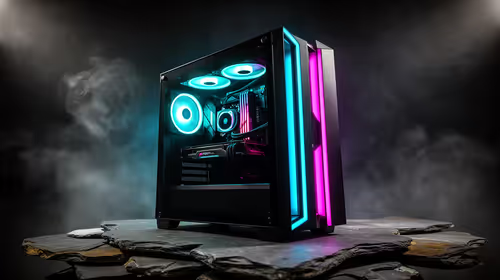
ARGB Cases In Mid-Tier SA Builds can change budget, compatibility or upgrade plans. SA PC builders should compare fit, warranty, platform needs and real workload value before committing.
Read more
Low-profile keyboards can appeal to SA builders who want shorter travel and a slimmer desk setup. Compare switch feel, layout, wireless mode, keycap support, and gaming comfort before following a trend.
Read more
Pre-Black Friday AIO cooler needs practical checks before buyers act. Build the shortlist around specs, warranty, fit, and real discount checks before campaign prices or ranges change. Keep it guide-safe for South African readers.
Used parts can lower the build cost, while buying new gives the SA warranty angle named in the title.
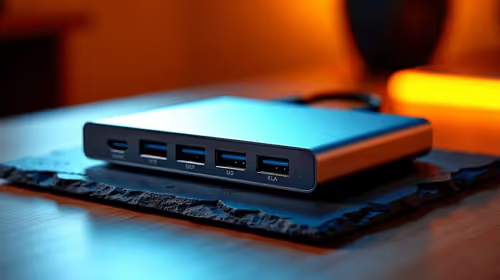
Choosing the right USB-C hub is essential for a clean, efficient desk setup. 🖥️ Discover exactly how many ports you need to replace your bulky desktop docking station without sacrificing performance or connectivity. ⚡
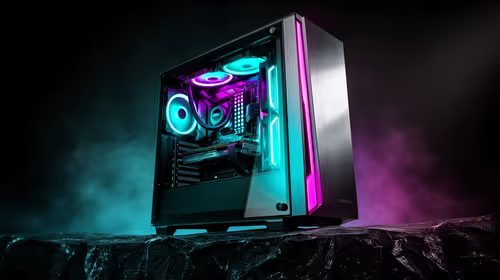
Black Friday Gaming PC Wait can help if your PC need is flexible. On a R5,000 SA budget, compare deal risk, component balance, warranty, and timing before waiting.
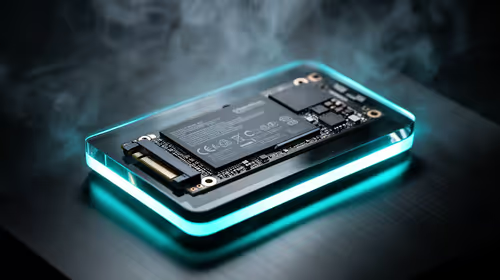
A recovery drive and system restore points turn a failed driver or BIOS update on a gaming pc from a full reinstall into a five-minute fix. Setting both up takes about 15 minutes, and Evetech recommends doing it the week you unbox a new build, before tweaking drivers.
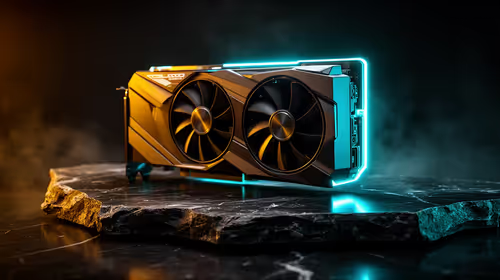
RTX 5090 with a 1000W PSU is a strong compatibility target for high-end builds. SA buyers should still match the exact PSU quality, connector support, CPU choice, case airflow, and upgrade needs to the final system.
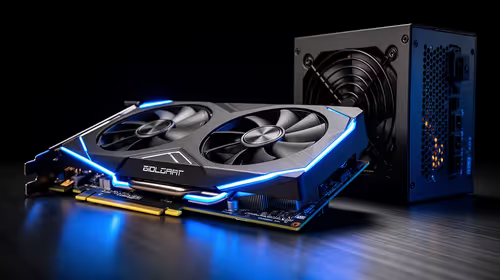
RTX 5090 on a 1000W PSU offers the best headroom in this PSU tier set. SA builders can plan more confidently for top-tier CPUs, cooling, and cautious OC, while still checking cable support and total system load.

A 550W PSU is a risky fit for an RTX 5080 Super system in SA unless guidance and demand support it. Check CPU draw, cabling, PSU age, cooling, and upgrade margin before deciding whether the setup is safe enough.
FPS drops on an RTX 5090 build often have a fixable cause. Check settings, drivers, thermals, background tasks, network conditions, and bottlenecks before assuming a part must be replaced.
The real world difference between PCIe 5.0 and PCIe 4.0 in competitive esports is rarely raw FPS. SA esports players should compare GPU lane needs, CPU limits, latency goals, and NVMe loading before upgrading.
How to fix low FPS on 240Hz monitor starts with refresh rate, GPU load, and game caps. In South Africa, also check power mode, thermals, and display cable quality before assuming your PC cannot keep up.
PCIe 5.0 vs PCIe 4.0 for aAA single-player gaming buyers - what changes is mostly about compatibility, budget, upgrade path, and setup fit. SA buyers should check device support and real needs before expecting a clear win from either option.