

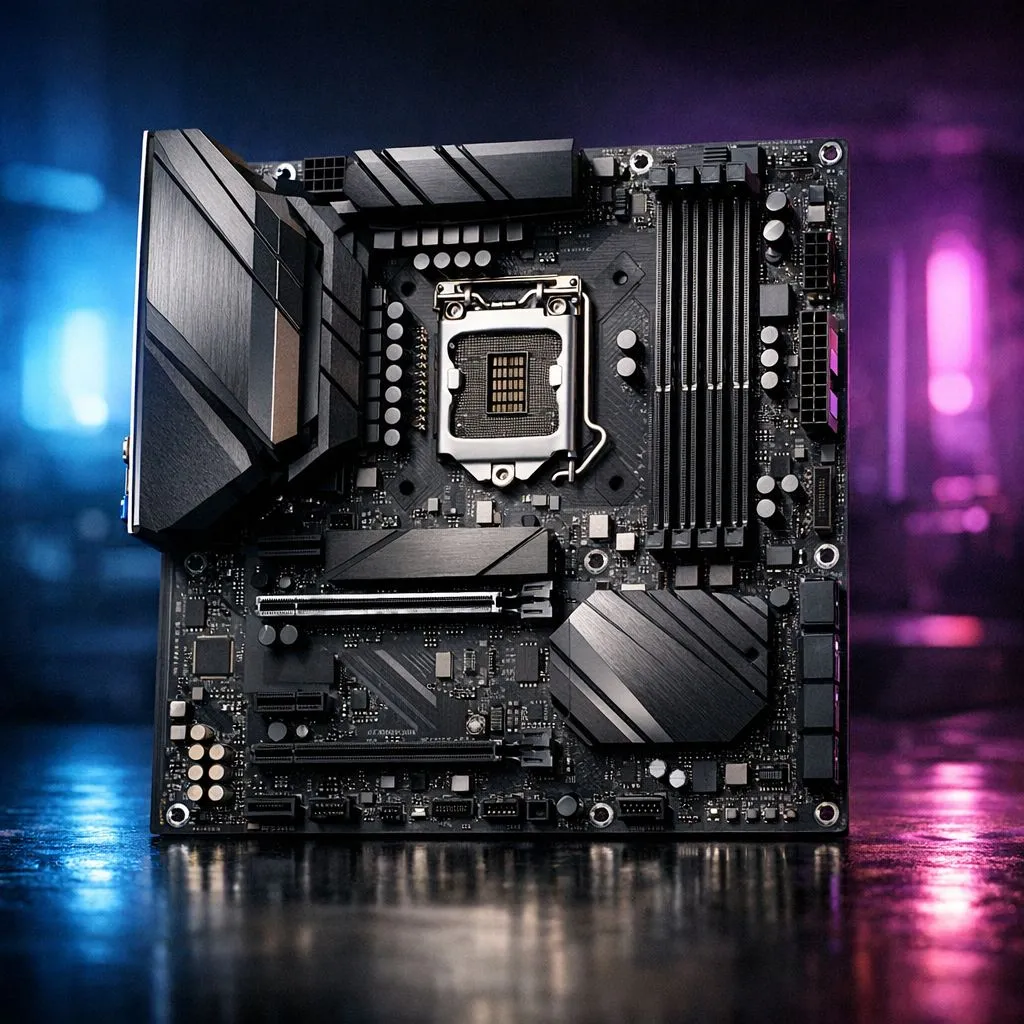
You've snagged a sweet deal on a 3200MHz DDR4 RAM kit, dreaming of smoother gameplay in Warzone. You pop it in, fire up your PC… only to see it running at a crawling 2133MHz. What's the deal? Before you blame the RAM, the culprit is often the motherboard. Let's dive into how you can easily check if your motherboard supports 3200MHz DDR4 and unlock that sweet, sweet speed. 🚀
Why Motherboard RAM Speed is Crucial
Your motherboard is the central nervous system of your PC. It dictates which components can talk to each other and at what speed. While you can physically fit any DDR4 stick into a DDR4 slot, the board's chipset and BIOS determine the maximum stable speed it can officially handle. Running RAM faster than the board's base spec is considered overclocking… even if the RAM itself is rated for it. This is where memory profiles come in.
How to Check if Your Motherboard Supports 3200MHz DDR4
Finding out your board's true potential is easier than you think. You don't need to be a hardware guru; you just need to know where to look.
Step 1: Find Your Motherboard Model
First, you need the exact model name of your motherboard. If you don't have the box handy, don't stress.
Find Your Mobo Model in Seconds 🔧
No need to open your case! On Windows, press Win + R, type msinfo32, and hit Enter. Look for "BaseBoard Manufacturer" and "BaseBoard Product". That's your motherboard's brand and model. Write it down!
Step 2: Visit the Manufacturer's Website
With your model name in hand (e.g., "MSI B450 TOMAHAWK MAX"), head over to the manufacturer's official website—MSI, ASUS, Gigabyte, ASRock, etc. Navigate to your specific motherboard's product page. This is the ultimate source of truth. Look for a "Support," "Specifications," or "Specs" tab.
Step 3: Decode the Memory Specifications
In the specifications section, find the "Memory" or "DRAM" details. You're looking for a list of supported speeds. It will often look something like this: "Supports DDR4 4133(OC)/ 4000(OC)/ 3466(OC)/ 3200(OC) / ... / 2133 MHz".
The "(OC)" next to 3200MHz is key. It means that to reach this speed, the motherboard supports 3200MHz DDR4 via an overclocking profile, most commonly Intel's XMP (Extreme Memory Profile) or AMD's DOCP/EXPO. This isn't a scary manual overclock; it's a simple one-click setting in your BIOS. If 3200 is listed, you're good to go!
Enabling XMP/DOCP for Full Speed
Confirming your board's compatibility is half the battle. To actually get the speed you paid for, you need to restart your PC and enter the BIOS (usually by pressing DEL or F2 on startup). Look for a setting called "XMP," "DOCP," or "A-XMP." Enable it, select the 3200MHz profile, save, and exit. Your PC will restart, and you should now be running at full throttle. This simple tweak can make a noticeable difference in CPU-intensive games and applications.
Planning Your Next RAM Upgrade Path
Understanding your motherboard's limits is vital for any upgrade. If you find your current board is a bit long in the tooth and doesn't support the speeds you want, it might be time to plan for the future. While older systems relied on legacy components like older DDR3 RAM, the current sweet spot for price and performance is still a solid kit of high-performance DDR4 memory.
For those building a brand-new rig from the ground up, looking ahead to next-generation DDR5 RAM is the smart move. Platforms like AMD's AM5 and Intel's latest chipsets are built around this faster standard. Getting your hands on top-tier kits from Kingston or grabbing some excellent performance-focused ADATA modules can set your new build up for years of high-speed performance. ✨
Ready for a Speed Boost? Whether your current board is ready for an upgrade or you're planning a whole new build, the right components are everything. Explore our massive range of PC components and find the perfect parts to unleash your PC's true potential.











