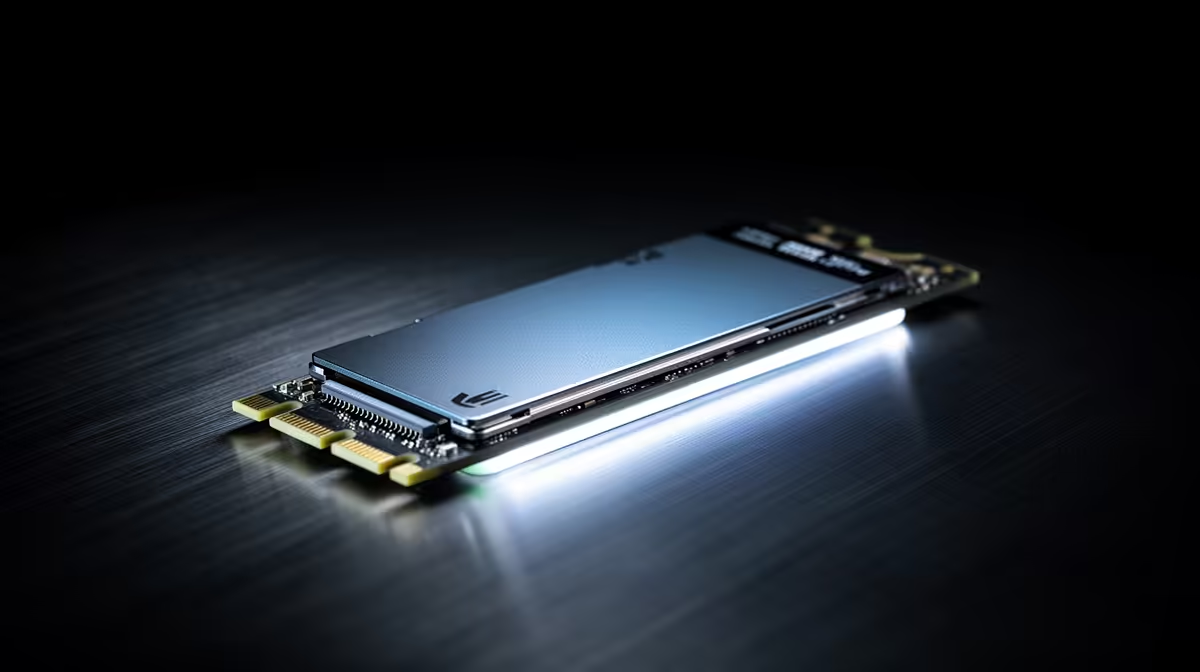
Thinking of that lightning-fast NVMe SSD upgrade? We get it. The promise of zero loading screens is tempting. But before you click 'add to cart' on that shiny new drive, there’s a crucial question every South African builder asks: will it actually work in my PC? Getting your NVMe compatibility right is the difference between a blistering-fast rig and a frustrating return. Let's make sure you get it right the first time.
Understanding NVMe Compatibility in South Africa
So, you're ready to leave slow boot times in the dust. An NVMe (Non-Volatile Memory Express) SSD is the key. Unlike older drives, it plugs directly into your motherboard via a PCIe slot, offering speeds that are worlds apart from traditional hard drives. But the big question of NVMe compatibility in South Africa boils down to one simple thing: your motherboard's M.2 slot.
Not all M.2 slots are created equal. Some only support the older, slower SATA protocol, while others are wired for the super-fast PCIe protocol that NVMe drives need. Plugging an NVMe SSD into a SATA-only M.2 slot just... won't work. It's like trying to fit a square peg in a round hole.
How to Check Your PC's NVMe Support 🔧
Don't guess! A few minutes of checking can save you a massive headache and a return shipping fee. Here’s how to be 100% sure your rig is ready for an upgrade.
1. Consult Your Motherboard Manual
This is your golden ticket. Dust off that little booklet that came with your motherboard (or find the PDF online by searching its model number). Look for the "Storage" or "M.2 Slot" section. The manual will explicitly state if the slot supports "PCIe" or "NVMe" drives. It might even specify which generations (e.g., PCIe 3.0, 4.0, or 5.0) it can handle.
Quick BIOS Check
Sometimes, an M.2 slot needs to be manually enabled in your PC's BIOS UEFI. When you're in there, look for a setting that lets you switch the M.2 slot's mode between 'SATA' and 'PCIe'. Make sure it's set to PCIe to get those lekker NVMe speeds!
2. A Quick Visual Inspection
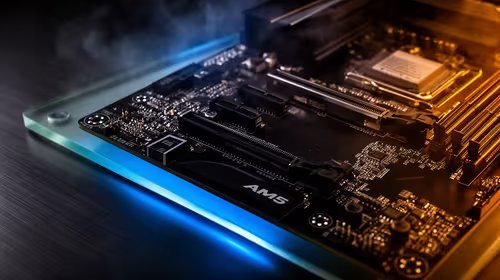
Power down and open your case. Look for a small, horizontal slot on your motherboard, usually about 22mm wide, with a tiny screw hole at one end. It's often labelled M.2. The 'key'—a small notch in the connector—is a good clue. Most modern NVMe drives use an 'M' key (a notch on one side), which fits into a corresponding 'M' keyed slot.
If you're still running on older tech and don't have a compatible slot, don't despair. A standard 2.5-inch SATA SSD is still a massive performance boost over any mechanical hard drive.
Finding the Right NVMe Drive for Your Rig 🚀
Once you've confirmed your PC is ready, the fun begins. You'll see terms like Gen3, Gen4, and Gen5. This refers to the PCIe generation. A Gen4 drive in a Gen3 slot will work, but it will be limited to Gen3 speeds. For maximum performance, match the drive's generation to what your motherboard supports.
Whether you're after a budget-friendly Gen3 drive for a quick boost or a top-tier Gen5 drive for extreme performance, you'll find incredible value. Keep an eye on the latest SSD deals in South Africa to snag a great price in ZAR. A faster drive means less time waiting and more time gaming.
Exploring the wide range of NVMe SSDs available can feel overwhelming, but now that you know how to check for compatibility, you can shop with confidence.
Ready for the Ultimate Speed Upgrade? Now that you know what to look for, explore our massive range of SSDs to find the perfect fit for your rig and budget. Shop all SSDs at Evetech for performance that leaves lag in the dust.