Got a gaming laptop that’s starting to feel a bit sluggish on the latest titles? You’re not alone. The temptation to pop it open and add more RAM or a faster SSD is strong, but so is the fear of that dreaded sticker: “Warranty Void If Removed.” For South African gamers, knowing your rights and options is key. This guide will show you exactly how to upgrade your gaming laptop without voiding your warranty. Let's get your machine running at its peak. ✨
The Big Question: Can You Upgrade and Keep Your Warranty?
Let's cut to the chase: In most cases, yes! Most major laptop manufacturers in South Africa understand that users want to upgrade components like RAM and storage. These parts are often considered "user-serviceable."
The scary "warranty void" sticker is often more of a deterrent than a legally binding contract, especially when it comes to simple upgrades. The key principle is that if you damage something during the upgrade, that damage won't be covered. But performing a successful, clean upgrade of a supported component shouldn't void the warranty on the rest of the machine.
Always check your specific brand's warranty policy first, but generally, you're in the clear for the basics.
Warranty-Safe Upgrades: What You Can Actually Change 🔧
Focus your efforts on the two components that give you the most bang for your buck and are almost always approved for a DIY swap.
RAM (Memory): The Easiest Performance Boost
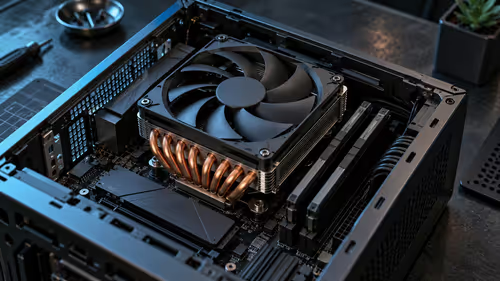
Running out of RAM can cause stuttering, slow alt-tabbing, and poor performance, especially if you have Discord, a browser, and your game open. Adding more RAM is often as simple as unscrewing a back panel and clicking a new stick into place. Many modern Intel Core i7 gaming laptops have at least one free slot, making this a 10-minute job that can dramatically improve multitasking.
Storage (SSD): Obliterate Loading Screens
Is your laptop still running on a clunky old hard drive (HDD), or is your main SSD full? Upgrading to a larger or faster NVMe M.2 SSD will make your entire system feel brand new. Games will load faster, Windows will boot in seconds, and files will transfer in a flash. This is especially true for some of the best gaming laptops under R20k, where adding a second SSD can be a massive, cost-effective boost.
Check for a Spare Slot! 🚀
Before you buy a new NVMe SSD, open up your laptop (or check a teardown video on YouTube for your specific model). Many gaming laptops have a second, empty M.2 slot waiting for an easy storage upgrade. This means you can add a new drive without having to replace your main OS drive, saving you a ton of time.
The "Do Not Touch" Zone: What You Can't Upgrade
This is where the dream of a cheap, massive upgrade meets reality. The two most important components for gaming performance are almost always soldered directly onto the motherboard and cannot be changed.
- CPU (Central Processing Unit): Your laptop's brain is permanent. Whether you're looking at the latest Intel gaming laptops or powerful AMD Ryzen gaming laptops, the processor you buy is the one you have for the life of the machine.
- GPU (Graphics Processing Unit): This is the big one. Your framerate is primarily determined by your GPU. If it's struggling to run new games, your only real solution is a new machine. Thankfully, the latest GeForce RTX gaming laptops on special offer incredible performance right out of the box.
Your Step-by-Step Guide to a Safe Upgrade
Ready to get your hands dirty? Following these steps is the best way to ensure a safe gaming laptop upgrade that protects your warranty.
- Confirm Your Warranty: Do a quick search for "[Your Laptop Brand] warranty policy South Africa". Read the section on user upgrades. When in doubt, contact their support.
- Buy Compatible Parts: Use a tool like the Crucial System Scanner or check your laptop's official product page to find the exact type of RAM (e.g., DDR4/DDR5 SODIMM) and SSD (e.g., NVMe M.2 2280) you need.
- Work Clean & Safe: Work on a non-conductive surface, ground yourself to prevent static discharge, and use the right screwdrivers. If you're not confident, it's better to ask a pro. More premium models, like many of the gaming laptops above R20k, are often designed with easier access panels for this very reason.
- Keep the Old Parts: Hang on to the original RAM or SSD. If you ever need to send the laptop in for a warranty claim on an unrelated issue (like a faulty screen), it’s best practice to reinstall the original components first.
When Is It Better to Buy a New Laptop?
An upgrade is fantastic for a relatively new machine that just needs a little extra oomph. But if your CPU or GPU is more than three or four years old, no amount of RAM will help you run the latest AAA titles smoothly.
At a certain point, putting more money into an old machine gives diminishing returns. If that's you, it might be time to check out the best gaming laptop deals and invest in a new rig with modern core components that will last for years to come.
Ready for a Real Performance Leap? Upgrading is a great way to extend your laptop's life, but sometimes a fresh start is the ultimate power-up. If your core components are holding you back, it might be time for a new machine. Explore our massive range of gaming laptops and find the perfect rig to dominate the competition.