

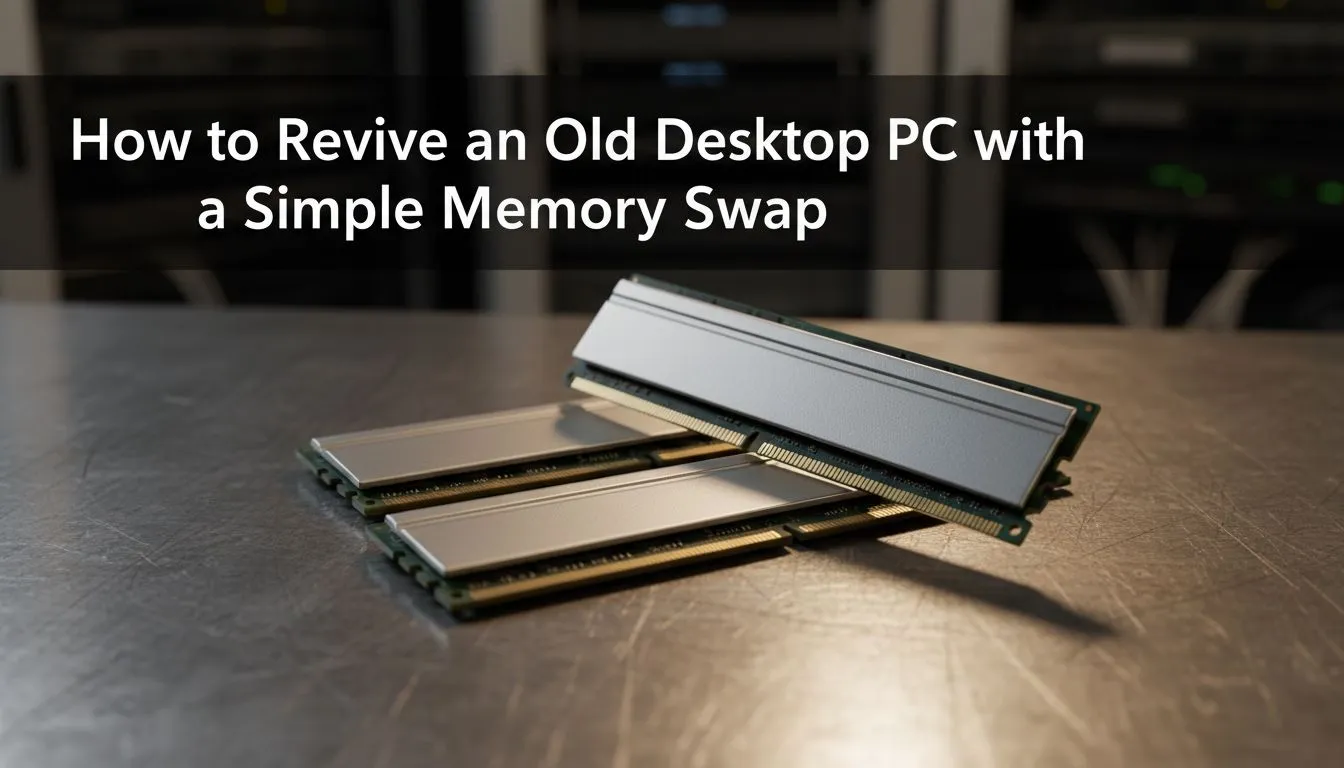
Is your trusty old PC feeling a bit... slow? Before you start pricing out a brand-new rig that costs a fortune, what if you could give it a serious speed boost for less than the price of a few takeaways? For many South Africans, the answer is a simple memory swap. Learning how to upgrade the RAM on your old PC is one of the easiest and most cost-effective ways to make your machine feel snappy and responsive again. 🚀
Why a Simple Memory Swap is Your Best First Step
Think of RAM (Random Access Memory) as your computer's short-term memory or its workspace. The more you have, the more tasks it can handle at once without getting bogged down. If you're constantly seeing browsers lag, applications stutter, or your PC struggle when you have more than a few tabs open, you're likely running out of RAM.
A quick RAM upgrade for an old computer directly tackles this bottleneck. It's a straightforward hardware fix that delivers an immediate, noticeable improvement in multitasking and overall system responsiveness. For a relatively small investment in ZAR, you can revive your PC for modern workloads.
First, Identify Your Current RAM 🔧
Before you buy anything, you need to play detective and figure out what's already inside your machine. The wrong type of RAM simply won't fit. Luckily, Windows makes this easy.
How to Check Your RAM Specs:
- Press Ctrl + Shift + Esc to open the Task Manager.
- Click on the "Performance" tab.
- Select "Memory" from the left-hand panel.
Here, you'll see the total amount of RAM (e.g., 8.0 GB), its speed (e.g., 2400MHz), and most importantly, its type. For an older PC, you're likely looking for "DDR3" or "DDR4". This information is crucial for your upgrade path. Many PCs from a decade ago will still be running on perfectly capable older DDR3 gaming RAM modules.
Quick System Check ✨
Don't want to open your PC case just yet? Download and run a free tool like CPU-Z. It gives you a detailed report on all your components, including the exact model number of your motherboard and the specific type of RAM installed in each slot. This is the most accurate way to confirm compatibility before you buy.
Choosing the Right RAM for Your Old PC
Compatibility is king. The golden rule when you upgrade RAM on an old PC is that the memory generation must match what your motherboard supports. You cannot put DDR4 RAM in a DDR3 slot, or vice-versa. They are physically different.
- Match the Generation: If your PC uses DDR3, you must buy DDR3. If it's DDR4, stick with that. While it's tempting to look at the latest DDR5 memory, it's reserved for modern PCs and won't be compatible with an older system.
- How Much Do You Need? For general use and light gaming, upgrading from 4GB to 8GB is a massive leap. If you're currently on 8GB, moving to 16GB is the sweet spot for smooth multitasking and modern gaming. Most older PCs will use the now very affordable and widely available DDR4 memory.
- Speed Matters... a Little: While faster RAM is better, your motherboard will limit the speed. It's safest to match the speed of your existing RAM or check your motherboard's manual for its maximum supported speed.
The Step-by-Step Guide to Your Memory Swap
This is the fun part, and it's easier than you think!
- Power Down: Completely shut down your PC and unplug it from the wall. Press the power button one more time to discharge any residual electricity.
- Open the Case: Unscrew the side panel of your PC case and lay it down on a flat, non-carpeted surface.
- Locate the RAM: Find the long, thin memory sticks seated in slots near the CPU. They'll have a small clip at one or both ends.
- Release the Old RAM: Gently push down on the clips at the ends of the RAM stick. They will pop open, and the stick will lift slightly. You can now pull it straight out.
- Install the New RAM: Notice the small notch on the bottom of your new RAM stick. Align this notch with the bump in the empty RAM slot. Press down firmly and evenly on both ends of the stick until the clips click back into place on their own.
- Power Up: Close the case, plug everything back in, and boot up your PC. It might take a moment longer on the first boot as it recognises the new hardware.
To ensure a stable system, it’s always wise to use quality components. Sticking with top brands like Kingston or other reliable options from ADATA guarantees performance and longevity for your simple memory swap.
Your PC should now feel much faster and more capable of handling whatever you throw at it. Enjoy the new lease on life you've just given your old machine!
Ready to Revive Your Rig? A simple memory swap is often the first and best step on the PC upgrade path. It's affordable, easy, and delivers an instant performance boost. Explore our massive range of computer memory and find the perfect match to make your old PC feel new again.











