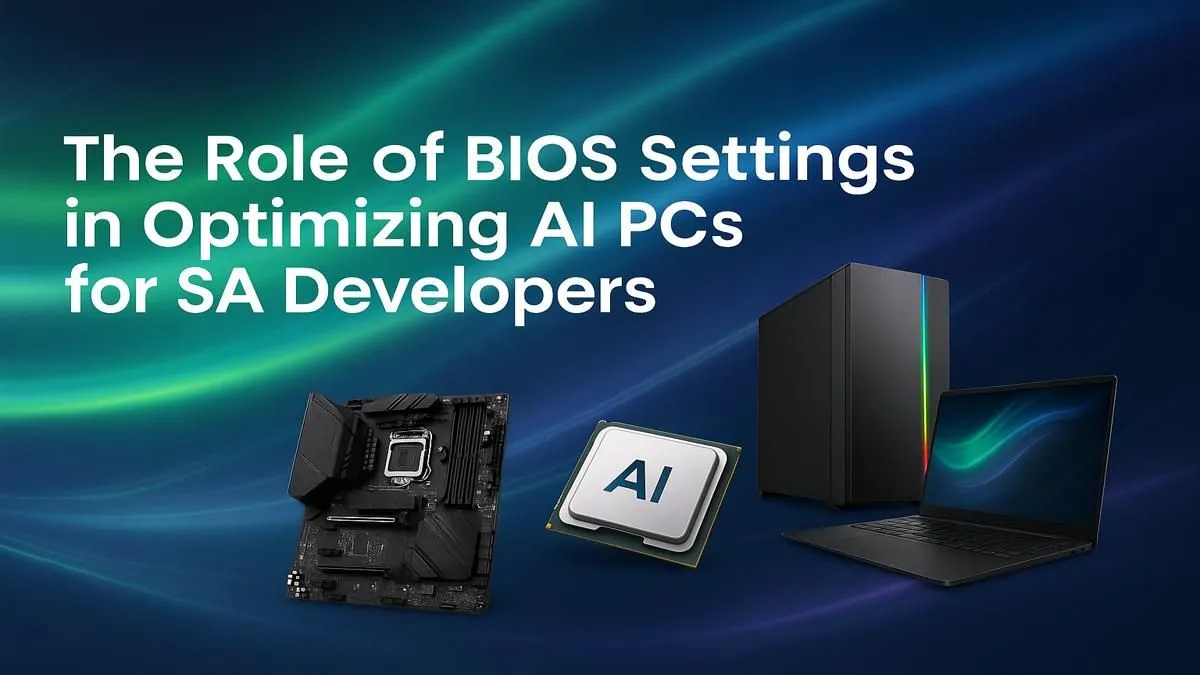
So, you’ve got a beast of a machine, ready to train the next big AI model right here in South Africa. But are you leaving performance on the table? Before you even install your first library, the secret to unlocking your PC’s full potential lies in a place many gamers fear to tread: the BIOS. Getting your BIOS settings for AI development right is the difference between a sluggish workflow and a lightning-fast development cycle. Let's get it sorted. 🚀
Why Your BIOS Settings Matter for AI Development
Think of your BIOS (or modern UEFI) as the fundamental operating system for your hardware. It tells your CPU how to talk to your RAM, your GPU, and your storage before Windows or Linux even loads. For everyday tasks, the default settings are fine. But for the sustained, intense workloads of AI and machine learning, those defaults can seriously bottleneck your expensive components.
Optimising your BIOS settings for AI development ensures your hardware runs at its rated speed, communicates efficiently, and remains stable under heavy load for hours on end. It's a free performance boost you can't afford to ignore.
Key BIOS Settings to Tweak for Peak Performance 🔧
Diving into the BIOS can feel a bit daunting, but a few key changes can make a massive difference. Remember to save and exit after making changes. If your PC fails to boot, you can always reset the BIOS to its default settings.
Enable XMP or DOCP for RAM Speed
Is your fancy 3600MHz RAM actually running at a sluggish 2133MHz? Probably. By default, most motherboards run RAM at a safe, slow speed. Enabling XMP (for Intel) or DOCP (for AMD) is a one-click setting that loads the manufacturer's certified profile, unleashing your RAM's full speed. Faster RAM means faster data loading for your models, which is a huge win. This is a standard feature on the motherboards found in most modern AMD Radeon gaming PCs, giving you an easy performance uplift.
CPU Virtualisation (Intel VT-x / AMD-V)
If you're using Docker, WSL (Windows Subsystem for Linux), or virtual machines to manage your development environments—and you probably should be—this setting is non-negotiable. CPU Virtualisation Technology allows your processor to run these sandboxed environments efficiently. It’s usually enabled by default on newer systems, but it's always worth double-checking it’s switched on.
Pro Tip: Update First! ⚡
Before you change a single setting, check your motherboard manufacturer's website for the latest BIOS update. These updates often include crucial stability fixes, improved hardware compatibility, and even performance enhancements. It's the most important first step to a stable, high-performance system.
Above 4G Decoding & Re-Size BAR
This is where things get really interesting for deep learning. These two settings work together to allow your CPU to access your GPU’s entire video memory (VRAM) at once, rather than in small, 256MB chunks. For large models and datasets that saturate your VRAM, this can provide a noticeable performance improvement. This feature is essential for getting the most out of the powerful cards found in top-tier NVIDIA GeForce gaming PCs, giving you an edge in training times.
Beyond Gaming Rigs: When to Consider a Workstation
While a high-end gaming PC is a fantastic and cost-effective platform for most AI enthusiasts in SA, there comes a point where professional needs demand professional hardware. If you're running multi-day training sessions, dealing with terabytes of critical data, or collaborating with a team, the stability and features of a workstation become invaluable.
Features like ECC (Error-Correcting Code) RAM, which prevents data corruption, and support for multiple high-powered GPUs are standard in this class. For enterprise-level projects, dedicated workstation PCs offer a level of reliability and sheer computational power that consumer hardware simply can't match. Getting your BIOS configuration for machine learning right is the first step, but having the right foundation is just as critical. ✨
Ready to Build Your AI Powerhouse? Optimising your BIOS is just the start. The right hardware makes all the difference. From high-performance gaming rigs to dedicated workstations, Evetech has the perfect machine to bring your AI projects to life. Explore our range of customisable PCs and find the perfect foundation for your development journey.