


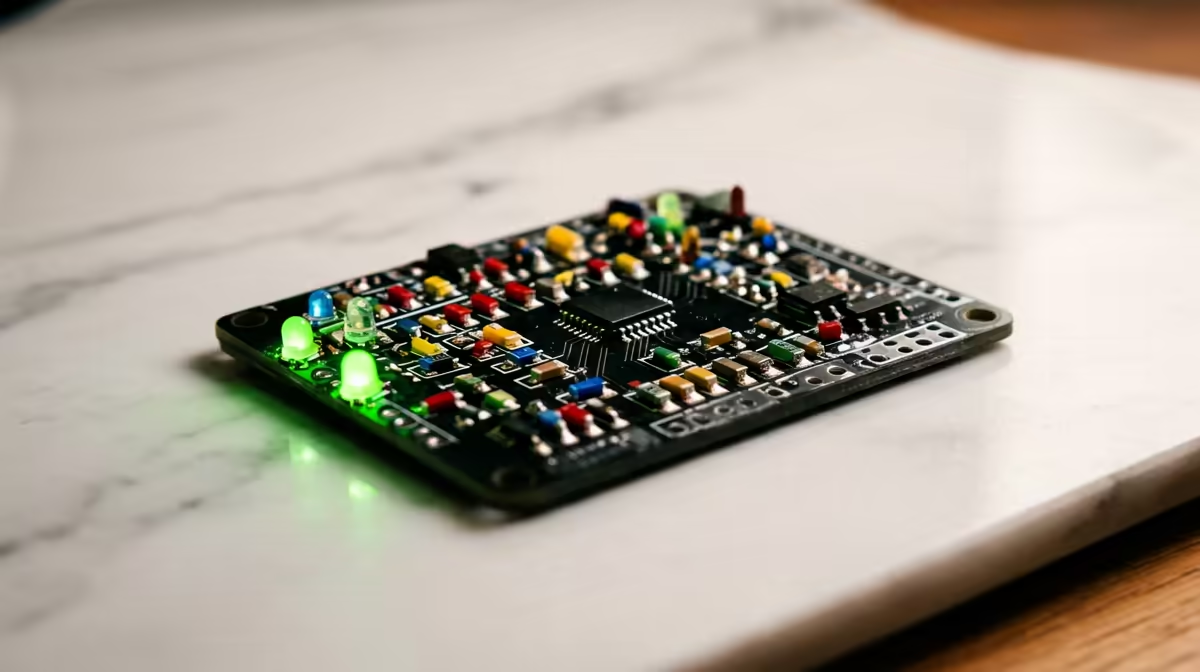
A micro:bit packs a 25-LED grid, two buttons, and a motion sensor onto a board smaller than a credit card, which means a kid can build something real before the kettle boils. None of the ten projects below need extra parts. Each one teaches a single coding idea, runs in an afternoon, and leaves a finished gadget on the desk instead of a half-built mess.
Quick Answer
All ten projects use only the built-in LED matrix, the two buttons, and the accelerometer, so no extra components are required. They suit ages 8 and up, each takes roughly 20 to 45 minutes, and every build introduces one new concept like variables, loops, or sensor input.
The ten afternoon builds
Here is the lineup, ordered so each project leans on the one before it.
1. Name badge
Scroll your name across the LED grid. This is the gentle start: it teaches the show string block and how text moves across a five-by-five display.
2. Dice roller
Shake to roll a number from one to six. The accelerometer detects the shake, and a random number block picks the face. First taste of randomness and sensor input together.
3. Step counter
Clip it to a pocket and count steps. Each shake bumps a variable by one, which introduces variables and keeping a running total.
4. Rock paper scissors
Shake to show one of three icons. It builds on the dice idea but maps numbers to pictures, teaching simple if-then-else logic.
5. Reaction timer
Wait for an LED, then press a button fast. This one teaches timing and how to compare the moment the light appears with the moment the button is pressed.
6. Coin flip
Button A flips heads or tails. A tiny project, but a clean way to show a true two-outcome random choice without any shaking.
7. Magic 8-ball
Ask a question, shake, get an answer from a list. Kids love this one, and it teaches lists and picking a random item from them.
8. Tilt maze dot
Tilt the board and a single lit LED rolls toward the low edge. This is the accelerometer at its most fun, mapping tilt direction to LED position.
9. Two-player tug of war
Mash buttons to drag a light to your side. The first build that handles two inputs at once and a winner check.
10. Mood meter
Press a button to cycle through happy, sad, and surprised faces. A relaxed finale that ties together buttons, variables, and the LED display.
Each build runs in the free MakeCode editor in a browser, so there is nothing to install. When you are ready to expand into sensors and robotics, the smart home and maker section has the add-ons, and the accessories best sellers are a good place to see what other young makers are picking up.
Tips to keep it fun
Start with project one even for confident kids, because the early wins build momentum. Save each project so they can show a parent later. If a build misbehaves, change one block and test again rather than rewriting the whole program, since spotting the broken piece is half the lesson.
How to Run These in Order
The project sequence is intentional. Projects 1 and 2 use only the basic output blocks, show string and show number, so a learner builds confidence before touching any input. Projects 3 and 4 introduce variables and conditional logic without adding any new hardware. Projects 5 through 7 combine timing and randomness. Projects 8 through 10 push the accelerometer and multi-input logic.
Running them in order over a few afternoons gives a young coder a genuine progression arc rather than a random selection of tricks. By project 10, they have used most of the core concepts a beginner needs: output, input, variables, conditionals, loops, lists, and sensor data. That foundation makes the jump to more advanced projects much easier because the ideas are already familiar.
Using the MakeCode simulator
Every project can be tested completely in the browser before touching a real board. The simulator shows the 5x5 LED grid, two virtual buttons, and a tilt control. For debugging, this is invaluable because a browser reload resets the simulator in seconds, which is faster than reflashing the board. Build and test in the simulator, then flash to the physical board once it works correctly.
The simulator also shows the JavaScript equivalent of your blocks in a side panel. Curious learners who want to know how the blocks translate to real code can read it at any point, which plants the seed for the text-coding step they will eventually take.
Frequently Asked Questions
Do I need to buy anything besides the micro:bit?
No. Every project here uses only the onboard LEDs, buttons, and accelerometer. A USB cable and a browser are all you need to get going.
What age is the micro:bit best for?
These projects suit ages 8 and up. Younger children can manage the simpler builds like the name badge and dice with a little help reading the blocks.
Which editor should kids use?
MakeCode in a web browser is the friendliest option. It uses drag-and-drop blocks, runs an on-screen simulator, and needs no installation.
Can these projects work without internet?
You need a connection to load MakeCode the first time, but once a program is flashed to the board it runs on its own battery or USB power with no internet at all.
How long does each project take?
Most take 20 to 45 minutes. A confident kid can knock out two or three in a single afternoon and still have time before homework.
Want to get a young coder started this weekend? Grab a micro:bit and maker kit from Evetech's smart home and maker range and pick a project to build today.










