

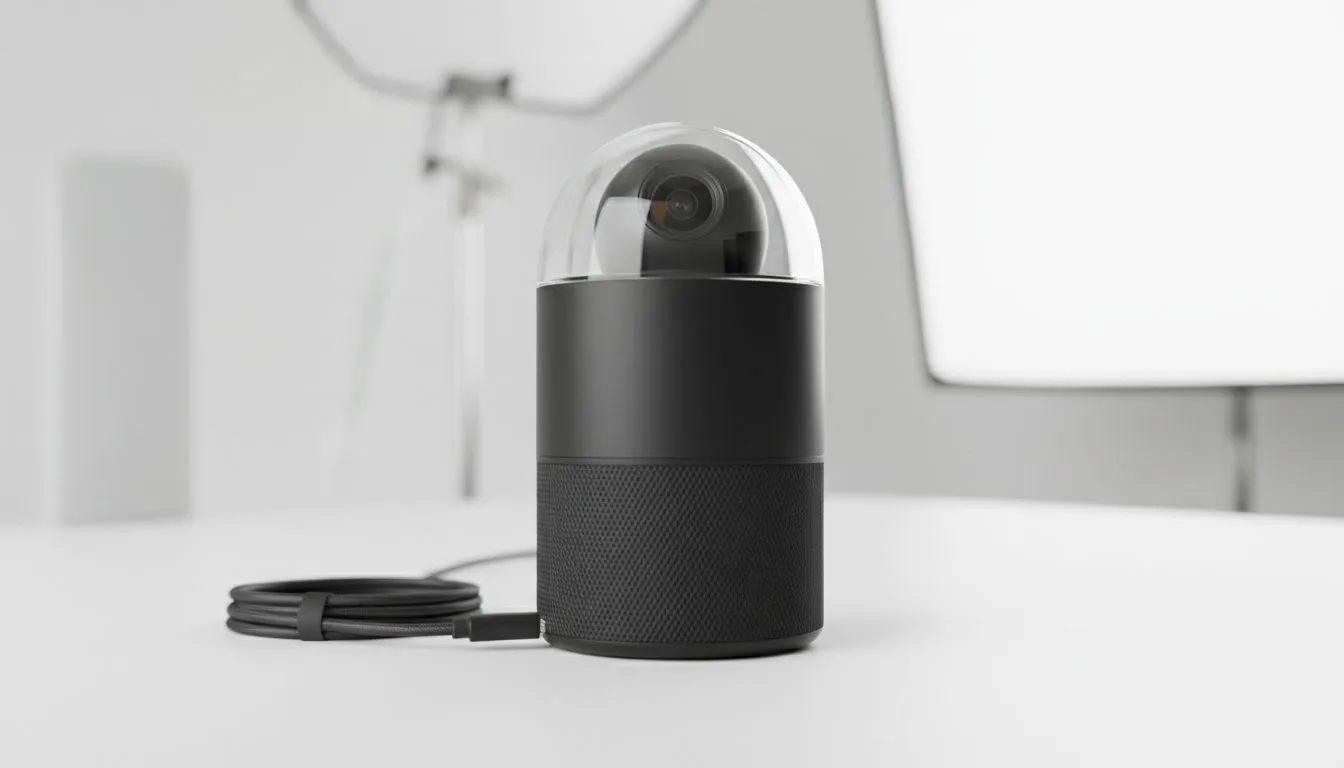
South African businesses are moving fast. The old days of huddling around a single laptop for a Zoom call are over. If you want your team in Cape Town to feel like they are in the same room as the Sandton crew... you need a proper 360 video conferencing camera setup guide to get started right. It is about more than just hardware... it is about creating presence. 🚀
The Hardware for Your 360 Video Conferencing Camera Setup Guide
Choosing the right equipment is the first hurdle. Most standard laptops come with basic sensors that struggle in low light. For a professional boardroom, you need dedicated webcams that can capture the entire room without distortion. A 360-degree camera uses multiple lenses to stitch together a seamless view of every participant.
If you are just starting out or setting up a small huddle space, there are plenty of budget-friendly webcam options that offer decent 1080p clarity. While these might not offer full 360-degree rotation, they are a massive step up from integrated laptop lenses. For true panoramic views, you will typically look at devices that sit in the centre of the table.
Placement Pro Tip ⚡
Always place your 360-degree camera at eye level. If the camera is too low, remote participants feel like they are looking up everyone's noses. If it is too high, the perspective feels detached. Use a small tripod or a stack of books to get that perfect "seat at the table" feel for your remote colleagues.
Optimising the Boardroom Environment
Lighting is the silent killer of good video calls. South African offices often deal with harsh sunlight or flickering fluorescent tubes. To ensure your 360 video conferencing camera setup looks professional, try to use soft, indirect light. Avoid placing the camera directly in front of a bright window... this will turn your team into silhouettes.
For those looking to upgrade their meeting space, mid-range conferencing solutions often include better light correction software. This helps maintain a natural skin tone even when the office lights are less than ideal. Remember to check your "dead zones" where the camera lenses stitch the image together... keep important charts or speakers away from those specific lines. 🔧
Software and Connectivity Essentials
A high-resolution 360-degree feed requires a stable connection. If you are pushing 4K panoramic video over a shaky Wi-Fi connection, your stream will lag. Always try to hardwire your conferencing PC via Ethernet. When you invest in premium high-definition cameras, you want to ensure the software can handle the bandwidth. ⚡
Most modern 360 cameras are "plug and play" with platforms like Zoom, Microsoft Teams, and Google Meet. However, you should always check for firmware updates from the manufacturer. These updates often improve the AI tracking... which is the tech that automatically zooms in on whoever is currently speaking. This makes the 360 video conferencing camera setup feel much more dynamic and engaging for remote viewers. ✨
Ready to Find Your Perfect Match? The Mac vs Windows debate is complex, but for maximum power, choice, and value in South Africa, Windows is hard to beat. Explore our massive range of laptop specials and find the perfect machine to conquer your world.











