


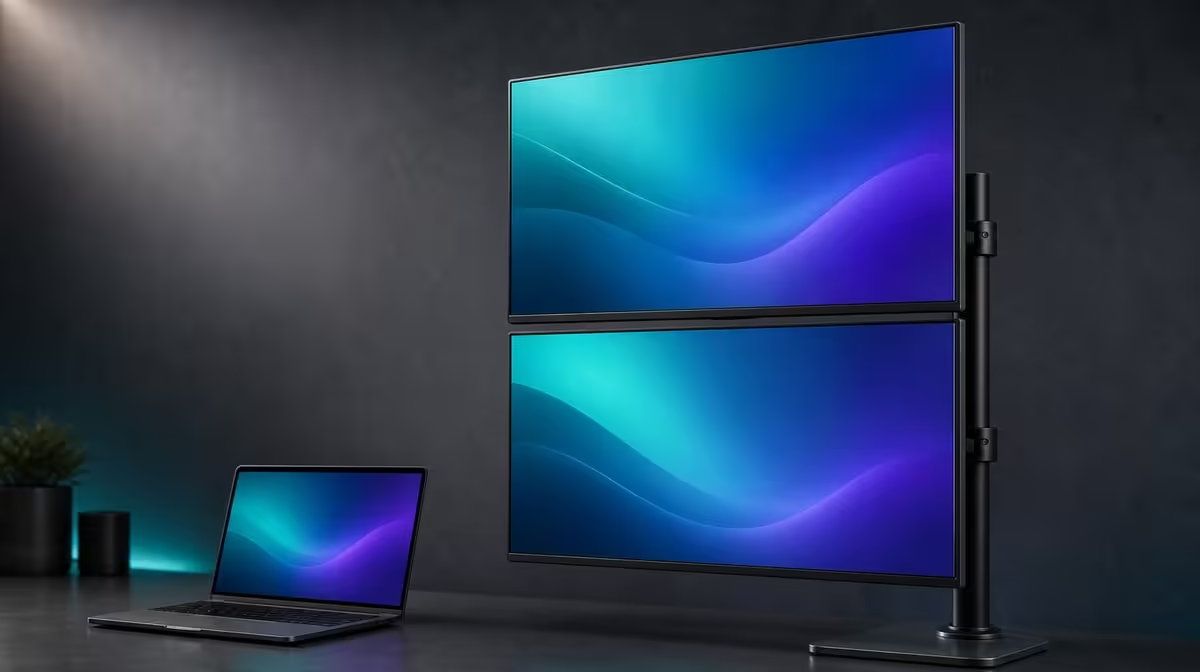
Stacking screens changes the direction of attention, not the need for a comfortable main task. Configuring a vertical dual-monitor stack means centring the lower display, balancing the upper panel and making the laptop's software map agree with the physical top-and-bottom order.
Quick Answer
Configure the R6,899 UPERFECT Delta Mega by placing its stand securely beside the Windows or Mac laptop, folding the two 23.8-inch panels into a stable vertical stack and matching that order in display settings. Keep frequent work on the lower or more comfortable screen, then adjust chair, distance and upper-panel angle through a full session.
📐 Centre the stack on the desk
Measure the available width, height and sight line before moving the panels. A vertical stack saves horizontal desk area compared with side-by-side screens, but it needs clear space above the lower display.
Set the stand on a level surface and support both panels during the fold. Keep the laptop, shelf, wall and light fittings outside the movement path. The Delta Mega's 360-degree flexibility should be used slowly with no cable tension.
Place the stack near the user's centreline. The laptop keyboard can remain directly in front, with the computer screen used for communication or closed only when the complete system supports the chosen mode.
Assign the lower Delta Mega panel to the most frequent or sustained task. The upper screen is better suited to reference material, monitoring, a preview or communication that does not require constant upward viewing.
Use Evetech's portable monitor selection to compare folding formats after the physical desk test.
🖥️ Match laptop settings to the stack
Connect through a compatible Type-C or HDMI route and detect both displays from the laptop. Start at 1920 x 1080 on each panel before changing scaling or refresh.
Use the identify function to distinguish top from bottom. Drag the software rectangles into a vertical order and align the shared edge where the cursor should cross.
Open a test window and move it upward from the lower panel. If it jumps sideways or enters at an unexpected point, correct the software offset rather than adapting to a poor map.
Choose the primary display deliberately. Menus and new windows often open there, so the user's main screen should not require repeated upward movement.
Keep the laptop display in its actual software position if it remains active. A three-screen map should reflect the physical desk rather than placing the computer panel wherever the operating system first detected it.
Compare fixed monitor alternatives through Evetech's full PC monitor category when the vertical arrangement will never move.
👀 Test posture and task placement
Sit normally before adjusting screen angle. The lower panel should not force repeated downward bending, and the upper one should not require the chin to lift for sustained reading.
Use a thirty-minute sample with the main application below and a reference above. Record the number of times attention moves between panels and whether the chair position changes.
Swap the roles for a second sample. This reveals whether the discomfort comes from the stack itself or from placing a high-frequency task too far above the natural gaze.
Set readable scaling on both Full HD panels. Small text on the upper screen encourages leaning or lifting the head, so application zoom can be more useful than forcing the panel closer.
The Delta Mega is designed to reduce neck strain through flexible layouts, but no arrangement guarantees comfort. Individual height, chair, distance and task sequence remain part of the result.
If discomfort persists, return to a side-by-side or shallower fold. The 360-degree mechanism gives the user alternatives rather than requiring vertical use.
✅ Save a stable working profile
After the layout passes, enable 100Hz on the supported laptop path and confirm the mode on both panels. Refresh can smooth motion without correcting posture or adding workspace.
Test the speakers and low-blue-light mode separately. Audio belongs to the laptop playback selection, while low blue light may warm the image and should not remain active during colour comparison.
Inspect the stand after a full session. Both panels should remain centred, and the cable should have slack at every hinge position used.
Create a stack card with laptop source, connection, lower and upper panel numbers, resolution, scaling, task roles, refresh and audio selection. Ask another user to recreate the map.
Review after a week. If the upper panel receives constant work, move that application down or reconsider the arrangement. A successful R6,899 stack reduces unnecessary side movement without replacing it with repeated upward strain.
Check Evetech's popular monitor list only after identifying the height and task pattern that works.
Create a second profile for laptop-intensive work. Keep the computer display at the comfortable centre, place one Delta Mega panel above it for reference and use the remaining screen for communication only when that three-screen map passes.
Test a deliberate handover: another person should identify lower, upper and laptop displays, restore the main application and select the expected speaker route without moving the stand.
If the desk or chair changes, repeat the comfort trial rather than assuming the saved physical angle still applies.
Frequently Asked Questions
Where should the vertical stack sit on the desk?
Place it near the user's centreline on a firm surface, with clear height above the lower screen.
Which panel should hold the main task?
Use the screen closest to a comfortable natural gaze, usually the lower panel, for sustained work.
How should display order be configured?
Use the laptop's identify function and place the software rectangles in matching top-and-bottom positions.
Does a vertical stack automatically fix posture?
No. Chair height, distance, angle and task frequency determine the result.
Why test the stand after stacking?
Two large panels must remain balanced while cables and ordinary desk movement act on the setup.
Can the panels show different applications?
Yes. Extended desktop mode can give each Full HD screen a distinct task area.
Ready to test a centred stack instead of guessing at ergonomics? Browse Evetech's dual displays and configure the Delta Mega with the main laptop task low, reference work high and every screen correctly mapped.








