


Quick Answer
For recording lectures, the CPU cooler upgrade path runs from a quiet stock or budget air cooler, to a low-noise tower cooler, to a 240mm AIO, all chosen for silence. Lecture recording picks up fan noise, so prioritise quiet over raw cooling: a sub-30 dBA cooler around R400 to R1,500 keeps the mic clean.
Starter: quiet over cold
For a lecture-recording PC, the cooler's job is to be inaudible to the microphone, not to chase the lowest temperature. A modest CPU does not generate much heat during recording, so a quiet budget tower cooler near R400 to R600 with a slow-spinning fan is the sensible starting point. Set a gentle fan curve so it stays near-silent during a recording.
Mid: a low-noise tower cooler
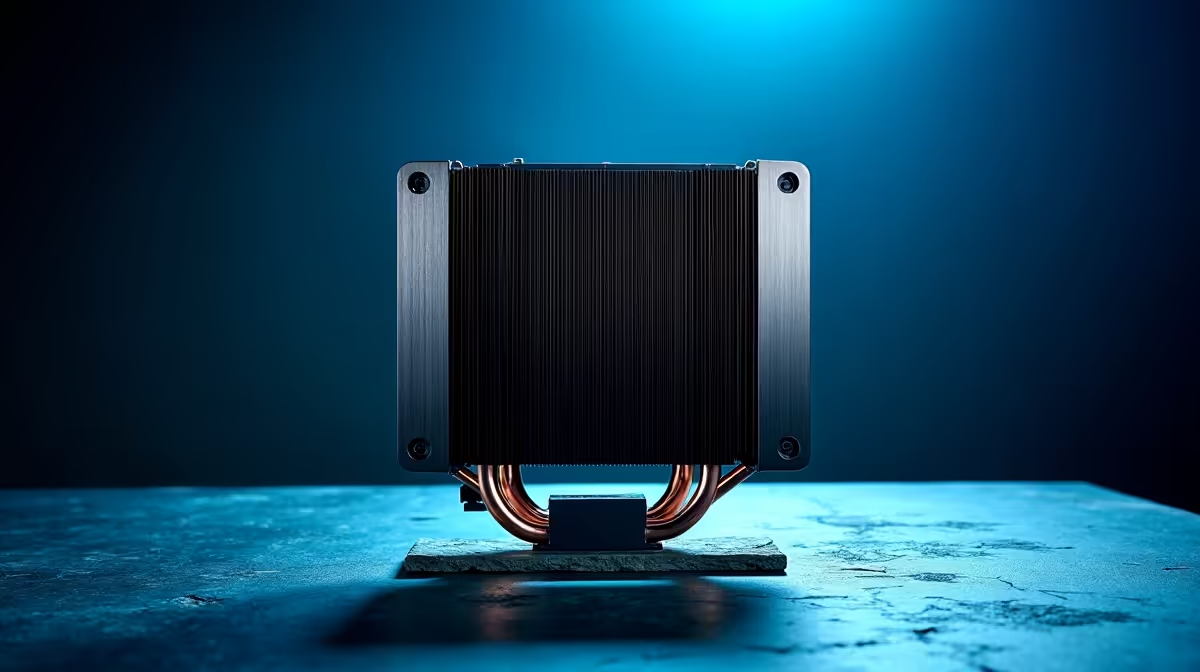
Stepping up to a larger low-noise tower cooler around R700 to R1,000 gives more headroom while staying quiet, useful if you also edit or render lecture videos afterward. The bigger heatsink lets the fan spin slower for the same cooling, which means less noise on your recordings. This tier suits most home lecture-capture setups comfortably.
Serious: a quiet 240mm AIO
If you do heavier editing or run a hotter CPU, a 240mm AIO near R1,500 keeps it cool and quiet, with the pump and radiator fans set to a gentle curve. Whatever tier you choose, confirm it clears your case and RAM and set the fan curve to stay silent during capture and only ramp during post-production rendering. Silence on the take is the goal throughout.
FAQ
What CPU cooler is best for recording lectures?
A quiet one rated under about 30 dBA at load. Lecture recording picks up fan noise, so prioritise silence over maximum cooling. A low-noise tower cooler or quiet 240mm AIO with a gentle fan curve works well.
Do I need a big cooler for a recording PC?
No. Recording is a light CPU load, so a quiet budget or mid-range tower cooler suffices. Step up to a 240mm AIO only if you also do heavy editing or run a hotter CPU.
How do I keep fan noise off recordings?
Use a cooler with a large heatsink so the fan spins slowly, set a gentle fan curve that ramps only under heavy load, and record when the system is not rendering. That keeps fan noise out of the microphone.
Pro Tip
Set the fan curve so the cooler stays near-silent during capture and only ramps when you render afterward; for lecture recording, a quiet take matters more than a few degrees of cooling headroom you will never need.







