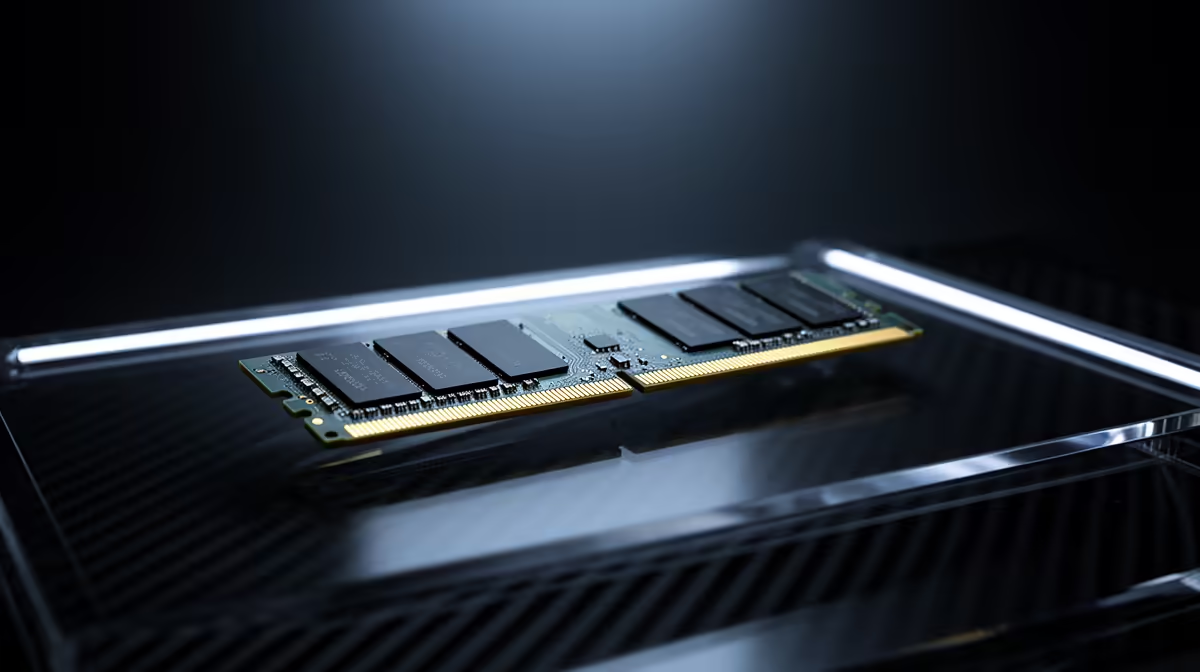
Most boot failure cases on a DDR5 build trace back to an aggressive memory profile the board could not hold.
Quick Answer
If your DDR5 build shows boot failure, reset the BIOS to defaults, then re-enable the memory profile on your 64GB kit and set SoC or system agent voltage manually around 1.25V before retesting at 6000MT/s. Nine times out of ten the platform is fine and the profile simply needed a small voltage nudge and a memory retrain.
First steps to stabilise the DDR5 build
Clear CMOS or load optimised defaults, boot once at stock, then re-enable the profile so the board retrains memory. Update to the current BIOS, since memory compatibility fixes land in those releases. If boot failure returns, the issue is the profile, not the DDR5 build.
When to suspect hardware instead
If the DDR5 build still fails at stock with a fresh BIOS, test one stick at a time and try a different slot. Persistent errors at default settings point to a module or board fault worth a warranty claim. Keep records of what you tried so support can act fast. Confirm local stock and warranty before you commit, since support matters on parts you rely on daily.
FAQ
Will updating the BIOS help?
Often yes, since memory compatibility fixes ship in BIOS updates. Flash the latest stable release, then re-enable the profile so the board retrains.
Why does my DDR5 build become unstable after enabling the memory profile?
The profile pushes speed beyond what the board held automatically, so it needs a small voltage and timing nudge. Setting memory voltage near 1.25V and retraining usually clears it.
What voltage should I set for stability?
Start with memory voltage around 1.25V and a small bump to SoC or system agent voltage. Confirm with an hour-long memory test at 6000MT/s before trusting it.
Stabilise your DDR5 build build Reset BIOS, set memory voltage near 1.25V, retest at 6000MT/s, and if it still fails, shop verified-compatible parts at Evetech.