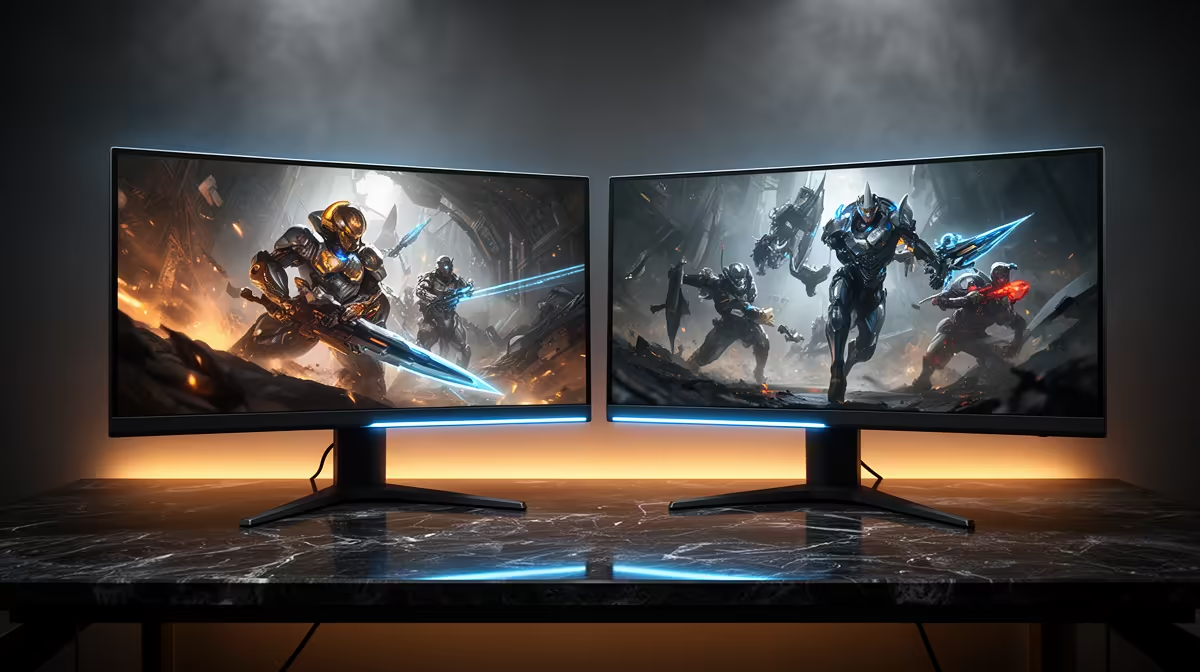
A game feels smooth on your 144Hz screen until a video starts playing on the 60Hz monitor beside it. Mixed refresh setups can expose timing problems in Windows, the browser or the GPU driver. To fix dual-monitor stutter, set each panel on its own, make the gaming display primary and remove one source of animation at a time.
Quick Answer
Choose each monitor under Advanced display and set its own maximum refresh rate, then make the faster panel your main display. Test the game with the second monitor connected but idle, followed by the browser or video that triggers the hitch. In the July 2026 price pack, R1,599 bought a Dahua LM24-A201X 24-inch 100Hz display at Evetech; a second screen can be affordable, but its timing still needs a clean setup.
🖥️ Give each screen an independent mode
Open Settings, System, Display. Select the fast monitor, mark it as the main display and confirm its native resolution. Open Advanced display and choose 144Hz, 165Hz or the highest mode it supports.
Return to the display map, select the second monitor and set its native resolution plus 60Hz or its own maximum. Use Extend rather than Duplicate. Mirroring can force both screens into a common timing that wastes the faster panel.
Arrange the screen rectangles so their edges match the physical desk. Windows uses that map when the cursor and app windows cross between displays. A large scaling mismatch can make a borderless game or capture tool resize at the boundary, so test both panels at their recommended scale before custom values.
Evetech's monitor listings let you compare port and refresh combinations when planning a two-screen desk.
🎬 Recreate the hitch with one moving window
Launch the game on the main display and leave the second desktop empty. Use the same route or benchmark for two minutes. Then open the video, animated page or monitoring graph that seemed to trigger the stutter and repeat the run.
If the hitch returns, disable hardware acceleration in that one browser or app and test again. A window drawing video at 60Hz can interact with borderless presentation on the gaming screen. Keep acceleration enabled when it causes no problem; the test exists to isolate the app.
🎮 Compare borderless and exclusive fullscreen
Borderless games share the desktop compositor with the second display. Exclusive fullscreen may give the game a more direct presentation path. Switch modes and watch frame time, not the average FPS.
Turn off overlays one by one, including recording, chat and hardware monitoring. An overlay spanning both screens can create the hitch even when the refresh rates are set correctly. Save the combination that works for that game instead of forcing one global profile.
Pause animated wallpapers and desktop widgets for the same run. A sensor panel updating ten graphs every second can create more compositor work than a static browser. If the game smooths out, reduce that app's update rate or keep it on the gaming screen only when you need it.
🔌 Check cables, ports and driver state
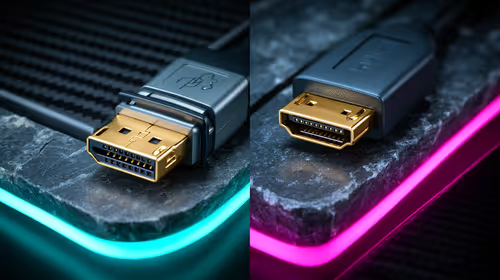
Connect both monitors to the same discrete GPU where possible. A second screen on motherboard graphics can place two display drivers in the desktop path. Test direct DisplayPort or HDMI links without a dock or KVM.
Install a stable GPU driver when the problem began after an update, and reset custom colour or scaling overrides for one test. If stutter survives, try lowering the secondary screen's resolution while keeping its refresh. That reveals a bandwidth or adapter limit.
Check GPU utilisation and video-decode activity while the second screen plays video. A high-resolution stream can use the same GPU resources as the game. Lower the stream quality for one pass or move playback to another device to prove whether the hitch comes from mixed refresh or shared workload.
Check Evetech's best-selling monitors when you want a closer refresh match, though mixed rates should still work once the app and signal path behave.
Frequently Asked Questions
Why does a 144Hz monitor stutter beside a 60Hz screen?
Desktop composition, video playback, overlays or a mixed signal path can disturb frame pacing on the faster display.
Does making the 144Hz monitor primary help?
Yes, it directs games and desktop focus to the fast panel and can clear a poor default arrangement.
Should each monitor use its own maximum refresh rate?
Yes. Set each screen under Advanced display and use Extend so one panel does not impose a common mirrored mode.
Does fullscreen behave differently from borderless?
It can. Borderless uses the desktop compositor, while exclusive fullscreen may isolate the game's presentation path.
Can a GPU driver setting fix mixed-refresh stutter?
A per-game frame cap, refresh preference or stable driver can help. Test one setting at a time.
Does cable type matter for dual monitors?
Yes. Each cable, adapter and port must support that monitor's resolution plus refresh rate without link errors.
Building a two-monitor desk without wasting the fast panel? Compare display sizes and refresh rates at Evetech, then plan one direct GPU connection for each screen.