Variable refresh can be enabled in the driver while the monitor menu still has Adaptive-Sync switched off. The game looks almost right, which makes the missing setting hard to spot. To enable G-Sync or FreeSync, follow the signal from the monitor menu through Windows and into the GPU driver, then prove it with a frame rate that moves.
Quick Answer
Enable Adaptive-Sync or FreeSync in the monitor's on-screen display, set Windows to the panel's highest refresh rate and turn on G-Sync or AMD FreeSync in the graphics driver. Use a frame cap just below maximum refresh and test inside the display's variable-refresh range. At R4,499, the July 2026 median for Evetech's in-stock gaming monitors makes VRR a feature worth checking before you change hardware.
🔌 Start with the port and monitor menu
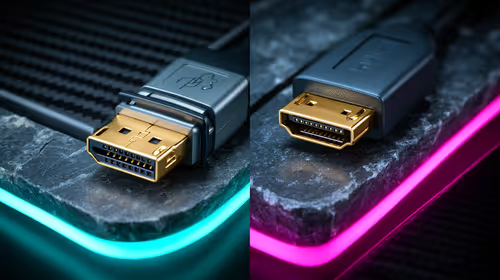
Connect the display to the graphics card. Use DisplayPort or an HDMI connection that both the GPU and monitor list for variable refresh at your resolution. Remove docks, adapters and splitters for the first test.
Open the monitor menu and find Adaptive-Sync, FreeSync, VRR or a similar control. Switch it on. Some panels restart or blank for a moment when the mode changes. Check whether enabling motion-blur reduction disables VRR; those modes may share timing hardware.
Look up the monitor's variable-refresh range. A display listed for 48Hz to 144Hz can follow the game inside that window. Below the lower boundary, low-frame-rate compensation may repeat frames to keep the presentation smooth. If a game keeps crossing that boundary, lower one heavy setting so it spends less time bouncing in and out.
Evetech's monitor category lists refresh and sync support by model. Match the full code on the back of your panel, since a family can contain several port layouts.
🪟 Set Windows to the right refresh rate
Open Settings, System, Display, Advanced display. Select the gaming monitor and choose its highest supported refresh rate. A 165Hz panel left at 60Hz gives the VRR system a much smaller range to work with.
Under Windows graphics settings, enable Variable refresh rate where the option appears and the game needs OS support. Keep hardware-accelerated GPU scheduling at its established setting during this test; changing two timing controls at once makes the result harder to read.
🎛️ Finish in the GPU control panel
On NVIDIA, open the G-Sync setup page, enable it for the selected display and choose fullscreen plus windowed support if you play borderless games. Confirm the monitor is ticked, then set the preferred refresh rate to the highest available in the 3D profile.
On AMD, open Adrenalin, select Display and confirm AMD FreeSync shows Enabled for that monitor. If it says Unsupported, return to the cable, port and monitor-menu steps before reinstalling software.
Create a per-game profile only after the global connection works. A title with its own V-Sync, frame-generation or borderless mode can behave differently from a driver test. Start with native rendering and a simple cap, then add those features one at a time.
🧪 Prove the refresh rate is following the game
Run a game with an in-game frame-rate cap and move the cap between two values inside the panel's range, such as 70fps and 110fps. A monitor information overlay may show its live refresh changing with the game. Look for smooth motion without a tear line.
Cap two or three frames below maximum refresh to avoid bouncing against the ceiling. If brightness flickers near the lower end, raise the game's minimum frame rate or adjust settings so it stays in a steadier part of the range.
Use Evetech's monitor best-seller list for comparison only after you test the current screen with one direct cable and one known game profile.
Frequently Asked Questions
How do you turn on G-Sync?
Enable Adaptive-Sync on the monitor, select its top refresh in Windows, then enable G-Sync for that display in the NVIDIA control panel.
How do you turn on FreeSync?
Enable FreeSync or Adaptive-Sync in the monitor menu and confirm AMD FreeSync shows Enabled under Adrenalin Display.
Why is G-Sync not working when the driver says enabled?
The monitor toggle, cable path, refresh rate or game mode may block it. Check the full chain and test inside the VRR range.
Does Windows have its own VRR setting?
Windows can expose a Variable refresh rate option under Graphics settings for supported systems and games.
Can an NVIDIA card use a FreeSync monitor?
Many Adaptive-Sync displays work in G-Sync Compatible mode. Support and behaviour depend on the exact monitor, port and GPU.
How can you confirm VRR is active?
Use the monitor's live refresh readout or a VRR test and change the frame cap while watching the displayed refresh follow it.
Choosing a monitor for variable-refresh gaming? Compare G-Sync and FreeSync support at Evetech, then check the exact port and refresh range you will use with your graphics card.