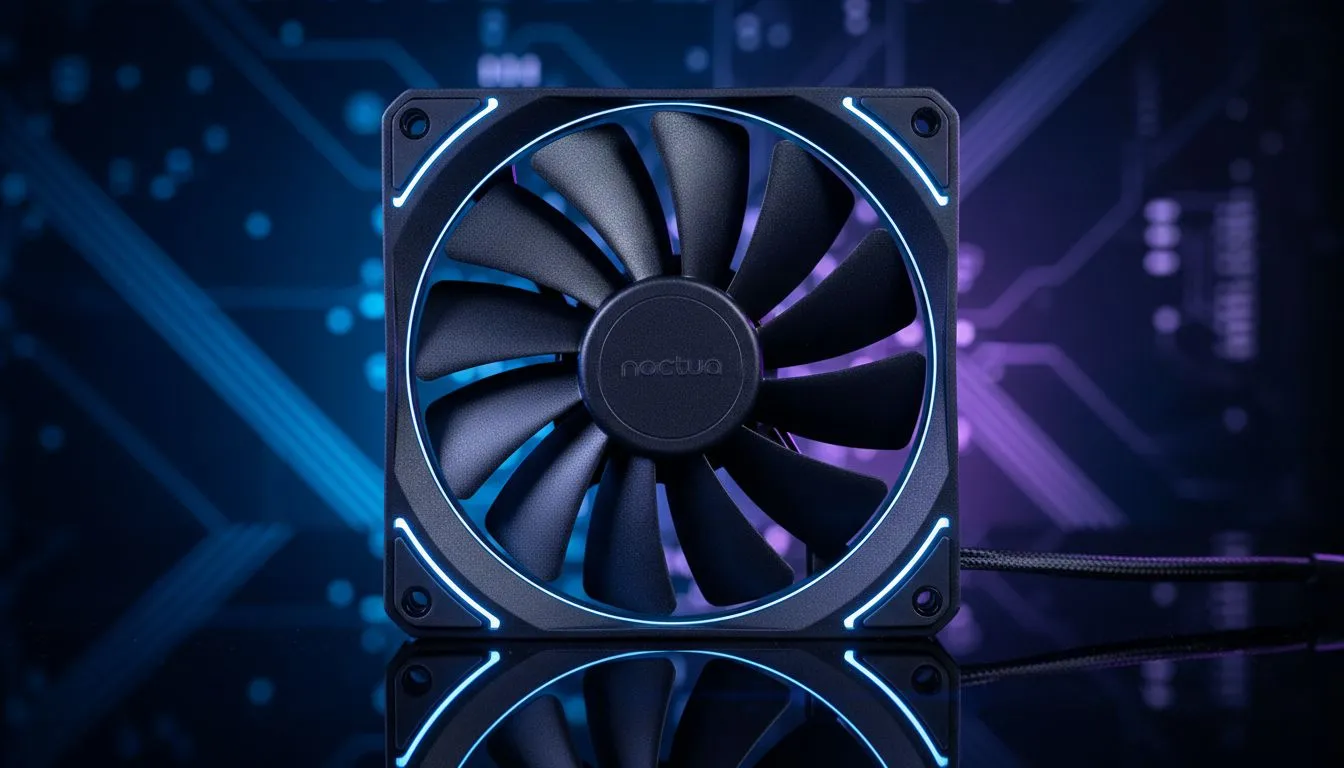
Is your gaming PC louder than a hadeda at sunrise? That sudden roar of fans spinning up while you're just browsing the web can be seriously distracting. The good news is you don't have to live with a jet engine under your desk. The secret to a whisper-quiet rig lies in your motherboard's BIOS, where you can master your PC's acoustics by setting up custom fan curves. This guide will show you how to set up silent BIOS profiles for peace and quiet. 🤫
Understanding Fan Curves
So, what exactly is a fan curve? Think of it as a set of rules you give your PC's fans. It's a graph that tells a fan how fast it should spin (measured in RPM or percentage) based on a specific temperature, usually your CPU's.
A typical default fan curve is aggressive. It might tell the fans to jump from 30% speed to 70% speed the moment your CPU hits 50°C. This is what causes that sudden, annoying noise. By creating a custom, smoother fan curve, you can keep your PC nearly silent during everyday tasks and only have the fans ramp up when you're actually pushing your system hard, like during a gaming session. It's all about finding the right balance between cooling and quiet.
Your Step-by-Step Guide to Silent BIOS Profiles
Ready to tame the noise? Let's dive into your motherboard's BIOS. The process is similar across most brands (like ASUS, MSI, Gigabyte), but the names might differ slightly.
1. Enter the BIOS/UEFI
First things first, you need to get into the BIOS.
- Restart your computer.
- As it boots up, repeatedly press the designated key. This is usually
Delete,F2,F10, orF12. Your motherboard's splash screen will tell you which key to press.
Once you're in, look for a section called "Fan Control," "Q-Fan," "Smart Fan," or something similar. It's often in an "Advanced" or "Monitoring" tab.
2. Locate Your Fan Settings
You'll see a graph representing the current fan curve for your CPU and chassis fans. You should also see options to select which fan you want to control. Start with the CPU fan. You'll typically see points on the graph that you can click and drag. These points represent Temperature (°C) on the X-axis and Fan Speed (%) on the Y-axis.
3. Creating the Silent Curve 🔧
The goal for a silent profile is to create a gentle, gradual slope.
- Low-Temp Plateau: For temperatures under 50-60°C (idle, web browsing, video playback), set the fan speed to a low, inaudible level. This might be around 20-30%. Drag the first two points to create a flat line at the bottom of the graph.
- The Gentle Ramp-Up: Between 60°C and 75°C (light gaming, demanding applications), create a smooth, gradual increase in fan speed. You don't want a vertical wall. Add a point around 70°C and set the fan speed to 50-60%.
- High-Performance Cooling: For temperatures above 75-80°C, it's time to prioritise cooling over silence. Set the fan speed to ramp up more aggressively, hitting 90-100% speed around 85-90°C to protect your components during intense gaming marathons.
After setting your curve, save your changes and exit the BIOS. Your PC will restart, and you should immediately notice the difference.
Pro Tip: Beat the Yo-Yo Effect ⚡
Ever heard your fans constantly speeding up and slowing down? This is called 'hunting'. To prevent it, look for a setting called "Fan Step Up Time" or "Hysteresis" in your BIOS. Setting a delay of a few seconds ensures the fans only react to sustained temperature changes, not brief spikes, giving you a much smoother and less distracting acoustic experience.
When a Fan Curve Isn't Enough
Sometimes, even the most perfectly optimised fan curve can't overcome the limitations of your hardware. If your CPU temperatures are still spiking and your fans are working overtime, it might be a sign that your cooler isn't up to the task, especially with modern, power-hungry processors.
A weak or old cooler has to work much harder, meaning the fans have to spin faster and louder to dissipate heat. Upgrading your cooling solution is often the most effective way to achieve a truly silent PC. Whether you prefer the raw performance of traditional air coolers or the sleek aesthetics of All-in-One liquid coolers (AIOs), a better cooler provides more thermal headroom. This allows you to run your fans at much lower speeds for longer, drastically reducing noise. For top-tier CPUs, investing in a beefy 360mm radiator can make a world of difference.
Many modern cooling systems, especially those in Corsair's range, also come with powerful software that lets you adjust fan curves directly from your Windows desktop, offering even more granular control. Ultimately, pairing a smart fan profile with one of our high-quality CPU coolers is the ultimate recipe for a cool and quiet rig. ✨
Ready to Silence Your Rig for Good? A custom fan curve is a fantastic free upgrade, but it works best with great hardware. If your cooler is holding you back, it's time for a change. Explore our massive range of CPU coolers and find the perfect solution to keep your PC frosty and silent.