


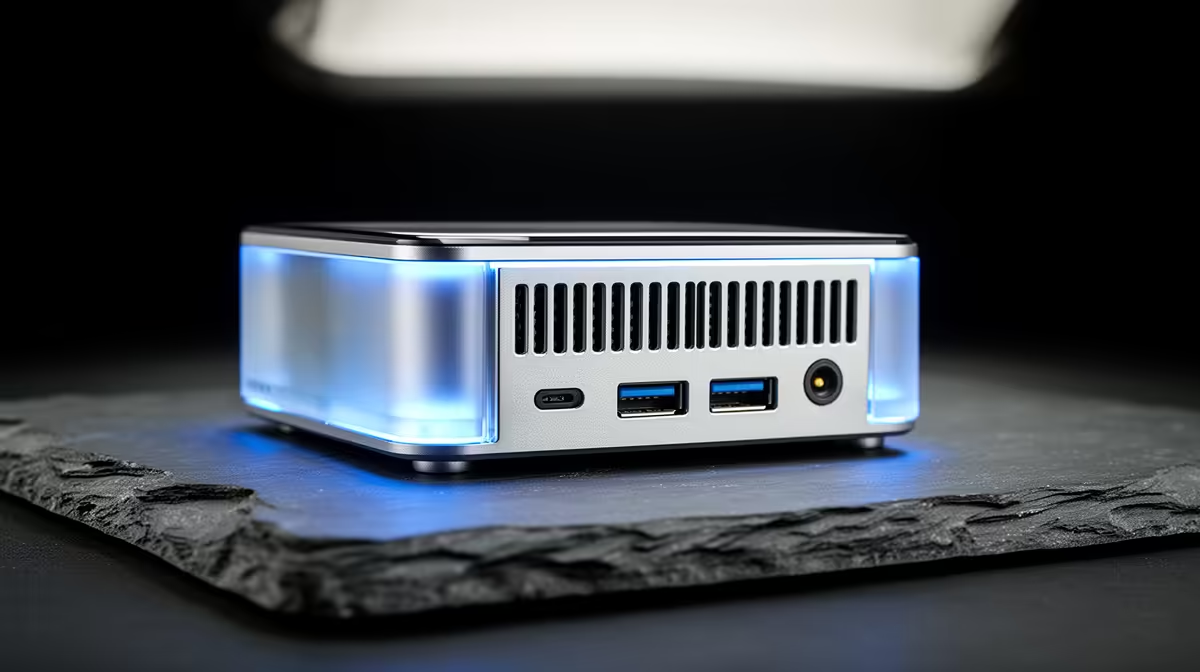
A new mini PC boots into Windows in minutes, which tempts you to start using it straight away. Skip the setup and you risk an unactivated Windows, missing chipset drivers, a slow network port running at a fraction of its speed, and an SSD quietly stuck in a slower mode. A proper first-time mini PC setup checklist walks through the ten things to settle before daily use, so the machine runs the way it was built to.
Quick Answer
Before daily use, confirm Windows activation, install the maker's chipset and 2.5GbE network drivers, update the BIOS, and verify the M.2 SSD is running at full NVMe speed rather than falling back to slower SATA mode. Those four checks catch the most common mini PC issues. The full list below adds six more.
Why a checklist beats just switching it on
Mini PCs ship from a wide range of makers, and the out-of-box state varies. Some arrive fully activated and updated; others need drivers and a BIOS update before everything works at full speed. The risk is silent: the machine works, just not as well as it should, and you only notice the slow file transfer or the dropped network speed weeks later. Running the checklist once, on day one, rules all of that out.
The 10 steps before daily use
Work through these in order. Each takes a few minutes and the whole list is under an hour.
1. Confirm Windows activation
Open Settings, System, Activation. It should say Windows is activated. If not, sort the licence now before you put any work on the machine.
2. Run Windows Update fully
Check for updates and let it install everything, then reboot and check again. Repeat until it comes back clean. This pulls security patches and many generic drivers in one pass.
3. Install the maker's chipset drivers
The chipset driver tells Windows how to talk to the motherboard's controllers. Download it from the mini PC maker's support page rather than relying only on Windows Update, which may have an older version.
4. Install the 2.5GbE network driver
Many mini PCs ship with a 2.5 Gigabit Ethernet port, but without the right driver it can run at a slower fallback speed or behave unreliably. Install the maker's network driver so the port runs at its full rated speed.
5. Update the BIOS
Check the maker's support page for a newer BIOS than the one installed. BIOS updates fix stability bugs, improve memory compatibility, and sometimes unlock performance. Follow the maker's instructions exactly and do not interrupt the process.
6. Verify the SSD is running at NVMe speed
This is the one people miss. An M.2 SSD can run at fast NVMe speeds or fall back to much slower SATA mode. Run a quick disk benchmark: NVMe drives read well over 1,000 MB/s, while a SATA fallback caps near 550 MB/s. If you see SATA-level numbers, check the BIOS slot setting.
7. Check RAM is recognised and running correctly
Open Task Manager, Performance, Memory, and confirm the full amount is showing and that dual-channel is active if you have two sticks. Single-channel memory leaves performance on the table.
8. Set the power plan
For a desktop mini PC, choose a Balanced or High performance power plan rather than a battery-saving default, so the CPU is free to reach its full clocks under load.
9. Remove pre-installed clutter
Uninstall any trial software or bloat that shipped with the machine. A clean install of only what you use keeps the system responsive and reduces background tasks.
10. Set up a backup and restore point
Create a system restore point now, while everything is clean and working, and set up your backup routine. If a future update misbehaves, you have a known-good state to return to.
After the checklist
With drivers in, BIOS updated, and storage and network confirmed at full speed, the mini PC is ready for daily work. If you want to compare your model against current options or are considering a second unit, the mini PC range at Evetech lists what is in stock, and the PC best sellers list shows which machines are moving and how they are specced.
Frequently Asked Questions
How do I check if my SSD is running at NVMe speed?
Run a free disk benchmark and read the sequential speeds. NVMe drives post well over 1,000 MB/s; a SATA fallback caps around 550 MB/s. If you see SATA-level numbers, check the M.2 slot mode in the BIOS.
Why does the 2.5GbE port need its own driver?
Without the correct network driver, a 2.5 Gigabit port can drop to a slower fallback speed or behave unreliably. Installing the maker's driver lets it run at its full rated 2.5 Gbps.
Is it safe to update the BIOS on a new mini PC?
Yes, if you follow the maker's instructions and do not interrupt the process. A BIOS update fixes bugs and improves compatibility. Use only the file from the maker's official support page.
Do I really need to do all ten steps?
The first six catch the issues that actually affect performance and stability. The last four are good hygiene that saves trouble later. Together they take under an hour and you only do it once.
My mini PC works fine out of the box. Should I still run this?
Yes. A machine can work while running below its potential: SSD in SATA mode, network at a fallback speed, single-channel RAM. The checks confirm it is performing as built, not just functioning.
Setting up a new compact machine, or shopping for one? Browse current options in the mini PC range at Evetech and get yours dialled in from day one.










