

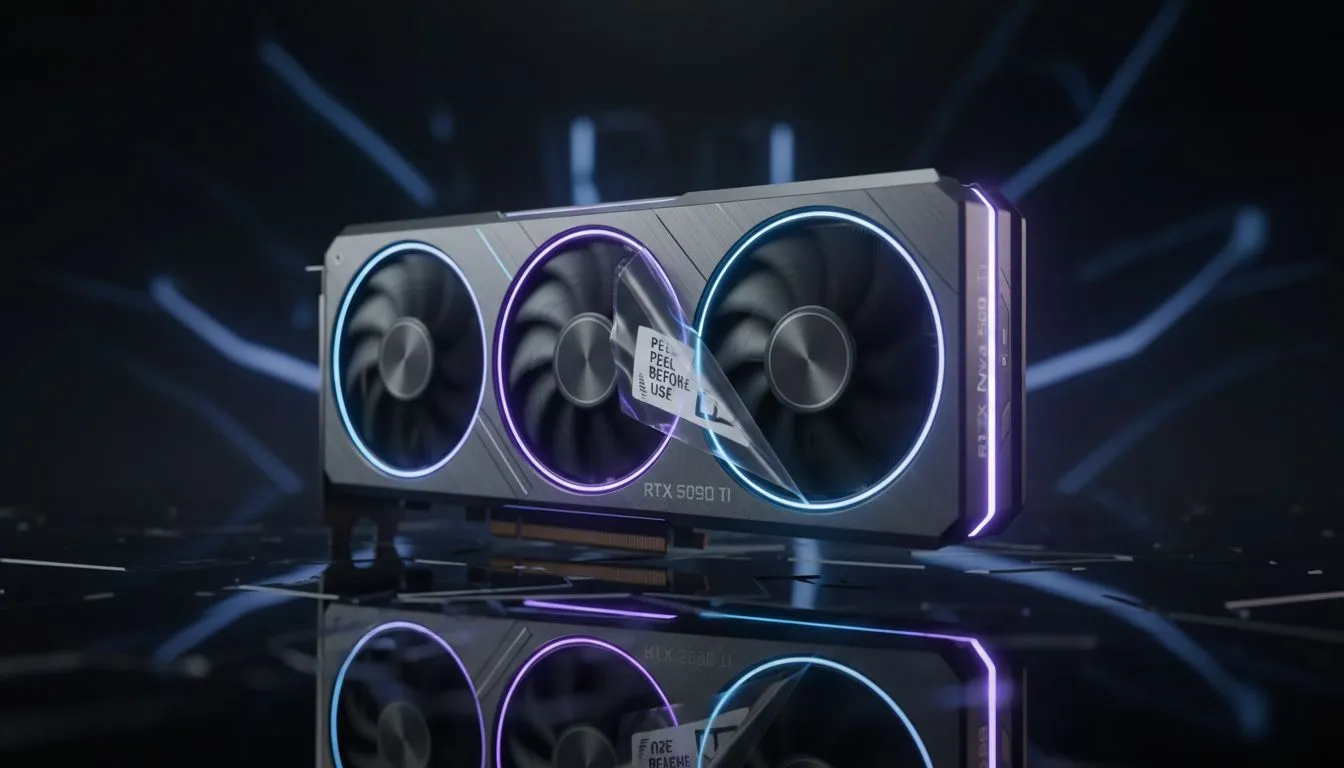
You’ve done it. The final screw is tightened, the last cable is managed… your first PC build is complete. You hit the power button, it POSTs, and you boot into Windows with a massive grin. But then you check your temperatures. 95°C? At idle?! Before you panic and start thinking your CPU is faulty, let’s talk about one of the most common and crucial first-time PC builder tips: always, always remove the plastic peel.
The Tiny Mistake with a Massive Impact
That small, often transparent, piece of plastic on the base of your CPU cooler's cold plate is public enemy number one for your processor's health. It’s there to protect the smooth copper surface during shipping, but if left on, it acts as a powerful insulator.
Your CPU generates a massive amount of heat, and the entire job of your thermal paste and CPU cooler is to transfer that heat away as efficiently as possible. The plastic film completely blocks this process. Instead of your cooler's fins or radiator dissipating the heat, it gets trapped, causing your CPU temperatures to skyrocket. This can lead to aggressive thermal throttling (slowing down your PC) or even automatic shutdowns to prevent damage. 🔧
A Universal Rule for All Cooler Types
This isn't just a tip for one type of cooler; it's a universal law of PC building. It doesn't matter if you've opted for a classic, reliable tower air cooler or a sleek, high-performance liquid cooler (AIO). Both designs rely on direct contact between the cooler's base and the CPU's heat spreader.
Many builders stepping up to more powerful systems, perhaps using a top-tier Corsair cooler with a massive 360mm radiator, get so caught up in mounting brackets and fan headers that they forget this simple step. The excitement is real, but a quick pre-installation check saves a world of headaches.
Your Pre-Cooler Checklist ✨
Before you mount that cooler, do a quick three-point check. 1) Is the plastic peel removed from the cold plate? 2) Have you applied a pea-sized amount of thermal paste to the CPU? (Unless your cooler has it pre-applied). 3) Are you using the correct mounting brackets for your motherboard socket (e.g., AM5 or LGA1700)? Getting these right is half the battle.
More Essential First-Time PC Builder Tips
Forgetting the peel is a rite of passage for some, but here are a few other common missteps to avoid on your first build:
Don't Forget the I/O Shield
This little metal plate seems insignificant, but trying to install it after the motherboard is in the case is a nightmare. It’s the very first thing that should go into your case.
Read the Motherboard Manual
No, seriously. It’s not just for decoration. Your manual is the ultimate guide for where to plug in those confusing front panel connectors (power switch, LEDs, etc.), how to install your RAM for dual-channel performance, and which M.2 slot is the fastest.
Don't Force It
PC components are designed to fit together perfectly. If a cable, RAM stick, or graphics card isn't going in, don't apply more force. Stop, take a breath, and double-check the alignment, latches, or orientation. You’re more likely to break something than to make it fit. 🚀
Following these simple tips will help ensure your first build is a success story, not a thermal horror show. Happy building!
Ready to Build Your Masterpiece? Armed with these first-time PC builder tips, you're ready to tackle your dream build. The most important step is choosing the right parts. From motherboards to graphics cards, we've got everything you need. Explore our massive range of PC components and start building your legend today.











