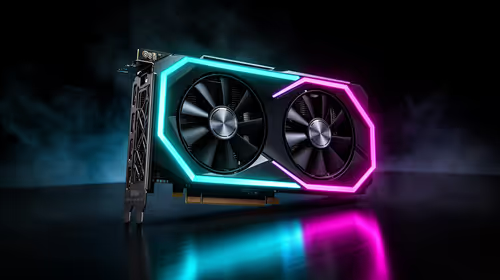
You finally dropped your hard-earned ZAR on a beastly new graphics card. You boot up your favourite title, expecting buttery smooth frames... but instead, you get stuttering. Sound familiar? Before you blame the game, check your motherboard. Fixing performance bottlenecks caused by limited PCIe bandwidth in modern GPU systems is easier than you think. Let us look at why your card is suffocating and how to solve it.
Understanding PCIe Bandwidth and Stutter ⚡
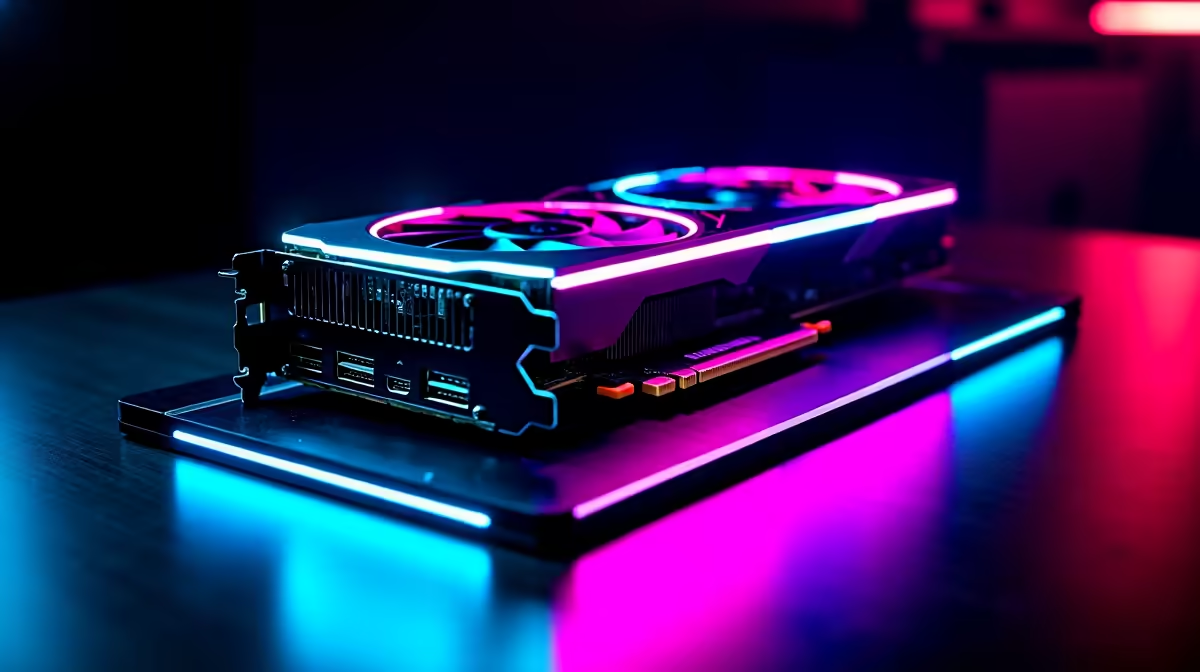
Modern graphics cards push massive amounts of data. They need a wide highway to communicate with your CPU. That highway is your Peripheral Component Interconnect Express slot. If you plug a top-tier card into a slower slot, you choke the data flow. This causes noticeable frame drops and texture pop-ins.
When you buy graphics cards today, most are built for PCIe Gen 4.0 or Gen 5.0. Running them on older motherboards limits their true potential. You want to ensure your hardware matches your ambitions.
Common Culprits Behind the Bottleneck
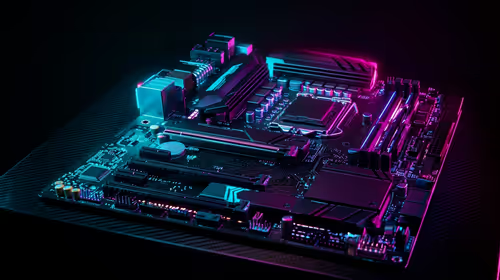
Why would your system restrict this vital bandwidth? Usually, it comes down to lane sharing or physical installation errors. Many motherboards share PCIe lanes between the main graphics slot and M.2 SSD storage slots. If you populate the wrong storage slot, your motherboard might halve your bandwidth from x16 down to x8.
Even older architectures can suffer from these frustrating limits. If you are upgrading a budget rig with Nvidia GeForce GTX graphics cards, ensuring full x16 bandwidth keeps 1080p gaming incredibly smooth. Looking for a modern upgrade? Check out the best graphics card deals to find a GPU that matches your motherboard specs perfectly.
Hardware Pro Tip 🔧
Always install your primary graphics card in the topmost PCIe slot closest to the CPU. This slot is almost always wired directly to the processor for full x16 bandwidth, bypassing the slower motherboard chipset lanes.
How to Diagnose and Fix Your Speeds 🚀
You can check your current bandwidth speeds using free software like GPU-Z. Look at the Bus Interface box on the main screen. If your card supports x16 but is running at x8 or x4... you have a problem.
Sometimes the fix is as simple as reseating the card. Dust can block the contact pins and force slower speeds. Other times, vertical riser cables are the main culprit. A cheap PCIe 3.0 riser cable on a Gen 4.0 card will absolutely crush your performance.
BIOS settings can also cause headaches. Sometimes your motherboard defaults to an older PCIe generation for stability. You can enter your BIOS and manually force Gen 4.0 speeds to clear this up. Always update your BIOS to the latest version before making these changes.
Spending R15,000 on a new GPU only to lose frames is a tragedy. If your motherboard is simply too old, it might be time for a platform upgrade. Browse our best gaming PC deals for pre-built rigs that guarantee optimal lane configurations. Alternatively, keep an eye on our specials to score motherboard and CPU combos at unbeatable prices.
Ready to Maximise Your Framerates? Outdated hardware should never hold back your gaming experience. For maximum power, choice, and value in South Africa, Evetech is hard to beat. Explore our massive range of PC upgrade kits and find the perfect foundation to conquer your world.