


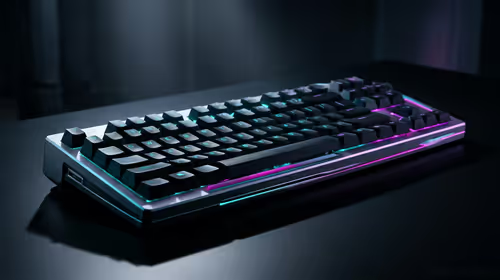
Stuck Pixel Checks for a Mechanical Keyboard Setup
Stuck pixel on a Mechanical Keyboard is likely a display symptom around that setup, not the part itself. Check the monitor, cable, GPU output, drivers, and warranty path first.
Read moreFacing gaming motherboard troubleshooting issues? Don't panic! This guide covers common problems in SA, from no POST errors to BIOS glitches. Learn to diagnose and fix your board to get back in the game fast. 💻🔧 We'll walk you through step-by-step solutions for a stable rig.
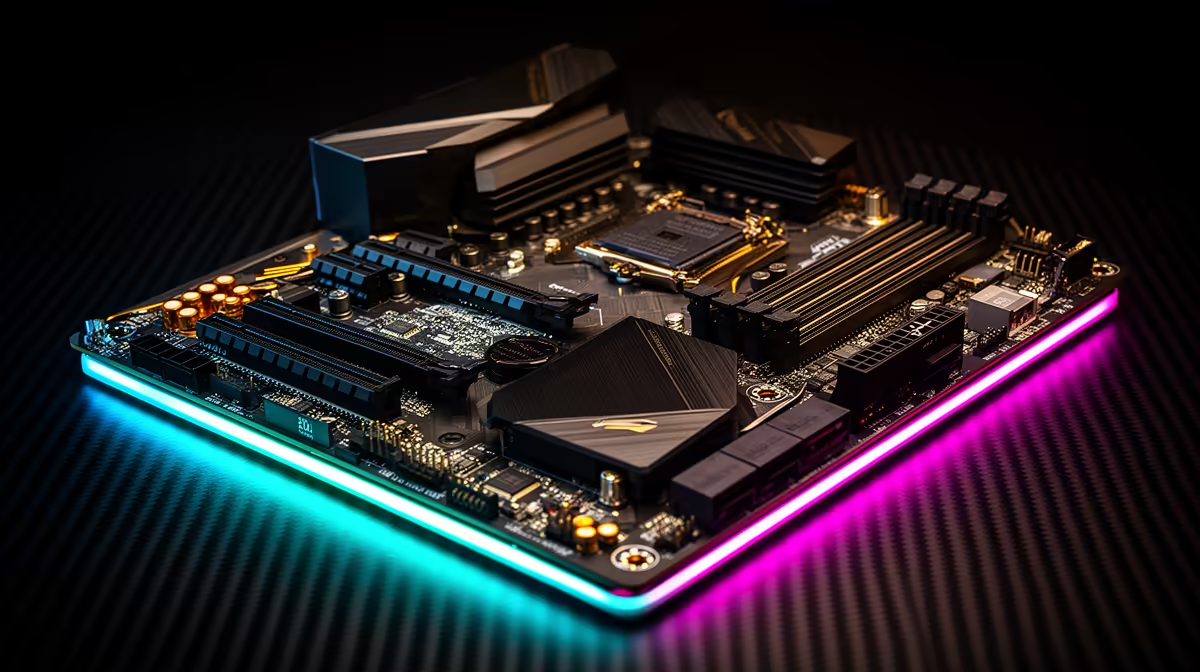
So, you’ve just finished your epic PC build, or maybe your trusty rig suddenly decided to play dead. You hit the power button, the fans spin for a second… and then, nothing. Just silence. For a South African gamer, that dead silence is more terrifying than a surprise power outage during a ranked match. Before you panic, take a breath. This guide to gaming motherboard troubleshooting is your first step to getting back in the game. Let's get that machine posting again. 🔧
Before diving deep into complex diagnostics, let's cover the basics. More often than not, the solution is simpler than you think. This initial phase of gaming motherboard troubleshooting is all about checking the most common oversights that trip up even seasoned builders.
Start with the most obvious culprit: power.
If everything looks secure, try a "breadboard" setup. This involves taking the motherboard out of the case and placing it on a non-conductive surface, like its original box. This helps rule out any potential short circuits caused by the case itself.
If the basic checks don't work, it's time to let your motherboard tell you what's wrong. Most modern boards have built-in diagnostic tools to help pinpoint the problem. Understanding these is key to effective troubleshooting.
Many boards, from high-end options to more budget-friendly AMD motherboards, use a series of beeps (from a small onboard speaker) or diagnostic LEDs to signal errors during the Power-On Self-Test (POST).
When your PC won't POST, remove all non-essential components. Disconnect your storage drives, take out all but one stick of RAM, and remove the graphics card (if your CPU has integrated graphics). This process of elimination simplifies the problem, making it much easier to identify the faulty part. If it boots, add components back one by one until you find the culprit.
Once your board has given you a clue, you can start targeting the specific issue. This is where your gaming motherboard troubleshooting gets a little more hands-on.
As mentioned, a glowing DRAM light is common.
A power surge or a failed update can sometimes corrupt your BIOS. Clearing the CMOS is the go-to fix, which resets your BIOS settings to factory defaults. Many modern Intel motherboards also feature a BIOS Flashback button, allowing you to update the BIOS from a USB stick without even needing a CPU installed.
To clear the CMOS:
CLR_CMOS or similar and short them with a screwdriver for a few seconds (check your manual for the exact procedure!).Sometimes, no amount of troubleshooting can fix an old or failing board. If you're experiencing random crashes, failing USB ports, or your board simply can't keep up with modern components like a new GPU or CPU, it might be time to call it. The good news is that a new motherboard can breathe new life into your system. Even our fantastic range of cheap Intel & AMD based motherboards can provide a massive upgrade in features and stability for a very reasonable price. 🚀
Ready for a Rock-Solid Upgrade? If your troubleshooting journey ends here, don't stress. A new motherboard is the foundation for a stable, high-performance gaming rig. Explore our massive range of motherboards and find the perfect board to power your next victory.
Start by ensuring all power cables (24-pin and 8-pin CPU) are fully seated. Reseat the RAM and GPU. Verify the front panel connectors are correct for the power switch.
To fix a motherboard no POST, begin by checking for diagnostic LEDs or beep codes. Reseat essential components like RAM and GPU. Clear the CMOS to reset BIOS settings.
Signs include random reboots or shutdowns, frequent Blue Screen of Death (BSOD) errors, peripherals not working, and the PC failing to power on or complete its boot sequence.
A gaming PC boot loop can be caused by unstable overclock settings, faulty RAM, corrupt OS files, or incorrect BIOS settings. Try resetting the BIOS as a first step.
Yes, an outdated BIOS can lead to compatibility issues with newer CPUs or RAM, causing instability or boot failures. Updating it can often resolve these specific problems.
This could be a driver issue or a hardware fault. First, update your chipset drivers from the manufacturer's website. Also, check the BIOS to ensure USB ports are enabled.
Stuck pixel on a Mechanical Keyboard is likely a display symptom around that setup, not the part itself. Check the monitor, cable, GPU output, drivers, and warranty path first.
Read more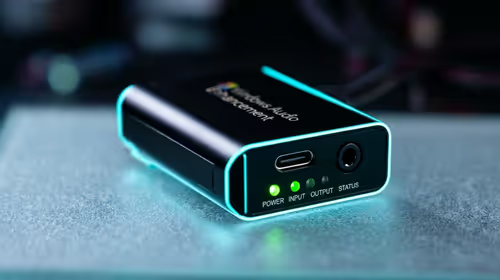
How to fix stuck pixel Windows 11 USB DAC issues starts with display-only tests. Check HDR, scaling, monitor input, USB cable movement, and safe South African support options before connecting the pixel issue to audio hardware.
Read more
Windows 11 Steam Deck monitor issues often start with display mode, USB-C output, drivers, or dock power. Use this how to fix monitor not detected windows 11 steam deck checklist for SA handheld PC setups.
Read more
Stalker 2 Heart of Chornobyl PC build planning at R100,000 should stay cautious about parts and settings. Balance GPU, CPU, RAM, storage, cooling, and upgrade room before picking a South African gaming PC.
Read more
RX 9070 XT build stuttering needs a step-by-step check before replacing parts. Review drivers, settings, thermals, power, background apps, display limits, cables, and game options before changing hardware.
Read more
GTA 6 on R15,000 needs careful part balance. This SA build guide frames CPU, GPU, RAM, SSD, cooling, and upgrade trade-offs without promising live prices, stock, or exact FPS.
Read more
NVIDIA lists 550W required system power for the RTX 5060 reference specification, based on a high-end test system. A quality 550W unit can be enough, but CPU draw, transient load, connectors and ageing decide real headroom.

80+ Gold vs 80+ Platinum for couch co-op gaming is about PSU efficiency, heat, fan behaviour, quality, and wattage headroom, not direct FPS. SA buyers should compare the whole build.

Upgrade your setup with the best USB-C hubs for creators. Discover why high-capacity card readers and dual 4K output are essential for professional South African content production. 🚀💻

B850 motherboard FPS drops needs a methodical troubleshooting pass. Review drivers, thermals, power settings, background apps, cables and game settings before replacing parts in an SA gaming setup.
NVIDIA lists 550W required system power for the RTX 5060 reference specification, based on a high-end test system. A quality 550W unit can be enough, but CPU draw, transient load, connectors and ageing decide real headroom.

OpenRGB's master branch now carries changes labelled for 1.0 final, including translation and platform work, but the official tags page still lists 1.0rc3.1 as the newest packaged release. Stable users should wait for the signed release channel.

A motherboard can remain useful for many years when power, cooling and connectors stay healthy. Replace it for confirmed faults, damaged power delivery or a blocked platform need, not simply because the calendar reaches a fixed age.

The VAIO T combines a 13.3-inch display with a multi-flip mechanism for laptop, tablet and outward-facing viewing modes. Orders begin in Japan on 18 September; South African availability is unconfirmed.

The smallest ATX case 2026 buyers should choose is the smallest chassis that still fits their exact graphics card, cooler, power supply and airflow plan. ATX support alone does not prove a case has the smallest footprint or volume.

In a 6 bit + FRC vs 8 bit comparison, native 8-bit panels can produce 256 levels per colour channel directly, while 6-bit plus FRC rapidly alternates nearby values to approximate the wider palette. Panel quality still depends on more than bit depth.

The UGREEN LinkStation Pro eGPU dock combines Thunderbolt 5 and OCuLink connections with an integrated 850W ATX 3.1 power supply and up to 140W laptop charging. South African availability is unconfirmed.

Windows 11 KB5124008 can leave some USB Audio Class 1.0 devices with no sound, Code 10 or failed multichannel output. Microsoft confirms the issue and says switching to two-channel stereo can restore audio for some users.