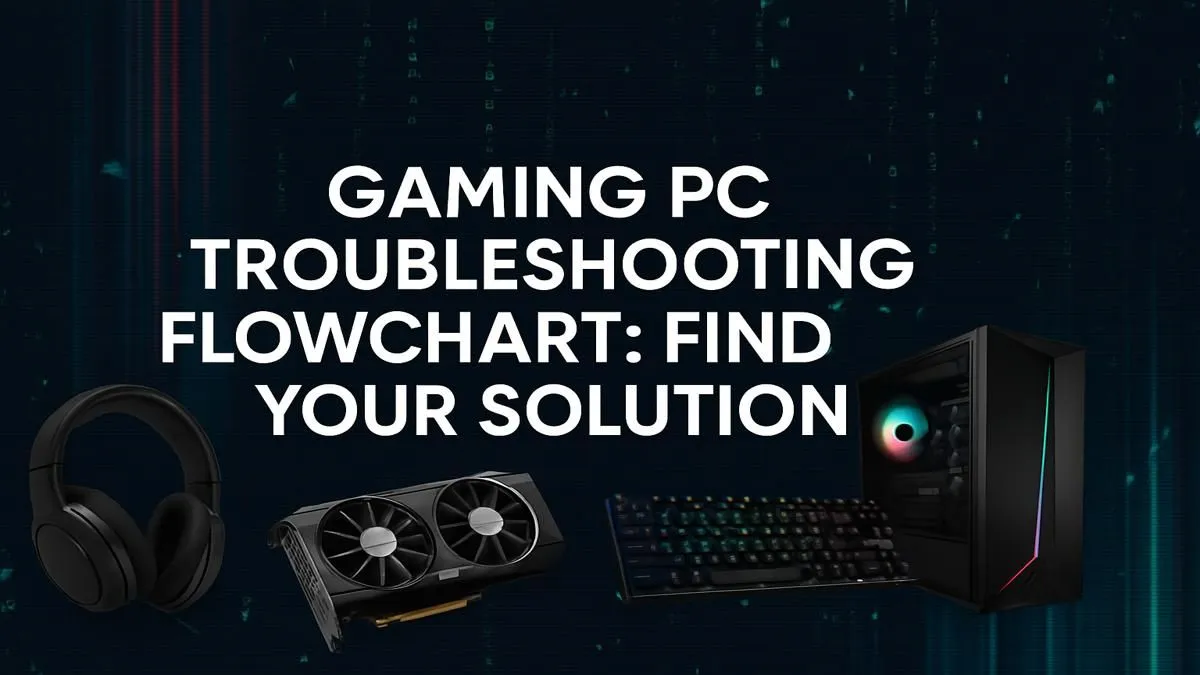
Nothing sinks your heart faster than a gaming PC that refuses to cooperate. One moment you're ready to squad up, the next... silence. Black screen. Or worse, the dreaded blue screen. Before you start panic-Googling in the dark, take a breath. Most PC problems are surprisingly simple to fix. This gaming PC troubleshooting guide is your ultimate flowchart, a step-by-step map to get you from frustrated to fragging again. Let's get your rig back in the game. 🔧
Step 1: The "No Power" Panic Check
Before diving into complex diagnostics, let's cover the basics. This might sound obvious, but you'd be amazed how often the simplest thing is the culprit. This is the first and most crucial step in any gaming PC troubleshooting process.
- Power Cable: Is it securely plugged into both the wall socket and your PC's power supply unit (PSU)? Give both ends a firm push.
- PSU Switch: Most PSUs have a small rocker switch next to the power cable port. Make sure it's flipped to the 'I' (On) position, not 'O' (Off).
- Wall Socket: Try plugging a lamp or your phone charger into the same socket to confirm it's working.
- Display Cable: Ensure your HDMI or DisplayPort cable is firmly connected to both your graphics card and your monitor.
Sometimes a simple loose connection is all that stands between you and your next session, whether you're building worlds on a Minecraft gaming PC or exploring ancient tombs.
Step 2: Power On, But Nothing Happens
So, the lights and fans are spinning, but your screen is black. This usually means your PC is failing its Power-On Self-Test (POST). Your motherboard is trying to tell you what's wrong.
Listen for Beeps, Look for Lights 💡
- Beep Codes: If you have a motherboard speaker connected, a series of short or long beeps can pinpoint the issue. One short beep is usually good! Multiple beeps often point to RAM or GPU problems. Check your motherboard manual to decode the sequence.
- Debug LEDs: Many modern motherboards have small LEDs labelled CPU, DRAM, VGA, and BOOT. The one that stays lit indicates the component causing the failure.
The most common culprit here is RAM. Try re-seating your memory sticks. Power down completely, unclip the sticks, and press them back into their slots until you hear a solid click. This simple fix can save you hours of headache, especially after building a new rig powerful enough for demanding titles on a Cyberpunk 2077 gaming PC.
Step 3: Performance Problems & In-Game Crashes
Your PC boots, but games are stuttering, crashing, or running poorly. This is where software-level gaming PC troubleshooting comes in. The goal is to isolate the problem, especially when you need consistent frames on a competitive Overwatch 2 PC.
The Software Checklist
- Update Your GPU Drivers: This is non-negotiable. NVIDIA, AMD, and Intel release frequent updates that optimise performance and fix bugs for new games. A clean driver install is often the magic bullet for sudden performance drops.
- Check Temperatures: Overheating is a performance killer. Use software like HWMonitor or MSI Afterburner to check your CPU and GPU temperatures while gaming. If they're creeping above 85-90°C, you may have a cooling issue. Dust out your fans and case!
- Close Background Apps: Are you downloading, streaming, or running 50 browser tabs? These consume precious resources. Close everything you don't need before launching a demanding game. Every bit of power helps when you're dropping into a hot zone on a Call of Duty: Warzone 2.0 gaming PC.
- Verify Game Files: On platforms like Steam, you can verify the integrity of game files. This checks for and repairs corrupted data that could be causing crashes, a common issue when exploring the huge map on a GTA V gaming PC.
Pro Driver Tip ⚡
If you suspect a faulty graphics driver is causing issues, a standard uninstall might not be enough. Use Display Driver Uninstaller (DDU) in Windows Safe Mode to completely remove all traces of old drivers. This gives you a truly fresh start and can solve stubborn crashing and stuttering problems.
Sometimes, the issue is a combination of factors. A stutter in an open-world game could be a storage bottleneck, while random crashes on a Fortnite gaming PC might point to unstable RAM. Similarly, network lag could be the real enemy when you're trying to win on a PUBG rig.
Step 4: When to Call for Backup... Or an Upgrade 🚀
You've tried everything. You've reseated components, reinstalled drivers, and monitored temperatures, but the problem persists. Sometimes, a component has simply reached the end of its life. This is the final, toughest part of the gaming PC troubleshooting flowchart.
If your graphics card is artifacting (showing weird colours or shapes) or your PC won't boot with it installed, it might be time for a replacement. If you're getting constant blue screens related to memory errors even after testing your RAM, a new kit could be the answer.
Instead of sinking more money into an older platform, it might be the perfect time to upgrade. A new system won't just solve your current issues; it will unlock better performance for years to come, whether you're aiming for 240+ FPS on a top-tier Counter-Strike 2 gaming PC or soaring over detailed cities with a purpose-built Microsoft Flight Simulator PC.
Feeling Overwhelmed? Let the Pros Handle It.
Gaming PC troubleshooting can be a real mission. If you'd rather spend your time gaming than diagnosing, let Evetech do the heavy lifting. Our expertly built gaming PCs are tested, optimised, and ready for battle right out of the box.
Explore our massive range of gaming PCs and find the perfect, hassle-free rig for your favourite titles.