You’re one-vs-three in the final circle, the tension is palpable, and your squad is counting on you. You line up the perfect shot, and then… your screen freezes. Blackness. Silence. We’ve all been there. That sudden, frustrating crash is the worst. But before you rage-quit and hurl your mouse, take a breath. Most PC gaming problems can be solved with a bit of simple, methodical gaming PC troubleshooting. This guide will walk you through the process, step-by-step.
Your First Response to Gaming PC Problems
Before diving into complex diagnostics, let's cover the basics. It sounds silly, but you'd be surprised how often a loose cable is the culprit! This initial phase of troubleshooting your gaming PC is all about checking the obvious.
- Check Your Connections: Are your monitor, power, and peripheral cables plugged in firmly at both ends?
- The Classic Reboot: A full shutdown and restart can clear temporary software glitches and memory issues that cause crashes.
- Isolate the Issue: Does the problem happen in every game or just one? If it's a single game, the issue might be with the game itself, not your hardware. Even a seemingly simple game can have its own quirks on certain setups, much like those purpose-built for blazing-fast Minecraft performance.
Software Sleuthing: Drivers and Game Files
If the simple stuff doesn't work, it's time to look at the software. Outdated drivers or corrupted game files are responsible for the vast majority of in-game instability. Keeping your system's software in top shape is crucial, especially for competitive titles.
Your graphics card (GPU) driver is the most important piece of software for gaming. Head to the NVIDIA or AMD website and grab the latest version for your card. For a truly clean slate, use a tool like Display Driver Uninstaller (DDU) to remove all traces of the old driver before installing the new one. This single step can drastically improve stability in fast-paced games on rigs optimised for titles like Counter-Strike 2.
Next, verify your game files. On platforms like Steam and the Epic Games Store, you can right-click the game, go to properties, and find an option to "Verify integrity of game files." This checks for and repairs any broken or missing files, a common issue in frequently updated games like Fortnite. Ensuring your software is pristine is key to getting the stable frames needed in an intense Overwatch 2 match.
Pro Troubleshooting Tip ⚡
Your PC keeps a log of its errors! Type "Event Viewer" into the Windows search bar. Look under "Windows Logs" > "System" for any red "Error" or yellow "Warning" icons that occurred around the time of your crash. The "Source" and "Event ID" can be googled to find the exact cause of your gaming PC problem.
Getting Physical: A Quick Hardware Health Check
If software fixes don't solve the problem, we need to consider the hardware. Don't worry, you don't need to be a pro builder for these checks. Heat is the number one enemy of performance. 🥵
Download a free tool like HWMonitor or MSI Afterburner to check your CPU and GPU temperatures while gaming. If they're creeping above 85-90°C under load, you may be thermal throttling. This is common in graphically demanding games that push your hardware to its limits, from the sprawling world of Cyberpunk 2077 to the incredible detail of a Microsoft Flight Simulator session.
The fix?
- Clean your PC: Dust is an insulator. Carefully clean the dust filters and use compressed air to blow dust out of your fans and heatsinks.
- Check your fans: Make sure all your case, CPU, and GPU fans are spinning correctly when you're in a game.
- Reseat Components: Sometimes a component can come slightly loose. Power down completely, unplug the PC, and carefully push down on your RAM sticks and graphics card to ensure they are seated firmly in their slots. This can often resolve mysterious crashes in battle royales like PUBG.
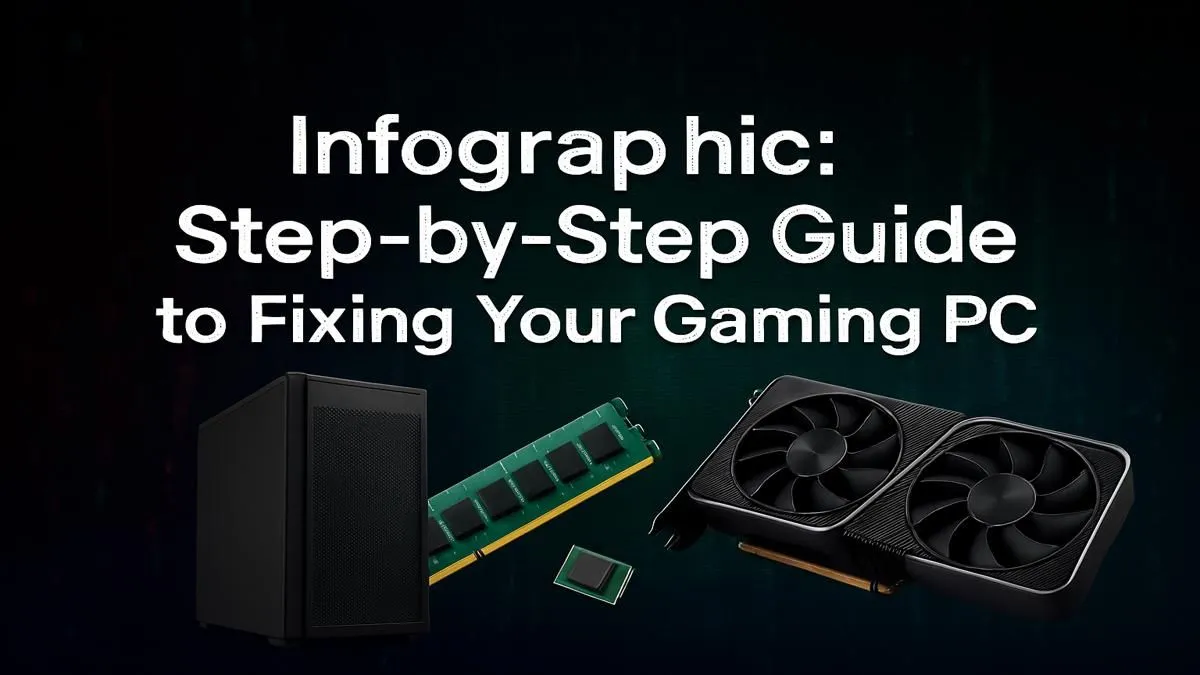
The Ultimate Gaming PC Troubleshooting Infographic
Feeling overwhelmed? Just follow this simple flow. This easy step-by-step infographic condenses the whole process.
➡️ Step 1: The Basics 🔌
- Check Physical Cables: Ensure everything is plugged in securely.
- Restart Your PC: The oldest trick in the book often works.
- Check Peripherals: Unplug any non-essential USB devices.
➡️ Step 2: Software Scan ⚙️
- Update GPU Drivers: The most common fix for game crashes.
- Verify Game Files: Repair corrupted or missing files via your game launcher.
- Close Background Apps: Free up system resources.
➡️ Step 3: Temperature Check 🔥
- Monitor Temps: Use software to see if your CPU/GPU is overheating.
- Clean Out Dust: Improve airflow and cooling performance.
- Confirm Fans are Spinning: Ensure your cooling system is working.
➡️ Step 4: Hardware Reseat 🔧
- Power Off & Unplug: Safety first!
- Reseat RAM: Push sticks firmly into their slots until they click.
- Reseat GPU: Ensure the graphics card is fully inserted into the motherboard.
When Troubleshooting Isn't Enough
You've followed every step, but you're still getting crashes in Verdansk or stutters in Los Santos. Sometimes, the problem is simply that your hardware has reached its limit. If your PC struggles to run older but still popular titles like GTA V smoothly, or if you're constantly performing gaming PC troubleshooting just to play the latest releases like Call of Duty: Warzone, it might be a sign. Constant issues can mean a component is failing or your rig just isn't powerful enough for modern gaming anymore.
Tired of Troubleshooting? Game On.
If you're spending more time fixing than fragging, it might be time for an upgrade. Our expertly built PCs are stress-tested for stability, so you can focus on winning. Explore our range of battle-ready Gaming PCs and get back in the game without the headache.