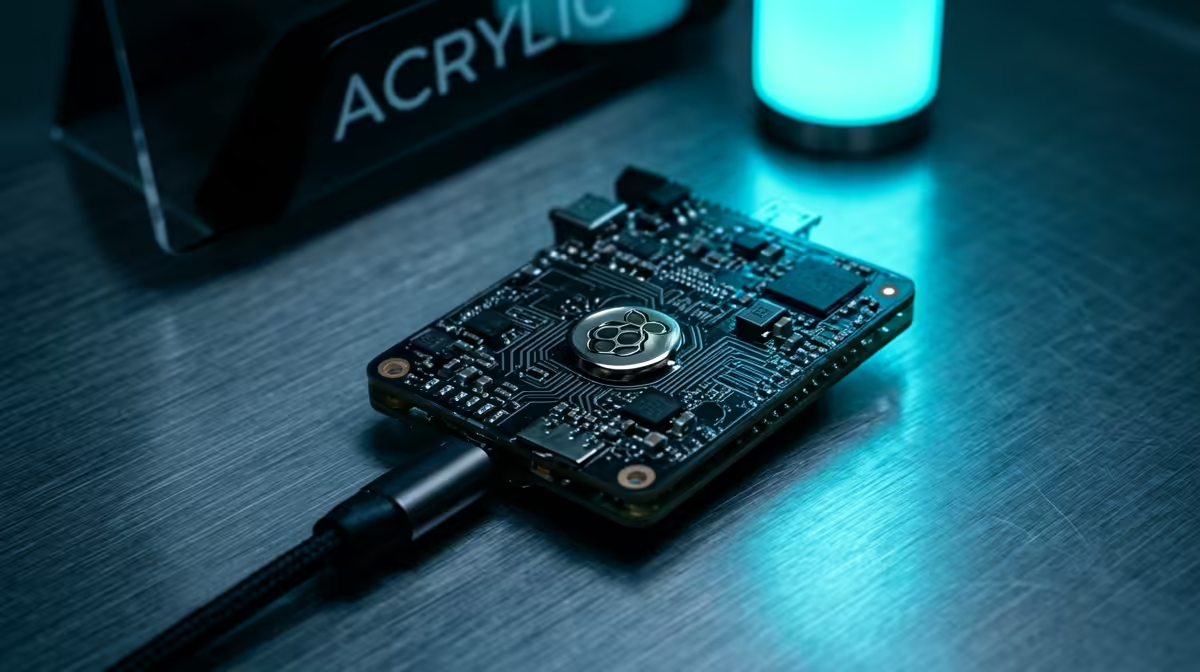
Hours of careful Raspberry Pi setup can vanish the moment an SD card corrupts, and they do corrupt. The fix is to clone the whole card to a single .img backup file that captures every partition exactly as it sits, so you can write it back to a fresh card and be running again in minutes. This walkthrough covers the easy GUI route and the precise command-line route.
Quick Answer
Back up your Raspberry Pi SD card by reading it into one .img file. On Windows or Mac, use Raspberry Pi Imager's read function or Win32 Disk Imager's Read button. On Linux or Mac, use the dd command. Restore the same .img to a new card with Raspberry Pi Imager whenever you need it.
Why a full image, not just file copies
Copying your files to a cloud folder protects your documents, but it does not protect your setup. A .img file captures the entire card: the boot partition, the operating system, every installed package, your configuration, and your data, all in one file. Restore it and you get the exact machine back, not a fresh install you have to rebuild.
That is the whole point of an image backup. It turns a corrupted card or a failed update from a weekend of reinstalling into a ten-minute restore.
Method 1: Raspberry Pi Imager (easiest, cross-platform)
Raspberry Pi Imager is best known for writing cards, but it also reads them into a backup image. This is the simplest route on Windows or Mac.
- Shut the Pi down cleanly and remove the SD card. Plug it into your computer with a card reader.
- Open Raspberry Pi Imager. Under the OS selection, scroll to Custom or the read option and choose to create an image from the card.
- Select your SD card as the source device.
- Choose where to save the .img file, ideally on a drive with plenty of free space, since the image is the full card size.
- Start the read and wait. A typical card takes several minutes depending on size and reader speed.
When it finishes you have a single .img file that represents the whole card.
Method 2: Win32 Disk Imager (Windows)
If you prefer a dedicated Windows tool, Win32 Disk Imager does the job reliably.
- Install Win32 Disk Imager, then right-click it and choose Run as administrator. This matters, because reading a card needs elevated rights.
- Click the blue folder icon under Image File and pick a save location and filename ending in .img.
- Confirm the correct drive letter for your SD card in the Device box. Double-check this so you read the right card.
- Click Read, not Write. Write would overwrite your card; Read pulls it into the image.
- Wait for it to complete, usually 5 to 15 minutes depending on card size.
The resulting .img is a complete, restorable backup. The Pi and its accessories sit naturally alongside the mini PC range at Evetech for anyone building out a small-footprint setup.
Method 3: dd on Linux or Mac
For Linux and Mac users, the dd command gives precise control.
- Insert the card and run lsblk (Linux) or diskutil list (Mac) to identify the device name, for example /dev/sdb. Get this right, as targeting the wrong device is destructive.
- Item
- The status=progress flag shows how far along it is. Let it run to completion without interrupting.
- To save space, pipe the output through gzip so the image compresses as it writes.
Restoring your image later
Restoring is the reverse and Raspberry Pi Imager handles it cleanly: choose your saved .img as a custom image, select a fresh SD card, and write. The new card boots exactly like the original. Keep at least one image off the Pi itself, so a failure of the card cannot take your only backup with it.
A note on storage
Image backups are large because they match the full card capacity, so keep a spare card or some free disk space ready before you start. Compressing with gzip helps, and storing a copy on an external drive or NAS means a single device failure never costs you the backup. For spare cards and storage to hold your images, browsing the best-selling PCs at Evetech shows the compact machines and storage pairings that SA builders trust for always-on use.
Frequently Asked Questions
Do I need to shut down the Pi before backing up?
Yes. Shut down cleanly and remove the card before imaging it on another computer. Reading a card while the Pi is writing to it risks a corrupted, inconsistent backup that may not restore properly.
Why is my backup file the full size of the card?
A .img captures the entire card byte for byte, including empty space, so a 32GB card produces roughly a 32GB image. Compressing with gzip shrinks it considerably, especially when much of the card is unused.
Can I restore the image to a different size card?
You can restore to a card of the same size or larger. A larger card will show the original partition size at first, but the file system can be expanded afterward to use the extra space.
How long does an SD card backup take?
Usually 5 to 15 minutes for a typical card, depending on its capacity and your card reader's speed. Larger cards and slower USB readers take proportionally longer.
Should I keep backups off the Raspberry Pi?
Always. Store your .img files on a separate computer, external drive, or NAS. A backup that lives only on the same device it protects offers no protection if that device fails.
Running projects on a Raspberry Pi or planning a small-footprint build? Keep image backups and a spare card handy so a corruption never costs you hours. Explore the mini PC range at Evetech to expand your tinkering setup.