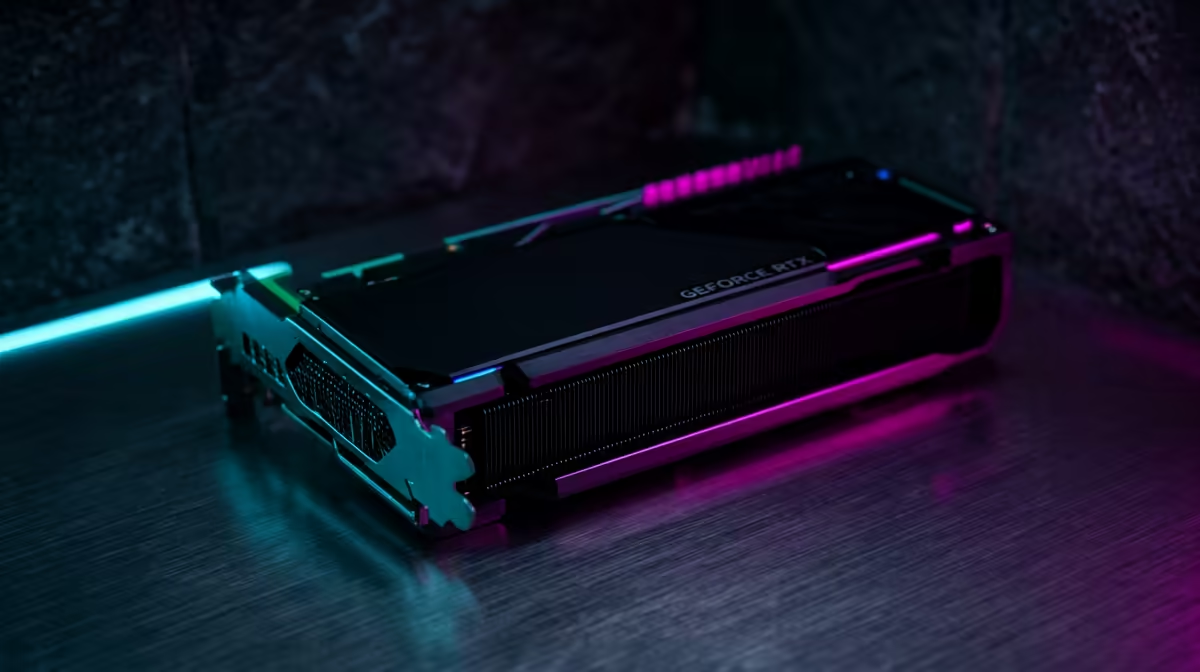
Open Blender's render settings on an NVIDIA card and you face a choice that quietly decides your render times: CUDA or OptiX. The answer comes down to which generation of GPU you own. OptiX taps the Tensor Cores and dedicated RT cores on RTX cards for AI denoising and hardware ray tracing, while CUDA is the universal fallback that runs on older NVIDIA GPUs without those cores. Picking the right one is a one-click setting that can halve your render time.
Quick Answer
If you have an RTX card, choose OptiX. It uses the RT cores for hardware-accelerated ray tracing and the Tensor Cores for AI denoising, which makes Cycles render noticeably faster. CUDA is for older NVIDIA GPUs that lack RT cores, or as a compatibility fallback when a scene misbehaves under OptiX. On modern RTX hardware, OptiX is almost always the faster pick.
What CUDA and OptiX Actually Do
CUDA is NVIDIA's general-purpose compute platform. In Blender's Cycles engine, it runs the ray tracing maths on the GPU's standard CUDA cores, the same shading units that handle most parallel work. It is reliable, widely compatible, and works on virtually every NVIDIA GPU Cycles supports. OptiX is NVIDIA's ray-tracing-specific framework. Instead of doing ray intersection on general cores, it routes that work to the dedicated RT cores built into RTX GPUs, which are purpose-built for exactly this task.
The difference shows up most in scenes heavy with reflections, refractions, and complex geometry, where ray tracing dominates the render. On those scenes, OptiX on an RTX card can be substantially faster than CUDA on the same hardware. If you are choosing a GPU for rendering rather than just gaming, the workstation graphics card range at Evetech is where the higher-VRAM, render-focused cards live.
How to Switch in Blender
The setting is quick to change:
- Open Edit, then Preferences, then the System tab.
- Under Cycles Render Devices, select OptiX if it appears (it only shows on RTX cards).
- Tick your GPU in the device list so Cycles actually uses it.
- In the Render Properties panel, confirm the device is set to GPU Compute.
Once OptiX is selected and your GPU is ticked, Cycles renders through the RT cores automatically. If OptiX does not appear, your card lacks RT cores and CUDA is your option.
AI Denoising: The OptiX Advantage
Beyond ray tracing, OptiX brings the OptiX AI Denoiser, which uses the Tensor Cores to clean up noise from a render in real time. This is the feature that lets you preview a near-final image in the viewport at low sample counts, then render the final frame with far fewer samples than CUDA would need to reach the same clean result. Fewer samples means shorter render times. For animation work, where every frame multiplies, this AI denoising is often the single biggest time saver OptiX offers.
When CUDA Is Still the Right Call
OptiX is not always perfect. Some older add-ons, certain shader setups, or specific scene features have historically had quirks under OptiX that render cleanly under CUDA. If a scene produces artefacts or a crash on OptiX, switching back to CUDA is the standard troubleshooting step. CUDA is also the only choice on pre-RTX cards that have no RT cores at all. Treat CUDA as the dependable baseline and OptiX as the faster path when your hardware and scene support it.
VRAM Still Matters
Neither backend rescues you from running out of VRAM. A scene with large textures and dense geometry must fit in the GPU's memory regardless of whether you use CUDA or OptiX. If it overflows, render speed drops sharply as data spills to system memory. When choosing a render GPU, weigh VRAM capacity alongside RT and Tensor core count, since a card with more memory can handle scenes a faster but smaller-memory card cannot. The best-selling PC list at Evetech is a useful reference for which configurations local creators are running.
Frequently Asked Questions
Should I use CUDA or OptiX in Blender?
If you have an RTX card, use OptiX. It uses the RT cores for ray tracing and Tensor Cores for AI denoising, making renders faster. CUDA is for older NVIDIA cards without RT cores or as a fallback when a scene has issues under OptiX.
Why doesn't OptiX appear in my Blender preferences?
OptiX only shows on RTX GPUs that have dedicated RT cores. If your card is a pre-RTX NVIDIA model, OptiX will not be listed and CUDA is your only render backend in Cycles.
Is OptiX always faster than CUDA?
On RTX hardware it is faster in most scenes, especially those heavy with ray tracing. The gap is largest with reflections, refractions, and complex geometry, and the AI denoiser further cuts render time by needing fewer samples.
Does switching backends affect image quality?
The final image quality is effectively the same; both compute the same Cycles result. OptiX simply reaches a clean image faster thanks to hardware ray tracing and AI denoising. If OptiX produces artefacts in a particular scene, switch to CUDA for that render.
Building or upgrading a Blender render machine? Explore the workstation graphics card range at Evetech (https://www.evetech.co.za/PC-Components/workstation-graphics-cards-307) and pick an RTX card with the RT cores and VRAM your scenes demand.