


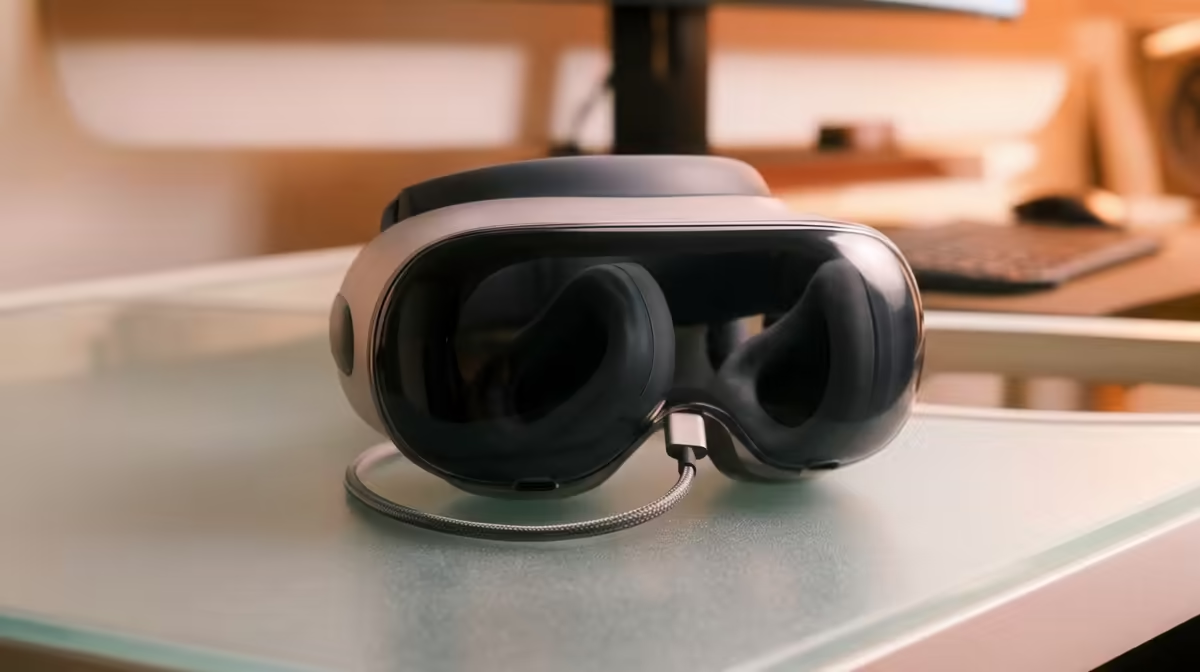
Plugging a Meta Quest into your PC with a Link cable should be the simplest way into PCVR, and most of the time it is. The catch that trips people up is the cable. Quest Link needs genuine USB 3.0 data speed, and plenty of cables sold as compatible quietly run at USB 2.0, which produces a dim, laggy, or outright refused connection. Sort the cable out first and the rest of the setup falls into place quickly.
Quick Answer
Quest Link needs a USB-C cable rated USB 3.0 or faster, plugged into a USB 3.0 port on your PC. Install the Meta Quest PC app, enable Link in the headset, and verify the cable tests at 2.5 Gbps or higher in the app's compatibility check. A cable that tests as USB 2.0 is the most common reason Link looks bad or will not start.
Step 1: Get the cable and ports right
Start here because everything else depends on it.
- Use a USB 3.0 (or higher) USB-C cable. Meta's own Link cable works, but a quality third-party USB 3.0 cable of 3 to 5 metres is fine and far cheaper. Avoid the short cable that ships with the headset for charging, as it is often USB 2.0.
- Plug into a USB 3.0 port on the PC. These are usually blue inside, or labelled SS (SuperSpeed). On a desktop, the ports directly on the motherboard rear are more reliable than front-panel ports.
- Avoid USB hubs and extension adapters. They are the second most common cause of a downgraded or unstable Link connection.
Step 2: Install the Meta Quest PC app
On the PC, download and install the Meta Quest desktop app from Meta's official site, then sign in with the same account as your headset. This app is what hosts the PCVR connection and runs the cable test you will use to confirm everything is right.
Keep your graphics drivers current before you start. PCVR is demanding, and an out-of-date GPU driver is a frequent cause of stutter and crashes once you are actually in a headset.
Step 3: Run the cable compatibility test
In the Meta Quest PC app, open Devices, select your headset, and run the cable test. A good USB 3.0 connection reports roughly 2.5 Gbps or higher. If it reports around 0.4 Gbps or flags as USB 2.0, the cable or port is the problem, not the headset. Swap the cable, try a different USB 3.0 port, and test again.
This single test saves hours of blaming the wrong thing. The browsable VR and AR hardware range is worth a look if you decide a better-rated cable or accessory is the missing piece.
Step 4: Enable Link in the headset
Put the headset on. When the PC app is running and the cable is connected, a prompt to enable Quest Link should appear inside the headset. Accept it. If it does not appear, open Quick Settings in the headset, find Quest Link, and switch it on manually, then choose your PC from the list.
You are now in the PCVR space and can launch SteamVR or any PC VR title.
Step 5: Tune for a smooth session
Once connected, two settings shape the experience. In the PC app you can raise the rendering resolution and bitrate for sharper visuals, but only push these as far as your GPU comfortably handles, since overreaching causes stutter. If you notice lag, drop the bitrate first before anything else.
Air Link, the wireless version, exists too, but wired Link over a proper USB 3.0 cable stays the more stable and consistent choice for demanding games. For the latest models and supporting kit, the VR and AR best sellers give a quick read on what other buyers are pairing with their headsets.
Frequently Asked Questions
What cable do I need for Quest Link?
A USB-C cable rated USB 3.0 or faster, ideally 3 to 5 metres long. Meta's official Link cable works, but a quality USB 3.0 third-party cable is a cheaper alternative. The short charging cable in the box is usually USB 2.0 and not suitable.
How do I know if my cable is fast enough?
Run the cable test in the Meta Quest PC app. A working USB 3.0 connection reports roughly 2.5 Gbps or higher. A reading near 0.4 Gbps means the cable or port is only USB 2.0 and needs swapping.
Why won't the Link prompt appear in my headset?
Make sure the PC app is running and signed in, the cable is in a USB 3.0 port, and the headset is awake. If the prompt still does not show, enable Quest Link manually from the headset's Quick Settings menu.
Should I use a USB hub for Link?
No. Hubs and extension adapters frequently downgrade or destabilise the connection. Plug the cable directly into a USB 3.0 port on the PC, preferably one on the motherboard rear for a desktop.
Is wired Link better than Air Link?
For stability and consistency, yes. A wired Link connection over a proper USB 3.0 cable avoids the wireless variability of Air Link, which makes it the better choice for demanding PC VR titles.
Get your Quest running smoothly on PC with the right cable and a capable rig behind it. Explore VR-ready hardware and accessories at the Evetech VR and AR range.










