


Quick Answer
To fix a black screen after a 1440p ultrawide monitor upgrade, restore the simplest boot path first: one display, one cable, default BIOS settings, firmly seated parts, and a known power source. Most cases come from display routing, RAM training, BIOS support, GPU seating, or driver handover rather than a dead new part. Work from the last changed item outward before spending in the R7,000 to R20,000+ range on replacements.
Step 1: Prove Power And Signal
Check whether the system actually powers on: fans, keyboard lights, charge LED, debug LEDs, or startup sound. Then confirm the monitor input, cable direction, and display output. For desktops, connect the screen to the graphics card when a dedicated GPU is installed; for laptops and handhelds, test internal and external display paths separately.
If the board has CPU, DRAM, VGA, or BOOT indicators, write down the one that stays lit. A DRAM light points toward memory seating or training, while a VGA light points toward GPU, cable, or monitor path. That evidence is better than replacing parts blindly.
Step 2: Undo The Upgrade Safely
Power down fully, remove wall power, and reseat the part that changed. For DDR5 or motherboard upgrades, test one RAM stick in the recommended slot and wait up to several minutes for first memory training. For GPU upgrades such as RTX 5080 or RX 9070 XT, reseat the card, check every PCIe power connector, and use a direct display cable.
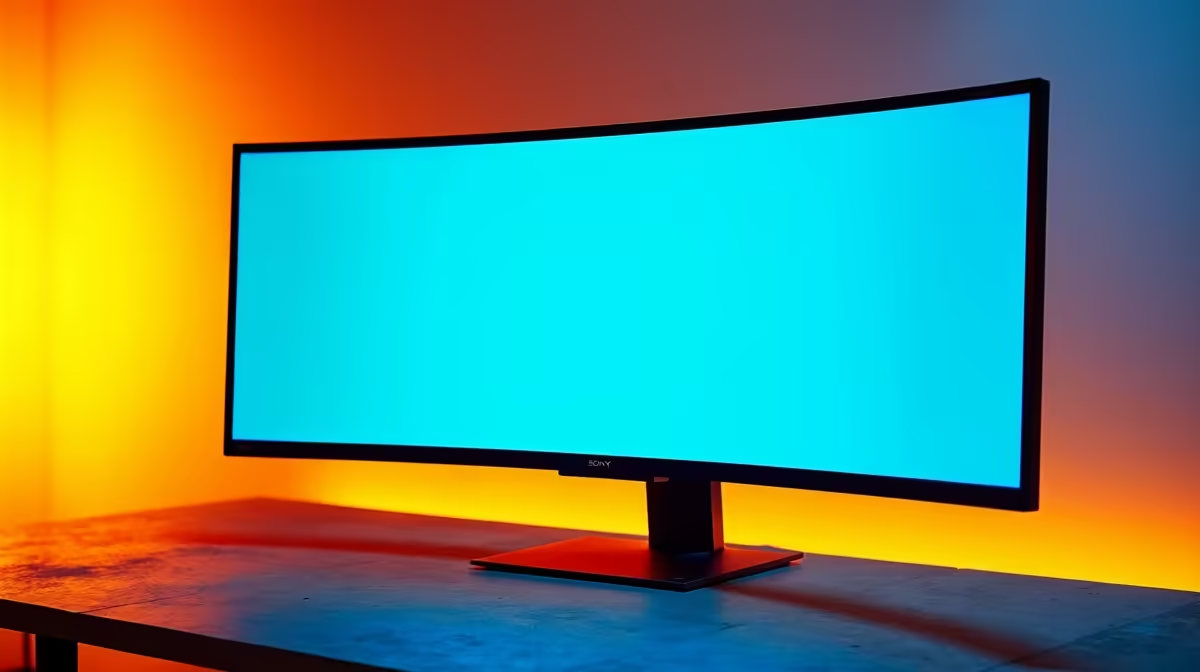
For 1440p ultrawide monitor, compare against a known baseline such as Samsung Odyssey G5 34-inch, MSI MAG 342CQR, or another 3440x1440 panel. Confirm 3440x1440 resolution, 144Hz to 180Hz refresh, and DisplayPort support; a missing bracket, unsupported BIOS, weak PSU, or wrong port can create a black screen even when the new product is healthy.
Step 3: Recover BIOS Or Windows
If BIOS appears, load safe defaults and leave memory profiles off until the PC boots twice cleanly. If Windows starts only in Safe Mode, remove the old display driver, install the correct current driver, and set a conservative refresh rate such as 60Hz before returning to 144Hz or 240Hz. If nothing displays, try another cable, another monitor, or a minimal boot outside normal cable clutter.
FAQ
How long should the first boot take after this upgrade?
DDR5 and new motherboard boots can take 2 to 5 minutes while memory trains. If there is still no display after that, use debug LEDs and one-stick RAM testing instead of repeated random restarts.
When should I suspect the new part is faulty?
Suspect hardware only after power, cable, monitor input, BIOS support, RAM seating, and driver checks have been repeated with a known-good baseline. Warranty evidence is stronger when you can name the failed step.
What should SA buyers check before ordering replacements?
Check 3440x1440 resolution, 144Hz to 180Hz refresh, and DisplayPort support and keep the invoice, box, and serial number. Use R7,000 to R20,000+ as a broad replacement budget guide, then verify live Evetech stock before buying anything else.
Diagnostic Tip
Keep one known-good cable, one RAM stick, and one display mode as your control test. Adjust only one variable per restart so the successful fix is traceable.











