Refresh problems on a gaming PC look like a hardware fault but rarely are; the rate lives in display settings, the cable spec, and the GPU driver more than in any single part.
Quick Answer
The rate lives in three places: Windows display settings, the monitor's on-screen menu, and the GPU control panel. Set it in all three, use a cable rated for the rate (around R450 to R1,200), and confirm the GPU driver is current before assuming the panel is faulty. Worth restating for this exact case, since the details rarely transfer cleanly.
Use a cable rated for the refresh you want
Bandwidth is the silent killer of high refresh. A 1440p 165Hz panel needs DisplayPort 1.4 or HDMI 2.1; an older HDMI lead trains down to 60Hz to stay stable. A proper cable runs roughly R450 to R1,200, far cheaper than the GPU or monitor people replace by mistake. Plug into the dedicated GPU ports, never the motherboard, when a card is installed. Most a gaming PC questions in SA come down to exactly this point.
Confirm the source can feed the rate
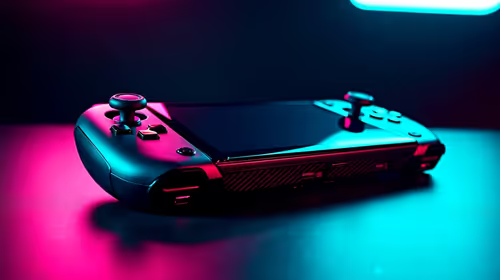
Some devices cap output. A handheld docked over USB-C, for example, may only push 60Hz unless DisplayPort Alt Mode and a capable dock are in play. Check the device's display output spec, then match the dock, cable, and panel so the whole chain supports the same rate end to end. On a gaming PC, a calm second test beats a panicked parts order every time.
Set the rate where Windows hides it
The refresh control sits under Settings, System, Display, Advanced display. Pick the highest rate listed for the active panel, not the default 60Hz. If you run more than one monitor, each is set separately, so a second screen can quietly stay at 60Hz while the main one runs high. Apply, confirm the prompt, and watch for any tearing that suggests the wrong mode. For a gaming PC, that ordering is what saves you from chasing the wrong fault.
FAQ
Why does one monitor run high while the other stays at 60Hz?
Each display has its own refresh setting in Windows. Select the second monitor in Advanced display settings and raise its rate separately. A weaker cable or port on the second screen can also force it down to 60Hz. For an SA a gaming PC setup, that is the cheapest, fastest move available.
Does my device's output limit the rate?
It can. Handhelds and laptops over a dock may cap at 60Hz unless DisplayPort Alt Mode and a capable dock are used. Check the device's documented output rate and the dock spec before blaming the monitor. This matters more on a gaming PC than the spec sheet ever suggests.
Does the cable really affect refresh rate?
Yes, heavily. Refresh rate depends on bandwidth, and an under-spec cable trains down to a safe 60Hz rather than failing outright. For 144Hz and above at 1440p, a DisplayPort 1.4 cable is the safe default and costs around R450 to R900. On a gaming PC specifically, this step pays off more than any quick part swap.
Match the monitor to your frame rate Once the refresh is set correctly, shortlist Evetech panels whose refresh matches what your GPU delivers so you pay for frames you will actually see. Worth restating for this exact case, since the details rarely transfer cleanly. That stays true here even when a similar guide suggests otherwise.