Plenty of people want the slick, controller-first feel of a Steam Deck on their full gaming PC without giving up their existing hardware. Bazzite is how you get there. It is an immutable Fedora-based image that ships Steam, Lutris, Proton-GE, and controller support already wired up, so a desktop or handheld boots straight into a console-style Big Picture experience on AMD, NVIDIA, or Intel graphics.
Quick Answer
Flash the Bazzite ISO to a USB drive, boot from it, and install it like any Linux distro. Because the system is immutable, the core stays stable while Steam, Lutris, and Proton-GE handle your games. The whole process takes about 30 to 45 minutes and gives any gaming PC a SteamOS-like console feel.
What You Need Before You Start
Gather a few things first so the install runs without interruption.
- A USB drive of 8GB or larger that you can fully erase.
- The correct Bazzite ISO for your hardware, choosing the NVIDIA build if you have an NVIDIA card.
- A backup of anything important on the target drive, since installation wipes it.
- A wired internet connection, which makes the first-boot updates and driver setup smoother.
Decide up front whether Bazzite is replacing your existing system or going onto a separate drive. A dedicated drive is the safest route and lets you keep your current setup untouched.
Step 1: Create the Bootable USB
Download the matching ISO from the official Bazzite site, then write it to your USB drive with a tool like Fedora Media Writer or Balena Etcher.
- Open your imaging tool and select the downloaded Bazzite ISO.
- Choose your USB drive as the target, double-checking the drive letter.
- Write the image and wait for verification to finish.
- Leave the USB inserted and restart the machine.
Picking the right ISO matters most here. The NVIDIA-specific build bundles the proprietary drivers, so NVIDIA owners who grab the generic image will have a rougher first boot.
Step 2: Boot and Install
Enter your motherboard's boot menu, usually F12, F11, or Del during startup, and select the USB drive.
- Boot into the Bazzite live environment.
- Launch the installer from the desktop.
- Select your target drive and confirm you are happy to erase it.
- Set your region, keyboard, and a user account, then start the install.
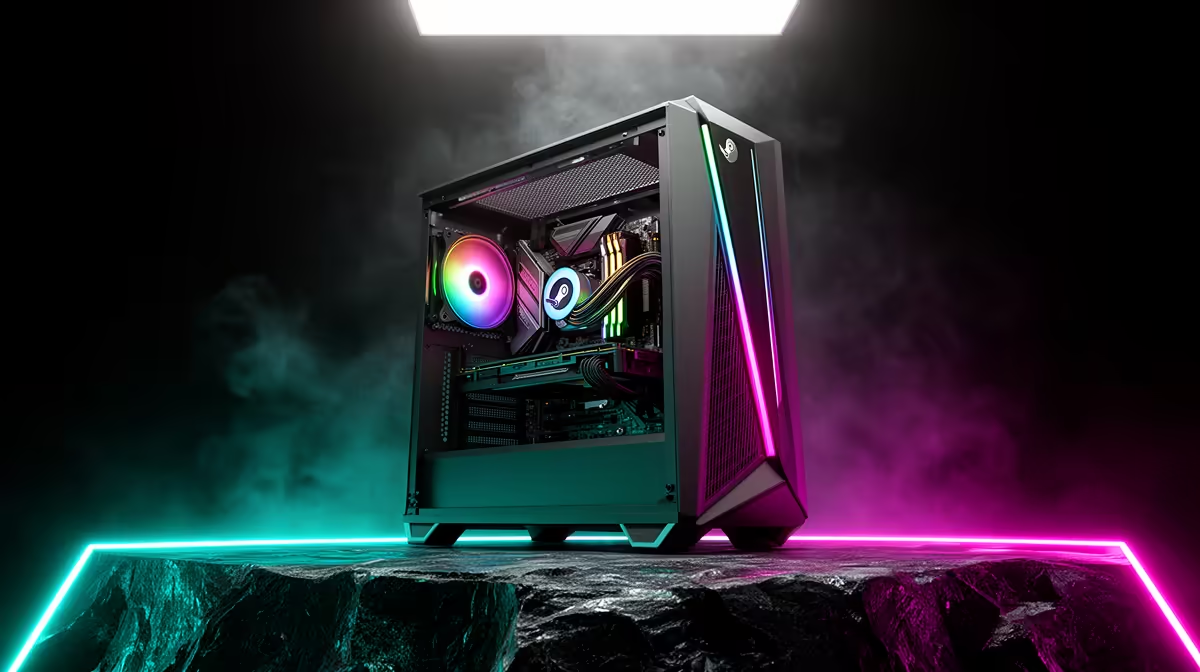
The installer copies the immutable image to disk. Because the base system is read-only and updated as a whole, you get the reliability that makes Bazzite feel more like a console than a typical tinker-heavy Linux setup. If you are choosing hardware to run it on, the systems in the Evetech gaming PC range cover everything from compact builds to full towers.
Step 3: First Boot and Updates
Remove the USB when prompted and let the machine restart into your new install.
- Connect to the internet if you used Wi-Fi rather than a cable.
- Run the built-in system update so you are on the latest image.
- Reboot once more to apply any layered updates cleanly.
- Sign in to Steam, which is already installed and ready.
On this first run Bazzite sorts out drivers and the gaming stack in the background. Give it a few minutes before launching anything heavy.
Step 4: Set Up Game Mode and Stores
Now make it feel like a console.
- Enable the Steam Big Picture or Game Mode session so the PC boots straight into the couch interface.
- Open Lutris to add non-Steam stores and launchers.
- Confirm Proton or Proton-GE is selected for Windows titles in Steam's compatibility settings.
- Plug in your controller; support is built in, so it should be recognised immediately.
With Game Mode set as the default session, powering on the PC drops you straight onto the games grid, exactly the handheld-console flow people are after. A good controller and the right cables from the Evetech handheld and console accessories finish the setup.
Step 5: Verify and Tweak
Launch a couple of games to confirm everything runs. If a Windows title misbehaves, switch its Proton version in Steam's per-game compatibility options, since a different Proton-GE build often fixes a stubborn launcher. Once your library is happy, Bazzite mostly looks after itself thanks to its immutable design, and updates arrive as complete, tested images rather than piecemeal changes.
Frequently Asked Questions
Does Bazzite work with NVIDIA graphics?
Yes. There is a dedicated NVIDIA ISO that bundles the proprietary drivers, so download that build rather than the generic one if you have an NVIDIA card. AMD and Intel use the standard image.
Can I keep Windows and dual-boot?
You can, by installing Bazzite to a separate drive and choosing the OS at boot. Installing alongside Windows on the same drive is possible but trickier, so a dedicated drive is the cleaner option.
What is an immutable system, and why does it matter?
The core OS is read-only and updated as a single tested image, so it is hard to break and easy to roll back. That stability is what gives Bazzite its console-like reliability compared with a typical editable Linux install.
Will all my Steam games run?
Most do through Proton, with strong compatibility across the library. A small number of titles with strict anti-cheat may not work, so check a compatibility database for anything competitive before relying on it.
Do I need a handheld, or does this work on a desktop?
It works on both. Bazzite has desktop and handheld editions, so a standard tower or laptop gets the same SteamOS-like Game Mode experience as a portable device.
Turning a desktop into a couch-ready console is one of the best free upgrades around. Pick the hardware to run it on in the Evetech gaming PC range, then grab a controller from the handheld and console accessories to complete the setup.