So, you're ready to take your stream from your mates' Discord server to the big leagues? Awesome. In South Africa, levelling up your content means creating crisp, smooth gameplay streams that look professional. The secret weapon? A capture card. Forget laggy screen recording software that tanks your FPS. This guide will walk you through exactly how to install a capture card, turning your gaming setup into a proper broadcasting powerhouse. Let's get you ready for the prime time. 🚀
What is a Capture Card, Anyway?
Think of a capture card as a dedicated middleman. Its job is to capture the video and audio from your gaming source (like your PC, PlayStation, or Xbox) and send it over to a separate computer for streaming or recording. This is crucial because it frees up your gaming rig's resources. Instead of trying to play a demanding game and encode a high-quality video stream at the same time, your gaming PC can focus 100% on performance, while the capture card handles the heavy lifting of the broadcast.
The result? Smoother gameplay for you and a buffer-free, high-fidelity stream for your viewers.
Choosing Your Weapon: Internal vs. External Capture Cards
Before we get to the installation, you need to pick the right tool for the job. Your choice boils down to two main types: external USB cards or internal PCIe cards.
External Capture Cards
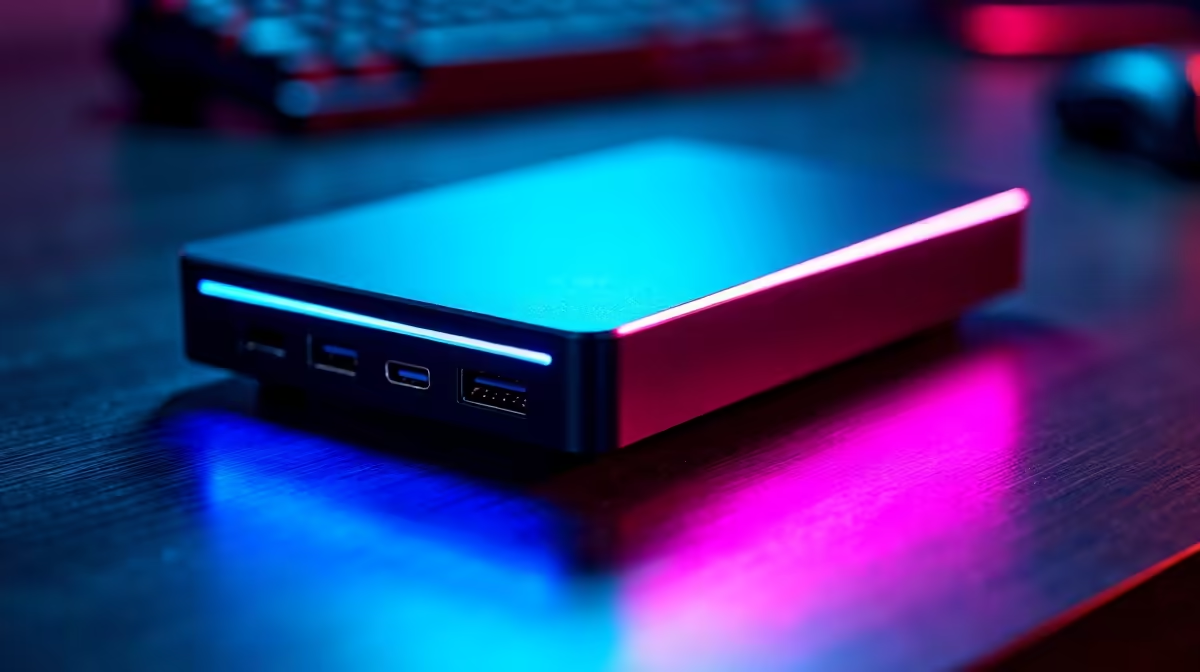
These are the most common choice for a reason. They're small boxes that connect via USB to your streaming PC.
- Pros: Super easy to set up (plug-and-play), portable, and perfect for streamers using a laptop or capturing console gameplay.
- Cons: Can introduce a tiny amount of latency (delay) and adds another device to your desk.
Internal PCIe Capture Cards
These cards slot directly into your desktop PC's motherboard, offering the most seamless integration.
- Pros: Delivers the fastest, near-zero latency performance, keeping your desk setup clean and cable-free.
- Cons: Requires a desktop PC with a spare PCIe slot and is a bit more hands-on to install.
Many of the latest pre-built PC deals on the market have motherboards with plenty of room for expansion, making an internal capture card setup a fantastic future-proof option.
Your Step-by-Step Capture Card Installation Guide 🔧
Alright, let's get down to business. The process for installing a capture card is straightforward, but it differs slightly depending on the type you chose.
Setting Up an External Capture Card
This is the easiest method and should only take a few minutes.
- Connect Your Source: Plug an HDMI cable from your gaming PC's graphics card (or your console's HDMI Out port) into the HDMI IN port on the capture card.
- Connect Your Monitor: Plug a second HDMI cable from the capture card's HDMI OUT port to your gaming monitor. This is called "passthrough" and lets you play with no delay.
- Connect to Streaming PC: Use the included USB cable to connect the capture card to a USB 3.0 (or higher) port on your streaming PC.
- Install Software: Head to the manufacturer's website (e.g., Elgato, AVerMedia) to download the latest drivers and software. Done!
How to Install an Internal Capture Card
This requires opening up your PC, but don't stress... it's like installing a GPU, just smaller. A powerful CPU is key for a smooth streaming experience, whether you lean towards Intel PC deals for their single-core performance or the multi-threaded muscle of AMD Ryzen PC deals for encoding.
- Safety First! Power down your PC completely and unplug it from the wall. Press the power button a few times to discharge any remaining electricity.
- Open the Case: Remove the side panel of your PC case.
- Find a Slot: Locate an empty PCIe slot on your motherboard. It will likely be a short x1 or x4 slot, but a capture card will also fit in a longer x16 slot.
- Remove the Bracket: Unscrew and remove the metal bracket on the back of the case that corresponds to your chosen PCIe slot.
- Insert the Card: Carefully align the card's connectors with the slot and press down firmly until it clicks into place.
- Secure It: Screw the card's metal bracket into the case to hold it steady.
- Power Up: Close your case, plug everything back in, and turn on your PC. Your computer should detect the new hardware.
- Install Drivers: Just like with an external card, visit the manufacturer's website to grab the latest drivers.
Getting Your Stream Software Ready ✨
Now that the hardware is installed, you need to tell your streaming software (like OBS Studio or Streamlabs) to use it.
- Open OBS and look at your 'Sources' panel.
- Click the
+ icon and select 'Video Capture Device'. - Give it a name, like "My Awesome Capture Card".
- In the properties window that appears, select your new capture card from the 'Device' dropdown menu.
- You should see your gameplay feed pop up! Configure the resolution and FPS to match your desired stream output (e.g., 1920x1080 at 60fps) and you're good to go.
Pro Audio Tip ⚡
Audio can be tricky. A common issue is hearing game audio doubled up—once through your headphones and again through the stream preview. In OBS, find your capture card in the 'Audio Mixer', click the cog icon, and select 'Advanced Audio Properties'. Change the 'Audio Monitoring' for that source to 'Monitor Off' to fix it.
Quick Fixes for Common Problems
Sometimes things don't work perfectly on the first try. Here are a few common snags and how to fix them.
- Black Screen: The most common culprit is having your HDMI cables in the wrong ports. Double-check that your gaming source is plugged into HDMI IN and your monitor is in HDMI OUT.
- Laggy Preview: Make sure your capture card is plugged into a USB 3.0 port (they're usually blue). A slower USB 2.0 port doesn't have enough bandwidth.
- No Sound: In Windows Sound settings, make sure your capture card is enabled as a recording device and is not muted.
Remember, you don't need a R40,000 beast of a machine just to handle the stream encoding. Many of our dedicated PCs under R20k have more than enough power to run OBS and manage your broadcast smoothly, letting your main rig focus on the game.
Ready to Go Pro?
A capture card is the single biggest hardware upgrade you can make to improve your stream quality. Explore our range of capture cards and find the perfect one to take your South African stream to the next level.