


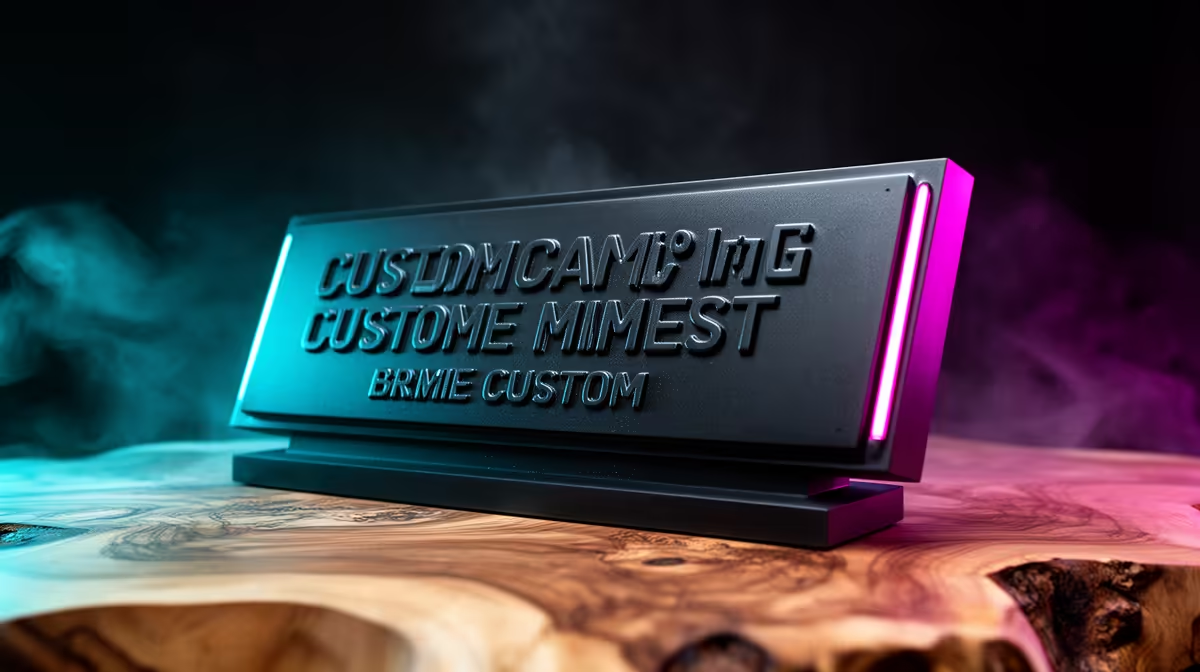
A 3D print with someone's actual name on it lands differently from a generic trinket off a shelf. Making personalised 3D printed gifts with custom text is genuinely easy: you either drop your text into a model that was built to accept it, or you add a few raised letters yourself in free browser software, then slice and print. No CAD degree required, and the perceived value sits far above the few Rand of filament you spend.
Quick Answer
There are two reliable routes. Use a customisable or parametric model where you type a name or date into a field before downloading, or add your own raised text in a free tool like Tinkercad in about ten minutes. Either way the print costs a few Rand in filament but reads as a thoughtful, one-of-a-kind gift.
Route One: Customisable Models You Just Fill In
The fastest path uses models that someone has already designed to accept your words. These are often called parametric or customisable models, and they expose a text box: you type a name, the geometry updates, and you download a file ready to slice.
This is ideal for keyrings, nameplates, bag tags, desk signs and cable labels. You do zero design work and still get a result that looks deliberately made for the recipient. Match the model to a printer that handles fine lettering cleanly, and you can browse current machines in the Evetech 3D printer range to see which beds and nozzles suit small detailed prints.
When picking a customisable model, check three things: that the text field is genuinely editable, that the font is bold enough to print at small sizes, and that the letters are raised or recessed by at least 0.8mm so they survive the print and stay readable.
Route Two: Add Your Own Text in Tinkercad
When no ready-made model fits, building your own is still beginner-friendly. Tinkercad runs free in a browser and has a dedicated text shape.
- Create the base. Drag a box, cylinder or your chosen shape onto the workplane and size it. For a keyring, a rounded rectangle about 50mm by 18mm by 4mm works well.
- Add the text shape. Drag the text object on, type the name or message, and pick a bold font. Thin script fonts lose detail at small sizes, so favour heavier letterforms.
- Set the height. Raise the text 1mm to 1.5mm above the base so it reads clearly and prints reliably. For a two-colour effect, keep the text flush and change filament at that layer instead.
- Position and group. Centre the text, add a loop or hole for a keyring if needed, then group everything into one solid object.
- Export. Download as an STL or 3MF, ready for your slicer.
The whole process takes ten to fifteen minutes once you have done it once, and the same base file becomes a template you can re-letter for the next person.
Designing Text That Actually Prints Well
Small letters are where beginners get caught. A few habits fix most problems.
Keep stroke width generous. Letters thinner than about 1mm at the base tend to come out weak or skip entirely. Avoid tiny serifs and very thin script. Give recessed text a flat floor so it does not need supports. And test one quick draft before printing the final gift, because catching a too-thin letter on a five-minute test saves a wasted two-hour run.
Finishing for a Gift-Worthy Result
A raw print and a finished gift are different objects. A little effort closes the gap.
For raised text in a contrasting colour, do a filament change at the layer where the letters start so the name pops against the base. If you printed single-colour, a careful wipe of acrylic paint into recessed letters, then a clean across the top surface, leaves paint only in the grooves. Add a split ring for keyrings, a magnet recess for fridge pieces, or a ribbon hole for ornaments. Small extras like rings, magnets and finishing tools are easy to add from the Evetech accessories best sellers when you stock up on filament.
Ideas That Land Well
Names and dates carry the most meaning, so lean into occasions. A keyring with a graduation year, a desk nameplate for a new job, a cable tag set with each family member's name, an anniversary token with two names and a date, or a sports bag tag for a school kit. Each takes one base design and a quick re-letter, which is what makes personalised printing so cheap to repeat.
Frequently Asked Questions
Do I need to know CAD to add custom text?
No. Customisable models let you type into a text field with no design work at all, and Tinkercad's text shape lets you add your own letters by dragging and typing. Both are free and beginner-friendly.
How tall should the raised text be?
Aim for 1mm to 1.5mm of height above the base. That is tall enough to read clearly and to allow a clean filament colour change, while staying low enough to print reliably without stringing.
Why does my small text print badly?
Usually the letters are too thin. Use a bold font, keep stroke width above roughly 1mm, and avoid fine serifs or script at small sizes. A quick draft print confirms the text holds before you commit to the full gift.
Can I print the name in a different colour to the base?
Yes. The simplest method is a filament change at the layer where raised text begins, which gives a clean two-tone result without a multi-material printer. Painting into recessed letters is the alternative for single-extruder machines.
What is the cheapest way to make many personalised gifts?
Build one base model, then re-letter it for each recipient. Because filament cost per small item is only a few Rand, the real saving comes from reusing a single design and changing only the text each time.
Ready to start turning names and dates into gifts people keep? Pick up filament and finishing bits from the Evetech accessories best sellers, and the team can point you to a printer that handles fine text cleanly.










