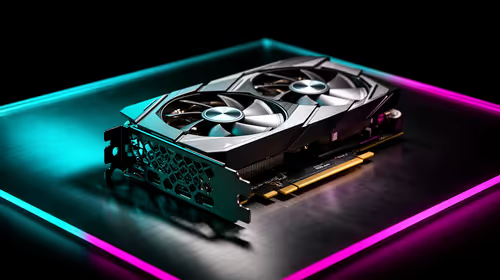
The next big graphics leap, RTX 60 Rubin from NVIDIA and AMD's RDNA 5, is not expected to land in any volume until 2027. That leaves roughly 18 months from mid-2026 where your current card has to keep pulling its weight. The good news is that a handful of deliberate moves around GPU longevity can stretch real, playable performance well past the point most people assume an upgrade is mandatory.
Quick Answer
You can comfortably bridge the gap to 2027 without buying a new card. Keep drivers current, lean on DLSS or FSR upscaling, trim a few high-cost settings, sort out cooling and dust, and drop your render resolution before your monitor resolution. Together these can claw back 20 to 40 percent of perceived performance.
Step 1: Get Your Drivers and Baseline Right
Start by updating to the latest stable GPU driver. NVIDIA and AMD both ship game-ready updates that add optimisations for new releases, and skipping a year of them quietly leaves performance on the table. Do a clean install rather than an upgrade-over-the-top if you have been updating for years, since stale driver remnants can cause stutter that looks like ageing hardware.
Then measure where you actually stand. Pick two or three games you play most, run the built-in benchmark or a repeatable scene, and note average and 1 percent low frame rates at your normal settings. Every change after this gets judged against that baseline, so you can tell a real gain from a placebo. If you want to compare your numbers against current cards, the line-up on the Evetech graphics card range gives a sense of where your GPU sits today.
Step 2: Turn On Upscaling
Upscaling is the single biggest free win available. DLSS on NVIDIA cards and FSR on AMD render the game at a lower internal resolution then reconstruct it up to your screen, often with little visible loss in Quality mode. On older hardware that can mean a 30 to 50 percent frame-rate jump in supported titles.
- Enable DLSS or FSR in each game's graphics menu.
- Start on the Quality preset, which keeps image sharpness high.
- Only drop to Balanced or Performance if you genuinely need more frames.
- For NVIDIA RTX owners, switch on frame generation where the game offers it.
Where a game lacks built-in support, the driver-level options, NVIDIA's image scaling or AMD's equivalent, give you a fallback that still helps.
Step 3: Cut the Expensive Settings, Keep the Cheap Ones
Not all graphics settings cost the same. A few are framerate killers that barely change how a scene looks in motion.
- Drop ray tracing or volumetric lighting first; these are the heaviest single toggles on older GPUs.
- Lower shadow quality one notch, which frees frames with little visible difference during play.
- Reduce screen-space reflections and ambient occlusion before touching textures.
- Keep texture quality high if you have enough VRAM, since textures cost memory rather than raw GPU power.
The goal is to spend your card's limited budget on the settings your eyes actually notice and starve the ones they do not.
Step 4: Sort Out Heat and Dust
A GPU that throttles under heat behaves like a slower card. After a year or two of use, dust-clogged fins and dried thermal paste are common, and both push temperatures up.
- Blow dust out of the heatsink and case filters with compressed air.
- Check that case airflow has a clear intake and exhaust path.
- Set a slightly more aggressive fan curve so the card stays under throttling temperatures.
- If you are comfortable opening the card and it is well out of warranty, repasting an older GPU can drop temperatures several degrees.
Cooler silicon holds its boost clocks longer, which shows up directly as steadier frame rates. The right case fans and cooling extras from the Evetech accessories best-sellers make this straightforward.
Step 5: Manage Resolution Smartly
If you are gaming at 1440p or 4K and struggling, you do not have to buy a smaller monitor. Use the in-game resolution scale or upscaler to render at a lower internal resolution while keeping your desktop and UI sharp. Dropping render resolution one tier is far less jarring than dropping every other setting, and it targets exactly the workload that strains an ageing GPU. Many players bridge an entire generation this way and barely notice in the heat of a match.
Frequently Asked Questions
When are RTX 60 and RDNA 5 actually expected?
Volume availability is widely expected in 2027, with early cards possibly appearing late. Planning around an 18 month bridge from mid-2026 is the realistic stance rather than waiting on rumoured earlier dates.
Will upscaling make my games look blurry?
On the Quality preset, DLSS and FSR usually look very close to native and sometimes cleaner thanks to improved anti-aliasing. Lower presets trade sharpness for frames, so stay on Quality unless you need the extra performance.
Is it worth repasting an old graphics card?
If the card is several years old, out of warranty, and running hot, fresh thermal paste can lower temperatures and restore lost boost clocks. If it is still under warranty, do not open it, as that voids cover.
How much VRAM do I need to last until 2027?
8GB is workable at 1080p with sensible settings, while 1440p and high textures are happier with 12GB or more. If you are constantly hitting VRAM limits, lowering texture quality one notch is the quickest relief.
Does a faster CPU help an ageing GPU?
It can at lower resolutions where the CPU feeds the GPU frames, but at higher resolutions the GPU is the limit. Check whether your GPU usage sits near 100 percent before blaming the processor.
Squeezing another year out of your current card is smart, but when 2027 finally brings the upgrade, the Evetech graphics card range and GPU best-sellers will have the new generation ready. Bookmark them and bridge the gap with confidence.