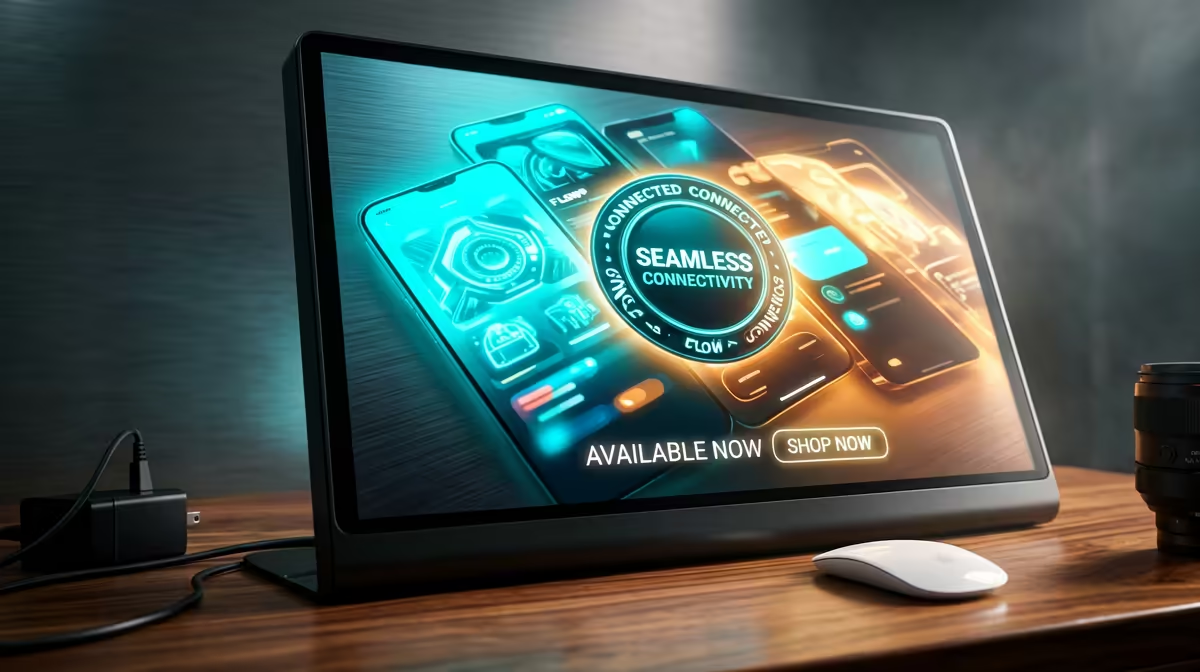
Connecting a phone to a portable monitor sounds like plug-and-play, but it hinges on one hidden detail: whether your phone's USB-C port can actually output video. Many budget Android phones leave out DisplayPort Alt Mode, the feature that lets the port carry a display signal, so a single cable does nothing on those handsets. Phones that do support it mirror or extend over one cable in seconds. This guide shows you how to check, then how to connect either way.
Quick Answer
You can mirror or extend a phone onto a portable monitor over a single USB-C cable only if the phone supports DisplayPort Alt Mode. Most flagship phones from the last few years do; many budget Android phones do not. If yours lacks it, you fall back to wireless casting to a monitor that has its own casting receiver or an attached streaming device. Check the spec first, because no cable can add video output a port was not built with.
Step 1: Check for DisplayPort Alt Mode
Get this confirmed before you spend anything else, because no cable or adapter can add video output a port was never wired for. DisplayPort Alt Mode is the feature that repurposes some of a USB-C port's internal lanes to carry a display signal. Ports built without it pass data and power but nothing more.
To confirm support:
- Search your exact phone model plus "DisplayPort Alt Mode" or "USB-C video output" on the manufacturer's spec page.
- Look in the phone's official specifications under USB or connectivity for any mention of video output, DP Alt Mode, or HDMI out.
- If the maker says the port is "USB 2.0" only, that is a strong sign it cannot output video, since DP Alt Mode generally rides on the faster USB standards.
If you confirm support, go to Step 2. If not, skip to the wireless route in Step 4.
Step 2: Get the right cable and monitor
With DP Alt Mode confirmed, you need a portable monitor that accepts USB-C video input and a cable rated to carry video, not a charge-only cable. Many portable monitors are designed exactly for this, taking both power and picture over USB-C. Browse options on the portable monitors range at Evetech and check each model lists USB-C video input.
Step 3: Connect and choose mirror or extend
- Plug the USB-C cable from the phone into the monitor's USB-C input.
- The monitor should detect the signal within a few seconds and show your phone's screen.
- If the monitor needs more power than the phone provides, connect the monitor's own power input as well, since driving a display drains the phone quickly.
From here, what you see depends on the phone:
- Mirroring shows an exact copy of the phone screen. This is the default on most handsets and is fine for watching video or sharing a screen.
- Extending, sometimes branded as a desktop mode, treats the monitor as a separate workspace with its own apps and layout. Only some phones offer this; if yours does, you enable it in display settings or it triggers automatically when connected.
Step 4: The wireless fallback for unsupported phones
If your phone has no DP Alt Mode, you cannot use a single cable, but you are not stuck. Cast wirelessly instead:
- Use a portable monitor or display that has a built-in casting receiver, or attach a small streaming device to a monitor with HDMI input.
- On the phone, open the screen cast or smart view option in the quick settings.
- Select the receiver from the list and the phone mirrors over your network.
Wireless casting adds a little lag and depends on a stable connection, so it suits media and presentations more than fast-paced interaction. Keep both devices on the same network for the smoothest result.
Quick troubleshooting
- Nothing appears: the cable is likely charge-only, or the phone lacks DP Alt Mode. Swap to a known video-capable cable and recheck the spec.
- Screen flickers or drops: the monitor may need its own power supply rather than drawing from the phone.
- Picture but no extend option: your phone only supports mirroring, which is normal for most handsets.
For a sense of which screens other buyers rely on for this kind of flexible setup, the most popular monitors at Evetech gives a clear picture of what works well in practice.
Frequently Asked Questions
Why does nothing show when I plug my phone into a monitor?
The most likely reason is that your phone's USB-C port does not support DisplayPort Alt Mode, so it cannot send a video signal. The second most common cause is a charge-only cable that does not carry video. Confirm both before assuming the monitor is faulty.
How do I know if my phone supports video output over USB-C?
Check the manufacturer's specifications for DisplayPort Alt Mode or USB-C video output. Phones listed with a USB 2.0 port usually cannot output video, while flagships from recent years generally can.
What is the difference between mirroring and extending?
Mirroring shows an identical copy of your phone screen on the monitor. Extending gives the monitor its own separate workspace, often a desktop-style interface, but only certain phones support this mode.
Can I connect any phone wirelessly instead?
If your phone supports screen casting, yes. You need a monitor with a built-in casting receiver or a streaming device attached to it, and both devices on the same network. Wireless casting adds slight lag compared to a cable.
Do I need to power the monitor separately?
Often yes. Driving a display draws significant power, and a phone may not supply enough on its own. If the screen flickers or the phone drains fast, connect the monitor's own power input.
Want a second screen that travels with you? Check that your phone outputs video over USB-C, then pick a USB-C portable monitor from the range at Evetech. Browse the monitor best sellers and order online for delivery across South Africa.