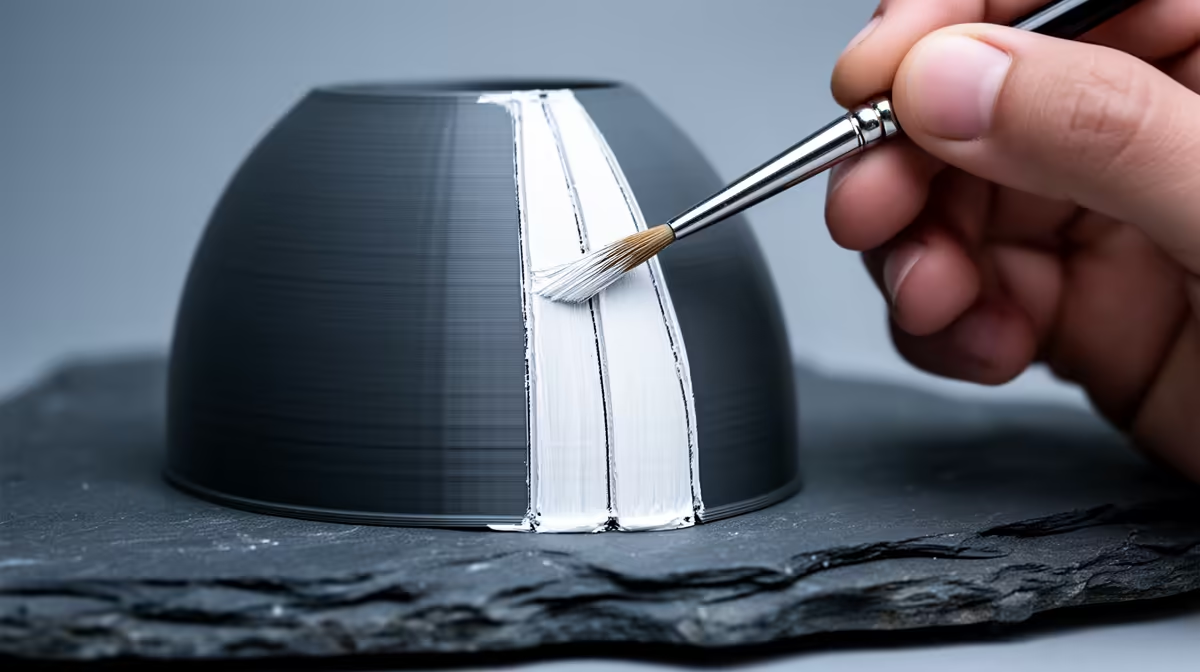
Auto-placement scatters the start point of every layer wherever the slicer thinks the path is shortest, which is exactly why a faint vertical scar ends up running down the most visible face of your model. The fix is to stop leaving that decision to the software. Painting seams manually lets you force the layer start onto an inside corner or a hidden back face, so the join sits where nobody looks. Both OrcaSlicer and PrusaSlicer give you a brush to do this in a couple of minutes.
Quick Answer
Use the seam painting tool in OrcaSlicer or PrusaSlicer (version 2.3 and later) to paint a green seam enforcer along a back edge or inside corner, and the slicer puts every layer start there. Paint a red blocker over any face you want to keep clean. This beats every automatic mode because you decide exactly where the scar lands.
Why the Z-seam appears in the first place
An FDM printer builds each layer as a continuous loop of plastic. Somewhere on that loop the nozzle has to start and stop, and that start and stop point leaves a tiny blob or gap. Stack hundreds of layers and those points line up into the vertical line people call the Z-seam. You cannot delete it, because the printer has to start each layer somewhere. What you can do is move it.
The default slicer behaviour offers four automatic modes: aligned, which stacks every seam neatly but visibly in one column; nearest, which jumps to whichever edge is closest; random, which scatters the blobs so none stands out but the whole surface looks slightly rougher; and rear, which pushes the seam toward the back of the bed. Rear is the best of the automatic options for a front-facing model, but it still cannot tell which face you actually display, so it gets it wrong on rotated or angled prints. A spool of decent PLA or PETG is cheap enough that wasting one on a visible scar stings, and the 3D printers and filament range at Evetech covers both the hardware and the consumables for dialling this in.
Painting an enforcer in OrcaSlicer
- Load and orient your model first. The seam should follow a real edge, so decide which way the part faces before you paint.
- Switch to Advanced or Expert mode. The seam painting icon only appears on the left toolbar in those modes.
- Click the seam painting tool. You now get two brushes: a green enforcer and a red blocker.
- Paint a thin green stripe down the back corner or inside angle where you want every layer to start. Keep it narrow. A wide band gives the slicer room to wander.
- Paint red blockers over any curved front face you want to protect, so the start point can never drift there.
- Slice and check the preview. The seam line should now sit inside your green stripe.
Choosing where the seam should live
Inside corners are the best hiding spot, because the geometry already breaks up the light and the eye skips over the join. A flat back face is the next best choice for a model that only gets seen from the front, like a display bust or a wall bracket. Avoid putting the seam on a smooth curved front surface, since there is nothing for it to disappear into. For cylindrical parts with no corners at all, a tight enforcer stripe down the least-seen side keeps the scar consistent and predictable rather than random.
Temperature and retraction still matter alongside placement. A slightly lower printing temperature and clean retraction tuning shrink the size of each start blob, so even a seam you cannot fully hide becomes less obvious. Good cooling and a quality nozzle help here too, and the tools and spares in the 3D printing accessories best sellers cover the small extras that keep prints clean.
Frequently Asked Questions
Does seam painting work in both OrcaSlicer and PrusaSlicer?
Yes. PrusaSlicer added seam painting in version 2.3, and OrcaSlicer carries the same enforcer and blocker brush system. The workflow is nearly identical in both, so skills transfer directly between them.
Can I remove the Z-seam completely?
No. The printer has to start and stop each layer somewhere, so a seam always exists. Painting lets you relocate it to a corner or hidden face where it stops being visible in normal use.
Why does the random seam mode look worse to some people?
Random scatters the start points so no single line forms, but it spreads small blobs across the whole surface. That can read as general roughness rather than one clean scar, which some find more distracting than a hidden aligned seam.
Do I need to paint seams on every print?
Only on parts where surface quality on a specific face matters. For functional brackets and internal parts, the rear or aligned automatic mode is usually fine and saves you the extra step.
Will lowering retraction help hide the seam too?
It helps. Tighter retraction and a slightly cooler nozzle reduce the size of the start blob, so the seam you place is smaller and less noticeable even before you hide it in a corner.
Ready to dial in cleaner prints? Browse the 3D printers and filament range at Evetech and pair your machine with the right nozzles, tools and finishing supplies.