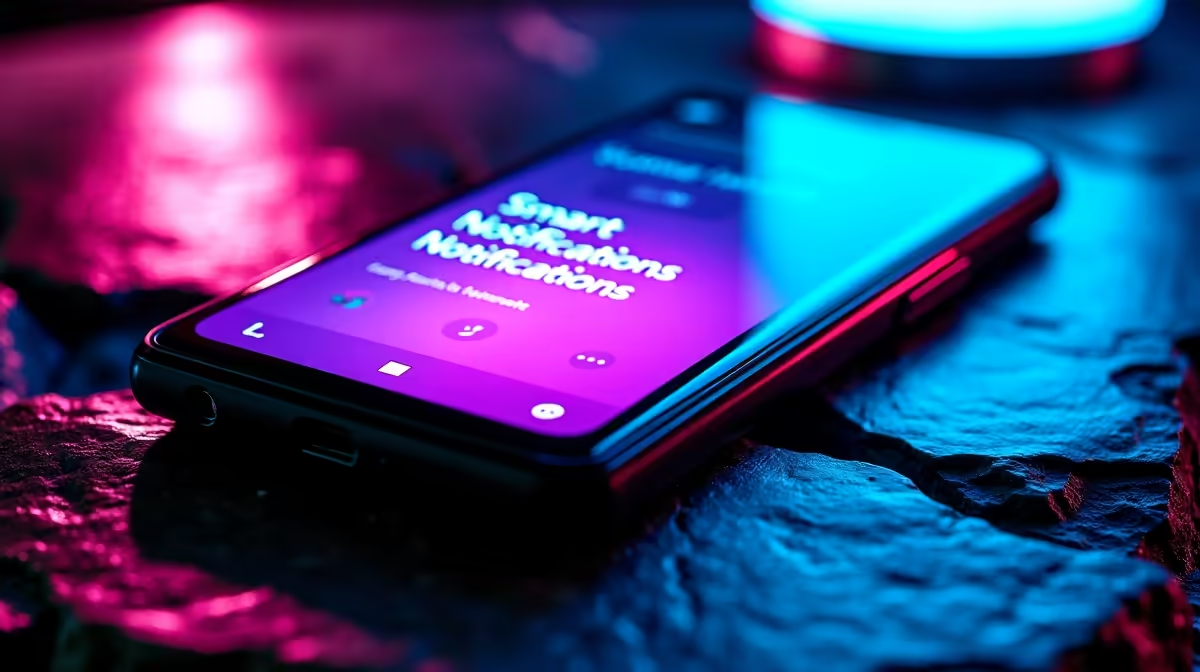
A motion sensor that fires while you are out is useless if the alert just sits silently on your dashboard. Sending smart notifications from Home Assistant to your phone turns events into push alerts you actually see: someone arriving, a door left open, water under the sink. Done properly, each alert carries a camera snapshot and buttons you can tap straight from the lock screen, so you can react in seconds without unlocking the app.
Quick Answer
Install the Home Assistant Companion app on your phone, which registers a notify service for that device, then call it from an automation with a message, an optional camera image, and up to a few action buttons. The result is an actionable push alert: a snapshot of who is at the door plus tap-to-act buttons, delivered to your lock screen for arrivals, open doors, and leaks.
Step 1: Install and Connect the Companion App
The Companion app is what makes phone notifications possible. Download Home Assistant from the App Store on iOS or Google Play on Android, open it, and enter your Home Assistant address. On the same network it usually auto-discovers your server.
For alerts to reach you when you are away from home, you need remote access set up: Nabu Casa, a Cloudflare Tunnel, or a VPN back to your network. Once the app is signed in, it registers a notify service named for your device, and it also creates a device tracker entity for that phone, which you will use for arrival alerts later.
Step 2: Send Your First Basic Notification
Start simple so you know the pipeline works before adding extras.
- In an automation, choose your trigger, for example a door sensor changing to open.
- Add an action that calls the notify service for your phone, which is named after your device.
- Set a clear message and a short title, such as a title of "Front Door" and a message naming which door opened.
- Save, then trigger the sensor and confirm the push arrives on your phone.
Get this single alert working first. Everything that follows is just adding richness to a notification that already reaches you reliably.
Step 3: Attach a Camera Snapshot
A notification that shows what happened beats one that only describes it. In the notify action, add an image under the data section pointing at a camera entity or a snapshot URL. When the alert fires, the push expands to show the frame, so an arrival alert shows who is actually at the gate rather than just telling you the sensor tripped.
This is where the system earns its keep for a South African home: a single glance at the lock screen tells you whether to act or ignore it. The cameras and sensors that feed these alerts live in the smart home and security range at Evetech.
Step 4: Add Actionable Buttons
Actionable notifications add tappable buttons to the alert. In the notify action, define a small set of actions, each with an identifier and a label such as "Unlock" or "Dismiss". A second automation then listens for which button you tapped and runs the matching response, like unlocking a smart lock or muting further alerts.
Keep it to a few clear buttons. The point is to act from the lock screen in one tap, not to recreate the full dashboard in a notification.
Step 5: Build the Three Alerts That Matter
With the pieces in place, wire the alerts most homes want.
Arrivals
Use the phone's device tracker against a Home Assistant zone for your home. When the tracker enters the zone, fire a notification, or trigger a welcome-home routine. This is reliable presence detection straight from the Companion app.
Open doors
Trigger on a door or gate sensor staying open past a set time, and attach the relevant camera snapshot. A delay condition stops it nagging every time someone steps out briefly.
Water leaks
Trigger on a leak sensor and send a critical alert. These can be set to stay on screen until you dismiss them, and even to break through Do Not Disturb, which is exactly what you want for water under a geyser or sink. Round out a starter kit with the accessories best sellers, which cover the sensors and hubs these automations rely on.
Frequently Asked Questions
Do I need the Companion app, or will a browser work?
You need the Companion app. It registers the notify service and the device tracker for your phone, neither of which exist through a browser. The browser dashboard cannot send native push notifications on its own.
Will notifications reach me when I am away from home?
Only if remote access is configured, through Nabu Casa, a Cloudflare Tunnel, or a VPN. Without one of those, alerts only deliver while your phone is on the home network.
Can I include a live camera feed, not just a snapshot?
You can attach a snapshot image easily, and on supported setups a live stream as well, though a still snapshot is the most reliable across phones. The snapshot loads fast and tells you what you need at a glance.
What makes a leak alert "critical"?
A critical alert can stay on screen until you dismiss it and can bypass Do Not Disturb. That persistence is exactly what a water leak needs, since a normal alert is easy to miss while you sleep.
How many action buttons can I add?
Keep it to a small handful of clear actions so the alert stays usable on the lock screen. A separate automation listens for which button you pressed and runs the matching response.