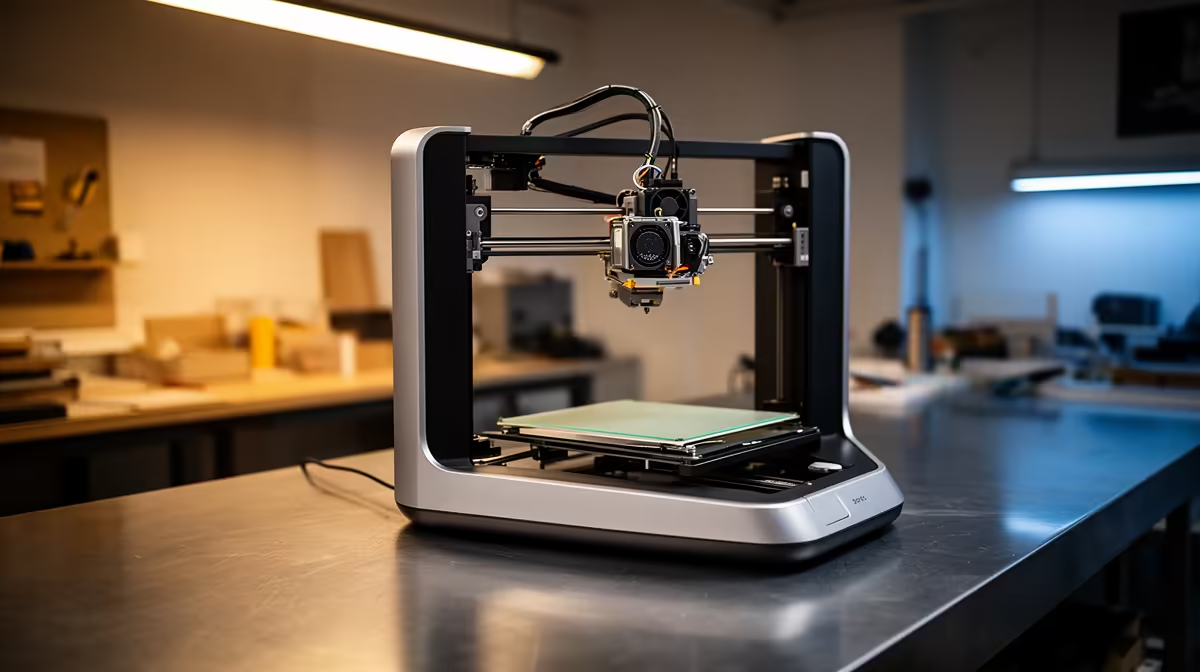
Most desktop 3D printers now ship tied to a manufacturer account, but you can run a 3D printer without the cloud app entirely if the hardware exposes a LAN-only or developer mode. Switch the printer onto your local network, copy down its IP address and access code, and you send jobs straight from a slicer on your own machine or off an SD card. Nothing leaves your house, and there is no account to create.
Quick Answer
Yes. On printers that support LAN-only mode (Bambu Lab, Creality K-series, Prusa and most Klipper machines), you enable local control in the printer menu, note the IP plus access code, then bind a slicer like OrcaSlicer over your LAN or print from SD card. No cloud login, no internet dependency, and all print data stays on your own network.
Why go cloud-free in the first place
Cloud printing is convenient, but it routes your model files, camera feed and print history through a server you do not own. For anyone printing client work, prototypes under NDA, or just preferring their home network stays quiet, local control removes that exposure. It also means your printer keeps working when the internet drops, which on a fibre line in Cape Town or Joburg is never a guarantee.
The trade off is small. You lose remote monitoring from outside your home and some app-only conveniences like firmware-pushed timelapses. For most makers that is a fair swap for full ownership of the workflow.
Step 1: Enable LAN-only or developer mode
On the printer's touchscreen, open the network or settings menu and look for a LAN Mode, Local Only, or Developer Mode toggle.
- Bambu Lab printers: Settings, then General, then enable LAN Only Mode. The screen will display an access code.
- Creality and Klipper-based machines: connect over Wi-Fi or Ethernet, then access the Fluidd or Mainsail web interface directly by IP, which is local by design.
- Prusa machines with Prusa Connect: you can skip the connect step and use PrusaLink locally over the network instead.
Once LAN mode is on, the printer stops talking to the vendor server and only answers requests from inside your network.
Step 2: Note the IP address and access code
In the same network menu, the printer shows its assigned IP address (something like 192.168.0.42) and, on locked-down models, an access code or PIN. Write both down. To stop the IP changing every reboot, reserve it in your router's DHCP settings against the printer's MAC address. A fixed IP means your slicer connection never breaks after a power cycle.
Step 3: Bind your slicer over the LAN
OrcaSlicer is the most flexible free option and supports local binding to most modern printers.
- Open OrcaSlicer, add your printer model, and choose the LAN connection method.
- Enter the IP address and access code you noted earlier.
- Slice your model, then hit Print over the network. The job uploads directly, machine to machine.
OrcaSlicer also pulls live status and bed temperature over the same local link, so you keep a usable dashboard without any account. If you prefer the official slicer, Bambu Studio offers the same LAN device binding.
Step 4: The SD card fallback
If a printer fights you on network setup, SD card printing always works and needs zero connectivity. Slice in OrcaSlicer, export the gcode or 3mf to the card, insert it into the printer, and select the file from the local files menu. It is the most private route possible, since the file never touches a network at all. Keep a spare card formatted to FAT32 in your toolkit for exactly this.
Picking the hardware and the extras
When selecting a machine, look for one that openly documents its LAN-only or developer mode on the spec sheet rather than discovering its limitations after purchase. You can compare what is currently available in the 3D printer catalogue at Evetech to identify which models expose local control. For the supporting bits, a decent SD card, spare nozzles and a card reader make the offline workflow smoother, and the top-selling accessories that SA makers reach for most cover most of those small extras.
Frequently Asked Questions
Does LAN-only mode work without any internet at all?
Yes. Once enabled, the printer and slicer talk only over your local network, so the print runs even with the router offline as long as both devices share the same LAN. SD card printing needs no network whatsoever.
Will I lose the phone app entirely?
You lose remote access from outside your home and some cloud-only features. Many vendor apps still connect locally on the same Wi-Fi, so in-house monitoring often survives. The slicer dashboard covers most of what the app did.
Is the access code a security risk on my network?
The access code is what keeps random devices on your LAN from sending jobs to the printer, so it improves security rather than weakening it. Keep it private and reset it if you ever expose the printer to guests.
Can older printers do this too?
Most pre-cloud printers were local-only from the start and simply print from SD card or a direct USB or network link. Klipper-based machines running Fluidd or Mainsail are local by design.
Why reserve a static IP for the printer?
A reserved IP stops the printer's address changing after a reboot, which would otherwise break the slicer connection. Set it once in your router and the link stays stable for good.
Ready to print on your own terms? Browse the current 3D printer range at Evetech (https://www.evetech.co.za/components/3d-printers-130) and grab a fast SD card and spare nozzles to keep your offline setup running clean.