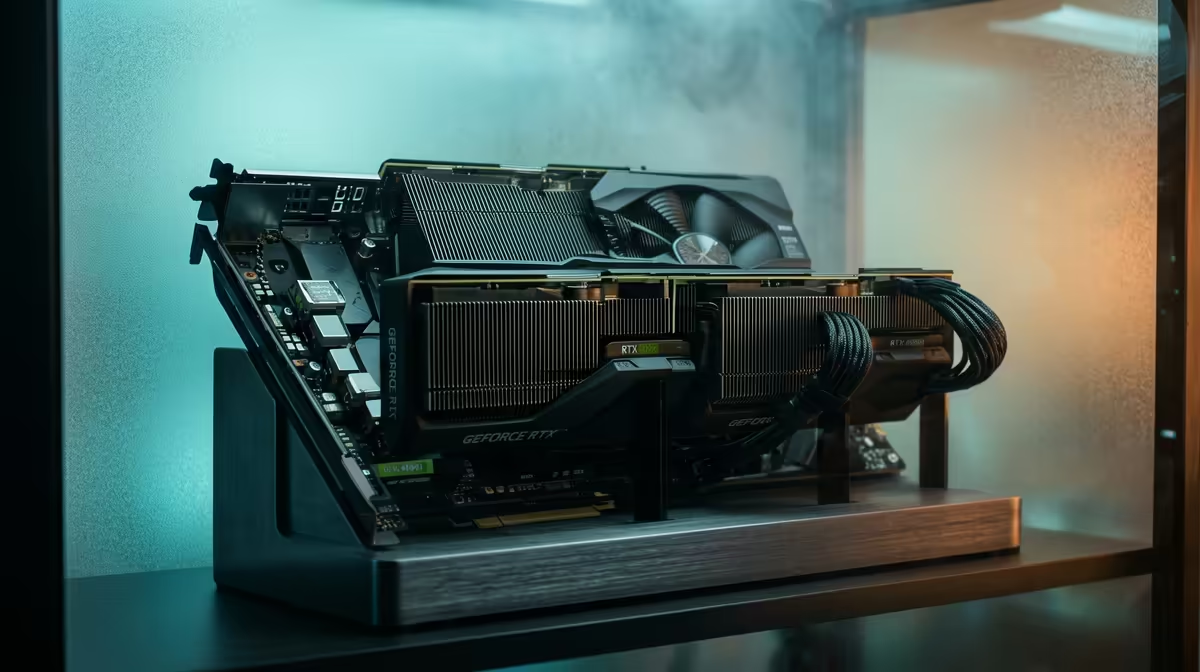
Render times are where Blender artists lose the most hours, and adding a second graphics card is the most direct way to claw them back. A dual-GPU render workstation for Blender splits Cycles tile work across two cards, and the speed-up scales close to linearly: two well-matched GPUs can cut render times by 60 to 90 percent compared with a single card. The catch is that both cards must be visible to Blender and your power supply must comfortably feed both.
Quick Answer
Two GPUs in Blender Cycles can cut render times by 60 to 90 percent because the work splits across both cards. Both must be enabled under Preferences, System, Cycles Render Devices, and your PSU must be rated for the combined draw of both cards plus the rest of the system. NVLink is not required.
Why Two GPUs Help in Cycles
Cycles is a path-tracing engine, which means it traces light rays for each pixel independently. That workload divides neatly across hardware, so handing half the frame to a second GPU roughly halves the time, minus a little overhead. This is different from gaming, where a second card rarely helps. For rendering, the scaling is real and repeatable, which is why busy studios stack cards. The OptiX backend on NVIDIA GPUs also brings hardware ray-tracing acceleration, compounding the gain on supported cards.
Building the Workstation Step by Step
Getting both cards working and stable comes down to a handful of deliberate choices.
- Pick a motherboard with two suitable PCIe slots. You want two slots with enough spacing that the upper card breathes, and ideally both running at a healthy lane count. Even at x8/x8, render scaling holds up well because Cycles is not bandwidth-bound once the scene is loaded.
- Match the cards sensibly. They do not have to be identical, but pairing two cards of similar performance avoids one becoming a bottleneck. Mismatched VRAM is the bigger trap, since a scene must fit in the smaller card's memory.
- Size the power supply for both. Add the rated board power of both GPUs, add the CPU and the rest of the system, then leave generous headroom. A pair of high-end cards can demand a great deal under full render load, and an undersized PSU shows up as crashes mid-render rather than a clean error.
- Sort cooling and spacing. Two cards stacked closely trap heat. Ensure strong case airflow, and consider blower-style cards or a roomy chassis so the top GPU is not starved.
- Enable both cards in Blender. Open Preferences, System, then Cycles Render Devices. Choose CUDA or OptiX, and tick the boxes for both GPUs. If only one appears, recheck drivers and seating before anything else.
Common Dual-GPU Pitfalls
The most frequent problem is one card silently not contributing. Always confirm both are ticked in Cycles Render Devices, because Blender does not warn you if only one is active. The second is VRAM: a scene that exceeds the smaller card's memory will fail or fall back, so plan around the lower figure unless your cards support memory pooling. The third is power instability, where renders crash minutes in because the PSU sags under sustained dual-GPU load. The professional cards built for exactly this kind of sustained compute are gathered in the workstation graphics card range, which is the right place to start if reliability under long renders matters more than peak gaming frame rates.
Tuning for Maximum Scaling
Once both cards render, a few settings squeeze out the rest. Prefer OptiX over CUDA on supported NVIDIA hardware for the ray-tracing acceleration. Keep tile and sample settings sensible so neither card sits idle waiting on the other. And render a short test sequence to confirm both GPUs report activity. If you would rather buy a complete, balanced machine than source parts individually, the most popular pre-built systems show what a sensible high-performance configuration looks like before you commit to a custom build.
Frequently Asked Questions
Do I need NVLink for dual-GPU rendering in Blender?
No. Blender splits render work across both cards without NVLink. NVLink mainly helps with memory pooling on supported professional cards, but it is not required for the core speed-up in Cycles.
Why is only one of my GPUs being used in Blender?
The second card is almost always not ticked under Preferences, System, Cycles Render Devices. Enable both there. If one still does not appear, check the driver installation and that the card is seated and powered correctly.
Can I mix two different GPU models?
Yes, Blender can use different models together, but pair cards of similar performance to avoid a bottleneck. Watch VRAM closely, since the scene must fit within the smaller card's memory unless the cards pool memory.
How big a power supply do I need for two GPUs?
Add the rated power of both cards, add the CPU and rest of the system, then leave clear headroom on top. Undersizing the PSU causes crashes during long renders rather than an obvious warning, so err generous.
Does a second GPU help with EEVEE too?
EEVEE is a real-time rasteriser and does not scale across two cards the way Cycles does. The dual-GPU benefit is specifically for Cycles path tracing. For EEVEE, a single strong card is the better focus.
Ready to stop waiting on renders? Configure a dual-GPU workstation with the right cards, board and power supply at Evetech, and let Cycles split the work so your frames finish in a fraction of the time.