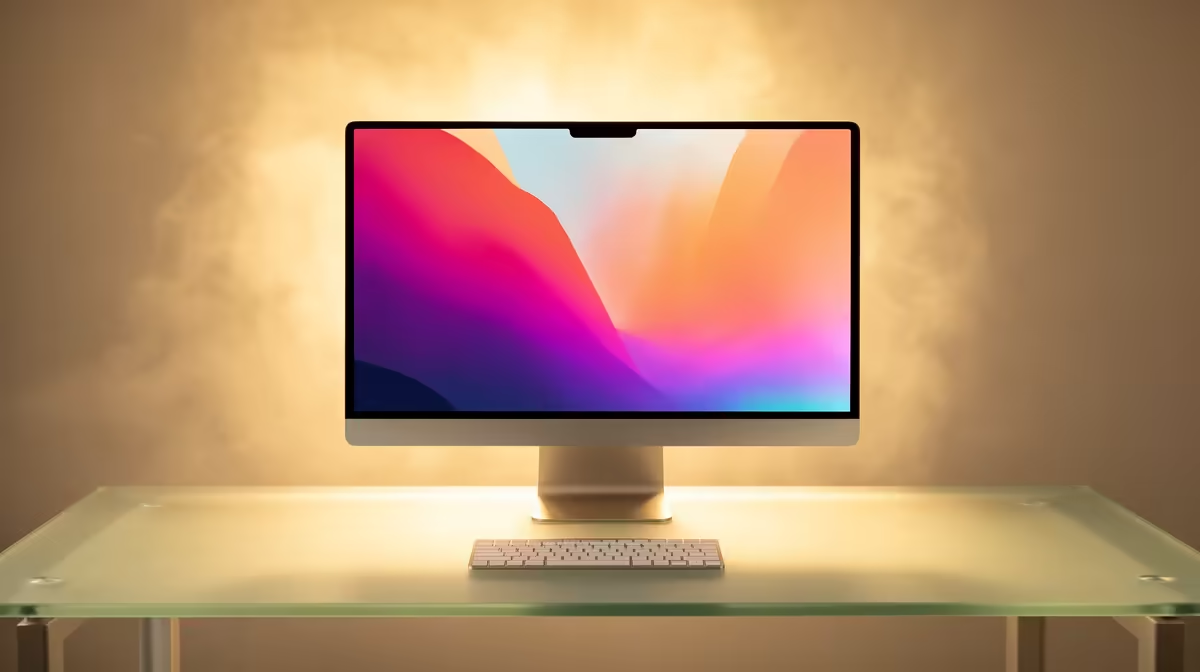
Pull a new MacBook out of the box and the first thing you see is a friendly hello and a request to choose your language. That is the macOS Setup Assistant, the wizard that walks every new Mac through its first boot. It handles language, region, Wi-Fi, your Apple ID, Touch ID, and the option to bring your old files across, then drops you on a desktop that is signed in and ready to use. The whole process takes about 10 to 20 minutes, and doing each step properly the first time saves you fixing it later.
Quick Answer
On first boot, macOS Setup Assistant guides you through language, region, Wi-Fi, Apple ID sign-in, Touch ID, and optionally Migration Assistant before reaching the desktop. Budget 10 to 20 minutes. The two steps worth slowing down on are your Apple ID and whether to migrate from an old machine.
Step by Step: First Boot to Desktop
Follow these in order. Setup Assistant presents them roughly this way, though the exact screens vary slightly by macOS version.
- Choose language and region. Pick your language, then set the region to South Africa so date, currency, and keyboard formats are correct from the start.
- Connect to Wi-Fi. Join your home or office network. The Mac needs internet to activate and to sign in to your Apple ID, so have your Wi-Fi password ready. On a wired desk, an adapter to Ethernet works too.
- Data and Privacy. Apple shows a short notice explaining how it handles your information. Read it, then continue.
- Migration Assistant (optional). This is the fork in the road. If you are moving from an old Mac or a Time Machine backup, choose to transfer now and your apps, files, and settings come across. Starting fresh? Skip it and set up as new. More on this below.
- Sign in with your Apple ID. Enter your Apple ID and password, or create one if this is your first Apple device. This links the Mac to iCloud, the App Store, Messages, and Find My. If you use two-factor authentication, approve the prompt on your phone.
- Set up Touch ID. Place and lift your finger on the sensor several times so it learns your print. Touch ID then unlocks the Mac, fills passwords, and authorises App Store purchases without typing your password each time.
- Create the user account and password. If you skipped migration, you set your account name and login password here. Choose a strong one, since this also encrypts your data on Apple silicon Macs.
- Screen Time, Siri, and appearance. Decide whether to enable Siri, pick a light or dark appearance, and the Mac finishes. You land on the desktop, signed in and ready.
The Migration Assistant Decision
This is the step most people get wrong, so it deserves attention. Migration Assistant copies your user accounts, applications, files, and settings from an old Mac, a Time Machine backup, or even a Windows PC.
Do it during initial setup if you can. Running it later is possible but messier, because you end up merging into an account that already exists. During first boot, the new Mac creates your account from the transferred data directly, which is cleaner.
Connect both Macs to the same Wi-Fi, or link them with a cable for a faster transfer of large libraries. A big photo or music library can take a while, so start it when you have time to leave both machines alone. If you are deliberately starting clean to shed years of clutter, skip migration and copy only the files you actually want from a backup drive afterwards. You can browse current models on the Evetech MacBook range if you are still deciding which one to set up.
After You Reach the Desktop
A few finishing touches make the Mac genuinely yours. Open System Settings and run Software Update so you are on the latest macOS. Sign in to the App Store and reinstall the apps you use, or let migrated ones update. Enable Find My if it is not already on, so the Mac is locatable and locked if lost. If you carry it daily, a sleeve and a USB-C hub from the laptop accessories range round out the kit.
Frequently Asked Questions
Do I need an Apple ID to set up a Mac?
You can finish setup without one and create or sign in later, but an Apple ID unlocks iCloud, the App Store, Messages, and Find My. For most people, signing in during setup is the simpler path.
How long does setting up a new Mac take?
Plan for 10 to 20 minutes for the core setup. If you use Migration Assistant to transfer a large library, the total time depends on how much data moves and the connection speed.
Should I use Migration Assistant or start fresh?
Migrate if you want your old apps, files, and settings carried over with minimal effort. Start fresh if you want to declutter, then copy only the files you need from a backup afterwards.
What is Touch ID used for on a Mac?
Touch ID unlocks the Mac, fills saved passwords, authorises App Store and Apple Pay purchases, and approves system changes, all without typing your password each time.
Can I set up a Mac without Wi-Fi?
The Mac needs internet to activate and sign in to an Apple ID, so connect to Wi-Fi or use a wired adapter. You can skip the Apple ID and add it later once you are online.
Setting up your first Mac or upgrading to a newer one? Explore the current MacBook lineup and accessories on the Evetech MacBook range and start fresh today.