


Stuck Pixel Checks for a Mechanical Keyboard Setup
Stuck pixel on a Mechanical Keyboard is likely a display symptom around that setup, not the part itself. Check the monitor, cable, GPU output, drivers, and warranty path first.
Read moreRay-Ban Meta pairs through the Meta AI app over Bluetooth and requires a Meta account and active internet connection to enable AI features. SA users can download the Meta AI app from local app stores and their Meta account works fine in South Africa.
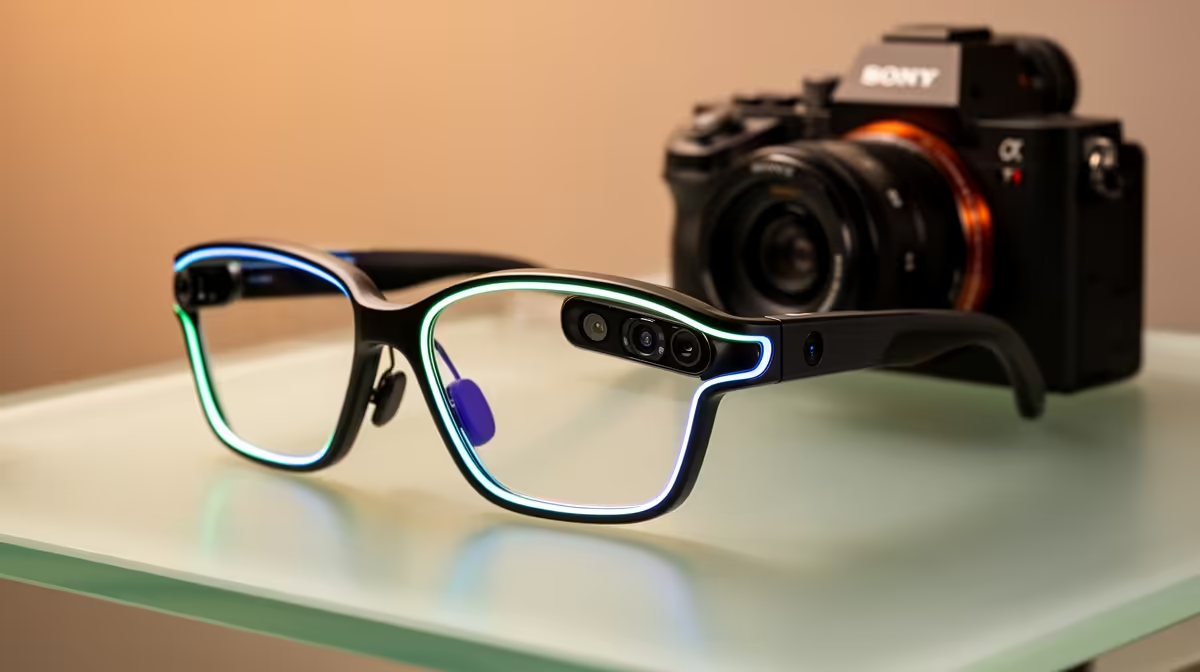
Getting your Ray-Ban Meta glasses working is mostly a phone exercise, not a fiddly hardware ritual. The glasses pair to the Meta AI app over Bluetooth, you sign in once, and the AI features, camera, audio and voice assistant all switch on together. From opening the box to your first voice command is usually under ten minutes if you know the order of operations.
To set up Ray-Ban Meta, download the Meta AI app, sign in to or create a Meta account, enable Bluetooth, put the glasses into pairing mode in their case, and follow the in-app prompts. You need an active internet connection and a Meta account, both of which work fine in South Africa. The glasses arrive charged enough to set up straight away.
Two things make the process smooth. First, charge the glasses in their case if you want full battery, though they usually ship with enough charge to complete setup out of the box. Second, make sure your phone has a working internet connection, because the AI features authenticate against your Meta account online and will not fully activate offline.
Have your Meta account details ready if you already use Facebook, Instagram or another Meta service, since the same login works. If you do not have one, the app walks you through creating it, so there is nothing to prepare in advance.
The glasses are controlled entirely through the Meta AI mobile app. The quickest route is to scan the QR code printed inside the box lid, which sends you straight to the correct app on the App Store or Google Play. If you would rather, search for the Meta AI app in your phone's store directly. South African app stores carry it, so there is no workaround needed to install it locally.
Install it and open it before you touch the glasses, since the app drives the rest of the process.
Open the app and log in with your Meta account. If you do not have one, the app guides you through creating it on the spot, which takes a minute. A Meta account works normally in South Africa, so you can complete this step without any region tricks. This account is what ties the glasses to the AI features, your media and your settings, so use an account you intend to keep.
The first time the app runs, it asks permission to use Bluetooth. Tap allow. Bluetooth is how your phone talks to the glasses, so without this permission the pairing simply cannot proceed. If you accidentally decline, you can re-enable it in your phone's app permission settings and return to the app.
Leave the glasses inside their charging case for this part. For a first-time pair, pull the tab inside the case, and the notification light will pulse white to show the glasses are in pairing mode. If your case has no tab or you are re-pairing later, press and hold the pairing button on the case for roughly seven to eight seconds until the light pulses. Keep the glasses in the case throughout, as that is the expected state for pairing.
Back in the Meta AI app, tap the option to set up a device and follow the on-screen steps. The app detects the glasses over Bluetooth and connects. You may be asked to confirm a pairing code or accept a couple of permissions that let the glasses function; accept them. Once the app confirms the connection, the glasses are paired and ready, and the camera, audio and voice assistant are all live.
From here, a quick walk through the app's settings lets you set your preferences and test a voice command. If pairing stalls, the usual fixes are toggling your phone's Bluetooth off and on, making sure the glasses are charged, and confirming the case light is actually pulsing white before you try again.
The glasses pair like any Bluetooth audio device, so the same logic applies to keeping them connected as it does to a headset. If you are still deciding which model suits you, the smart glasses range at Evetech shows you what is in stock and how the models compare. To round out the kit with a case, cleaning cloth or charging cable, the best-selling accessories at Evetech carry the small extras that keep a wearable tidy and charged.
Yes. The Meta AI app is available in South African app stores, a Meta account works locally, and the glasses pair over standard Bluetooth. You need an active internet connection for the AI features to authenticate, which any normal mobile or home connection provides.
Yes, the glasses tie to a Meta account for AI features, media and settings. If you already use Facebook or Instagram you can reuse that login, and if not, the Meta AI app walks you through creating one during setup.
The common causes are Bluetooth permission not granted, the glasses not actually in pairing mode, or low battery. Confirm the case light is pulsing white, toggle your phone's Bluetooth off and on, ensure the glasses are charged, and retry from the set-up screen in the app.
You can begin pairing, but the AI features will not fully activate without an internet connection, since they authenticate against your Meta account online. Complete setup on Wi-Fi or mobile data so everything switches on properly.
Usually under ten minutes. Most of that is downloading the app and signing in, since the actual Bluetooth pairing takes seconds once the glasses are in pairing mode and the app detects them.
Thinking about a pair or picking the right model for you? Browse the AR and smart glasses range at Evetech and have everything ready to pair and go the moment it arrives.
Yes. The Meta AI app is available in South African app stores, a Meta account works locally, and the glasses pair over standard Bluetooth. You need an active internet connection for the AI features to authenticate, which any normal mobile or home connection provides.
Yes, the glasses tie to a Meta account for AI features, media and settings. If you already use Facebook or Instagram you can reuse that login, and if not, the Meta AI app walks you through creating one during setup.
The common causes are Bluetooth permission not granted, the glasses not actually in pairing mode, or low battery. Confirm the case light is pulsing white, toggle your phone's Bluetooth off and on, ensure the glasses are charged, and retry from the set-up screen in the app.
You can begin pairing, but the AI features will not fully activate without an internet connection, since they authenticate against your Meta account online. Complete setup on Wi-Fi or mobile data so everything switches on properly.
Usually under ten minutes. Most of that is downloading the app and signing in, since the actual Bluetooth pairing takes seconds once the glasses are in pairing mode and the app detects them.
Stuck pixel on a Mechanical Keyboard is likely a display symptom around that setup, not the part itself. Check the monitor, cable, GPU output, drivers, and warranty path first.
Read more
How to fix stuck pixel Windows 11 USB DAC issues starts with display-only tests. Check HDR, scaling, monitor input, USB cable movement, and safe South African support options before connecting the pixel issue to audio hardware.
Read more
Windows 11 Steam Deck monitor issues often start with display mode, USB-C output, drivers, or dock power. Use this how to fix monitor not detected windows 11 steam deck checklist for SA handheld PC setups.
Read more
Stalker 2 Heart of Chornobyl PC build planning at R100,000 should stay cautious about parts and settings. Balance GPU, CPU, RAM, storage, cooling, and upgrade room before picking a South African gaming PC.
Read more
RX 9070 XT build stuttering needs a step-by-step check before replacing parts. Review drivers, settings, thermals, power, background apps, display limits, cables, and game options before changing hardware.
Read more
GTA 6 on R15,000 needs careful part balance. This SA build guide frames CPU, GPU, RAM, SSD, cooling, and upgrade trade-offs without promising live prices, stock, or exact FPS.
Read more
The smallest ATX case 2026 buyers should choose is the smallest chassis that still fits their exact graphics card, cooler, power supply and airflow plan. ATX support alone does not prove a case has the smallest footprint or volume.

The UGREEN LinkStation Pro eGPU dock combines Thunderbolt 5 and OCuLink connections with an integrated 850W ATX 3.1 power supply and up to 140W laptop charging. South African availability is unconfirmed.

The MSI PRO MAX 341QPXW14G is a 34-inch 3440 x 1440 ultrawide QD-OLED monitor with a 144Hz refresh rate and Mac-focused controls. A South African price and release date are still unknown.

NVIDIA lists 550W required system power for the RTX 5060 reference specification, based on a high-end test system. A quality 550W unit can be enough, but CPU draw, transient load, connectors and ageing decide real headroom.
The smallest ATX case 2026 buyers should choose is the smallest chassis that still fits their exact graphics card, cooler, power supply and airflow plan. ATX support alone does not prove a case has the smallest footprint or volume.
NVIDIA lists 550W required system power for the RTX 5060 reference specification, based on a high-end test system. A quality 550W unit can be enough, but CPU draw, transient load, connectors and ageing decide real headroom.

OpenRGB's master branch now carries changes labelled for 1.0 final, including translation and platform work, but the official tags page still lists 1.0rc3.1 as the newest packaged release. Stable users should wait for the signed release channel.

A motherboard can remain useful for many years when power, cooling and connectors stay healthy. Replace it for confirmed faults, damaged power delivery or a blocked platform need, not simply because the calendar reaches a fixed age.
The smallest ATX case 2026 buyers should choose is the smallest chassis that still fits their exact graphics card, cooler, power supply and airflow plan. ATX support alone does not prove a case has the smallest footprint or volume.

In a 6 bit + FRC vs 8 bit comparison, native 8-bit panels can produce 256 levels per colour channel directly, while 6-bit plus FRC rapidly alternates nearby values to approximate the wider palette. Panel quality still depends on more than bit depth.
The UGREEN LinkStation Pro eGPU dock combines Thunderbolt 5 and OCuLink connections with an integrated 850W ATX 3.1 power supply and up to 140W laptop charging. South African availability is unconfirmed.

Windows 11 KB5124008 can leave some USB Audio Class 1.0 devices with no sound, Code 10 or failed multichannel output. Microsoft confirms the issue and says switching to two-channel stereo can restore audio for some users.