


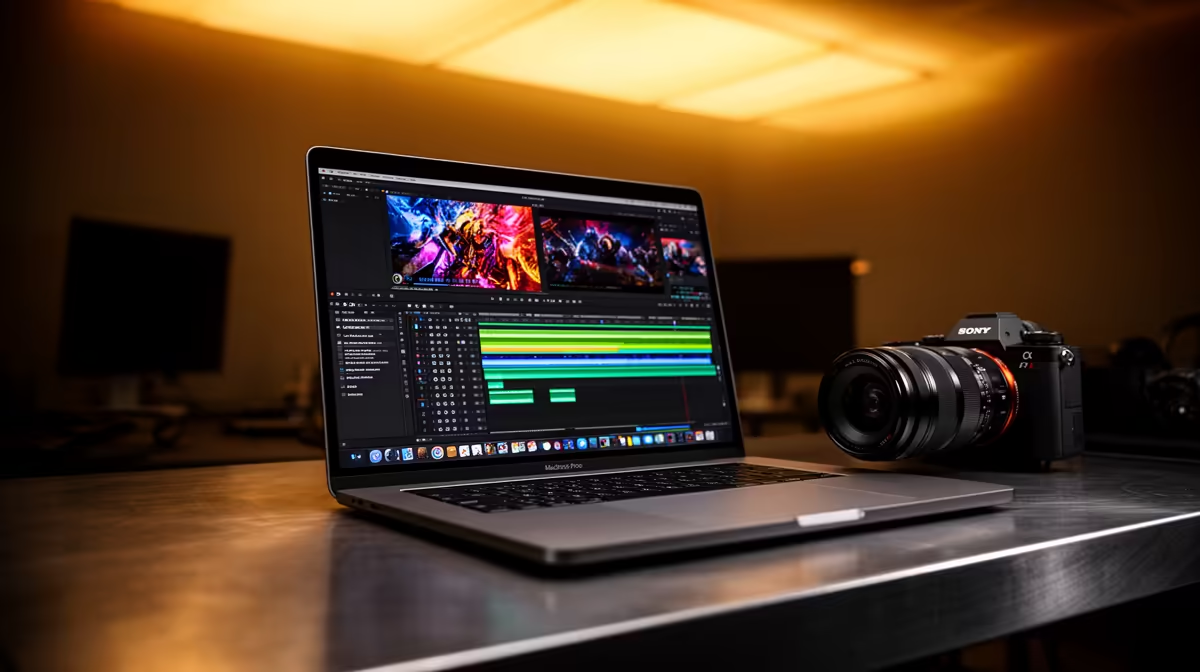
A long Final Cut Pro export is rarely a sign you need a more expensive Mac. On Apple Silicon, the chip already carries dedicated media engines that hardware-accelerate H.264 and ProRes, and most slow exports come from software fighting hardware that is sitting idle. Get the settings and the storage right and the same MacBook that took twenty minutes can finish in a handful, no new purchase required.
Quick Answer
The biggest wins are using a codec the Apple Silicon media engine accelerates (H.264 or ProRes), enabling Background Rendering so frames are pre-cooked before you hit export, and reading from and writing to a fast Thunderbolt NVMe drive rather than a slow external. Together these cut export times dramatically on an M-series Mac for free.
Step 1: Let the media engine do the encoding
Every Apple Silicon chip from the M1 onward includes a dedicated media engine, hardware blocks built specifically to encode and decode H.264, HEVC, and ProRes. When you export to one of those formats, the work offloads from the general CPU to silicon designed for exactly this, which is why a ProRes export on an M-series Mac flies compared to software encoding. The practical rule is simple: export to H.264 or ProRes and the engine engages automatically. Exotic or unsupported codecs fall back to the CPU and crawl, so pick a delivery format the hardware understands before blaming the machine.
Step 2: Turn on Background Rendering
Open Final Cut Pro preferences, go to Playback, and switch on Background Rendering. With it enabled, Final Cut quietly renders effects, transitions, and colour work while you edit, so by the time you export, much of the timeline is already processed. Without it, all of that rendering is deferred to export time and stacks onto the encode. Leave a short delay set so it kicks in during natural pauses, and your final export becomes mostly a fast media-engine pass rather than a full render from scratch.
Step 3: Put your media on fast storage
Exporting reads source footage and writes the finished file, and on high-resolution timelines that becomes a torrent of data. A slow USB hard drive or a near-full internal SSD throttles the whole pipeline no matter how quick the chip is. Keep your project and media on the internal drive or an external Thunderbolt NVMe enclosure that sustains real read and write speeds, and never let the boot drive fill past roughly eighty percent, since macOS needs free space to manage cache and scratch. If your current Mac is the bottleneck rather than the storage, the MacBook range at Evetech lists the M-series options with the media engines and Thunderbolt ports this workflow depends on.
Step 4: Match the export settings to the destination
Stop exporting a 4K ProRes master when the video is going straight to YouTube. Use the Share menu's tuned presets, set the resolution and bitrate to what the destination actually needs, and you skip unnecessary processing. A 1080p H.264 export for social finishes in a fraction of the time of a full-resolution master, and viewers see no difference on a phone. Export the heavy master only when you genuinely need an archive or a colour round-trip.
Step 5: Clear the runway during the export
Close apps that hold memory and disk, browsers with dozens of tabs especially, so Final Cut gets the full chip and full storage bandwidth. Plug a laptop into power, since macOS can throttle sustained performance on battery to preserve charge. These take seconds and consistently shave time off a big export. If you want to sanity-check whether a faster machine would actually help your specific workload, the laptop best sellers are a quick gauge of where current performance and pricing sit.
Frequently Asked Questions
Why is my Final Cut Pro export slow on a new Mac?
Usually the export format is not one the media engine accelerates, or Background Rendering is off so the timeline renders fully at export time. Check that you are exporting H.264 or ProRes and that your media sits on fast storage.
Does more RAM speed up Final Cut Pro exports?
RAM helps most when you run many apps alongside Final Cut or work with very large timelines and high track counts. For the export itself, the media engine and storage speed matter more than extra memory on an Apple Silicon Mac.
What is the Apple Silicon media engine?
It is dedicated hardware inside M-series chips built to encode and decode H.264, HEVC, and ProRes. It handles those codecs far faster and more efficiently than the general CPU, which is why supported exports finish so quickly.
Should I export to ProRes or H.264?
Use H.264 for delivery to web and social, since the file is small and the engine accelerates it. Use ProRes when you need a high-quality master for archiving or further editing. Both are hardware-accelerated on Apple Silicon.
Will an external SSD actually make exports faster?
Yes, if your current drive is slow or nearly full. A Thunderbolt NVMe drive that sustains high read and write speeds removes a common bottleneck, letting the chip work at full pace instead of waiting on storage.
A few settings and the right storage unlock most of the speed already in your Mac. When the chip itself is the limit, compare the M-series options at https://www.evetech.co.za/macbooks/l/3284 and choose a MacBook with the media engine your edits deserve.











