


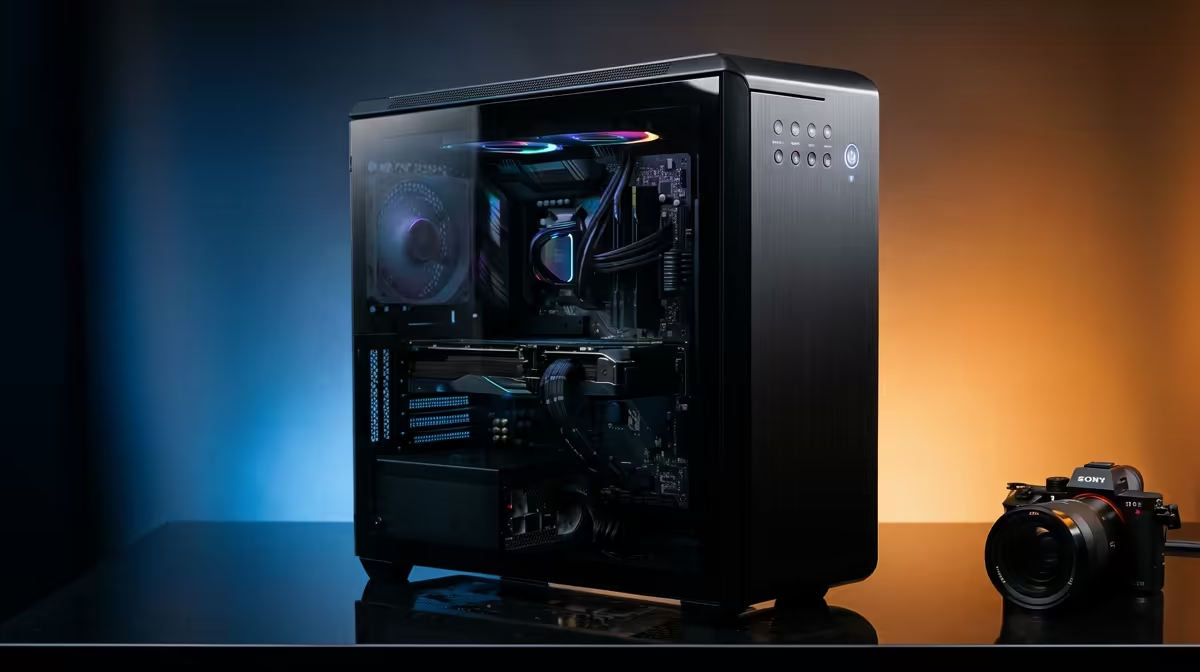
A timeline that exports in eight minutes instead of forty changes how a creator works. The fastest single win for render and export times on a creator PC is switching from CPU-only encoding to a GPU-accelerated path such as NVENC, which can be five to ten times quicker than software H.264 on the very same machine. From there, a handful of settings in your editor and a few hardware checks compound the savings.
Quick Answer
Enable hardware encoding such as NVENC for your exports. On a GPU-equipped creator PC, NVENC can be 5 to 10 times faster than CPU-only H.264 encoding, turning long exports into short ones. Pair it with GPU-accelerated effects and a fast scratch drive and you cut both render and export times sharply.
Step 1: Switch your export to hardware encoding
This is the single biggest lever. In Premiere Pro, in the export settings, set the encoding to Hardware Encoding rather than Software Encoding for H.264 or HEVC. In DaVinci Resolve, choose NVIDIA (or your GPU vendor) as the encoder in the deliver page rather than the native software option.
Software encoding asks the CPU to build every frame, which is slow. NVENC hands that job to a dedicated block on the GPU built specifically for video encoding, freeing the CPU and finishing far faster. The quality at a sensible bitrate is excellent for delivery, so for most creator output this is a straight win.
Step 2: Make sure the GPU is doing the heavy lifting
Hardware encoding only delivers its full benefit when the GPU is genuinely engaged. In Premiere, set the Mercury Playback Engine to GPU Acceleration (CUDA) in the project settings. In Resolve, the GPU is central by design, but confirm the right card is selected in the system preferences.
Many timeline effects, colour grades, transitions, and warps also run on the GPU. A capable card accelerates the render before the encode even begins, so the whole pipeline benefits, not just the final export. If your card is older or entry-level, this is where an upgrade pays off most. The workstation and creator graphics cards at Evetech are built for exactly this kind of sustained render load.
Step 3: Tame your effects and use proxies
Some effects are render-heavy no matter the hardware. Heavy noise reduction, complex masks, and stacked grades slow exports. Where you can, flatten or pre-render those sections so they are not recomputed on every pass.
For high-resolution footage, edit with proxies. Resolve and Premiere both let you cut on lightweight proxy files and switch back to full-resolution media only at export. Your timeline stays responsive during the edit, and the heavy decode work is concentrated into the final render rather than slowing every scrub.
Step 4: Tune the export queue and bitrate
Two settings matter here. First, avoid pushing the bitrate higher than the destination needs; a sensible target bitrate encodes faster and uploads quicker without visible quality loss for most platforms. Second, set a single pass rather than two-pass encoding when speed matters more than the last fraction of efficiency, since two-pass roughly doubles the encode time.
Render in the background where your editor supports it, so you can keep working on the next cut while the current one exports rather than sitting idle.
Step 5: Clear the storage and memory bottlenecks
A fast GPU starves if it waits on slow storage. Keep your media, cache, and export destination on an NVMe SSD rather than a mechanical drive, so frames feed in and out without stalling. Point your editor's media cache and scratch folders at that fast drive too.
Memory matters for high-resolution and multi-layer timelines. If the system runs short of RAM, it pages to disk and everything slows. Enough RAM for your resolution keeps the whole render in fast memory. To see how a balanced render machine comes together, the popular pre-built creator and gaming PCs show sensible pairings of GPU, CPU, RAM, and storage.
Frequently Asked Questions
How much faster is NVENC than CPU encoding?
On a GPU-equipped PC, NVENC hardware encoding is commonly 5 to 10 times faster than CPU-only software H.264 for the same export. The exact gain depends on the footage and settings, but the difference is large and consistent.
Does hardware encoding hurt video quality?
At a sensible delivery bitrate, the quality is excellent and the difference from software encoding is negligible for streaming and upload. Software encoding can be slightly more efficient at extreme low bitrates, but for typical creator output NVENC is the practical choice.
Why is my export still slow with NVENC enabled?
The bottleneck has likely moved elsewhere: render-heavy effects, slow storage, or insufficient RAM. Check that GPU acceleration is on for playback too, edit with proxies for high-resolution media, and keep cache and media on an NVMe SSD.
Do proxies actually speed up the final export?
Proxies speed up editing and can speed up export when you set the timeline to use them at delivery, though most creators switch back to full-resolution media for the final render. The main win is a responsive timeline that does not stall during the edit.
What single upgrade helps render times the most?
A capable GPU, because it accelerates both timeline effects and the final encode through NVENC. Pair it with an NVMe SSD and enough RAM, and the whole pipeline speeds up rather than just one stage.
Tired of waiting on exports? Match your editor to the right hardware by browsing the workstation graphics card range at https://www.evetech.co.za/PC-Components/workstation-graphics-cards-307 and build a creator PC that renders and exports without the wait.










