



Best Wireless Gaming Headset in South Africa - Updated July 2026
Wireless gaming headsets are available at Evetech from R499 including VAT, with 75 models in stock. The range runs to R999 for console-specific PDP Phantom Air models.
Read moreSteam Link is Valve's free app that streams SteamVR games wirelessly to a Quest while placing less load on the PC processor than Air Link. It only works with Steam library titles and exposes fewer advanced tuning controls than third-party tools.
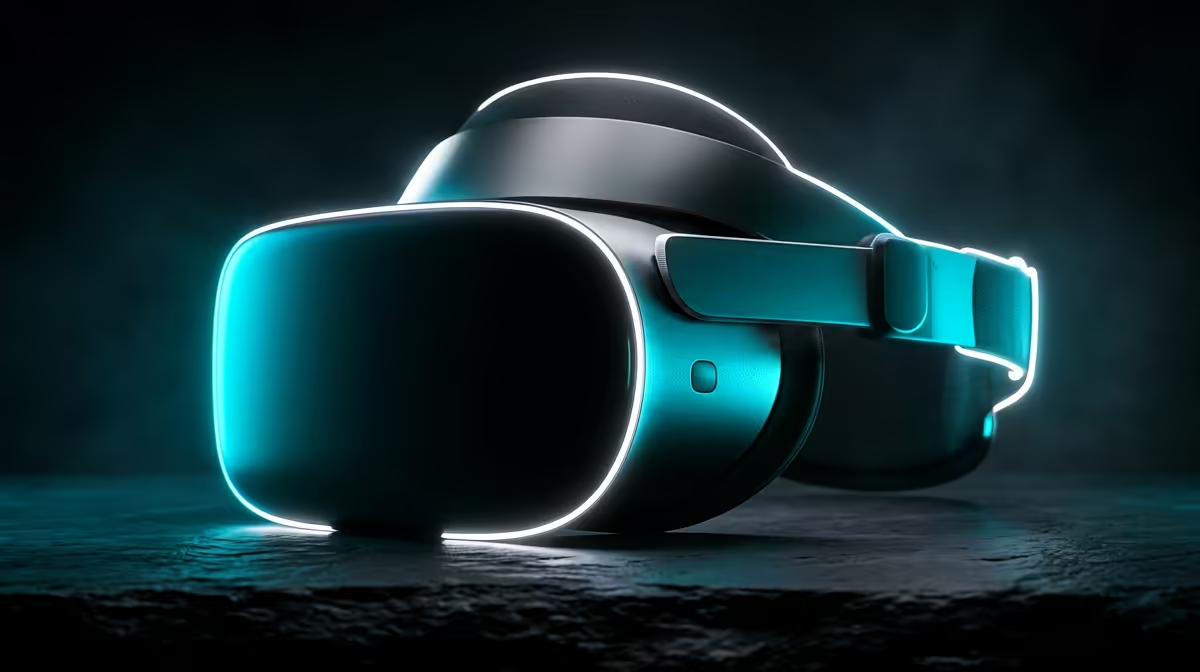
Wireless PCVR on a Quest used to mean wrestling with third-party apps and paid licences. Valve quietly changed that with Steam Link, a free app that streams your SteamVR library straight to a Quest over your own Wi-Fi. It leans lighter on your PC processor than Air Link and it is built into the Steam ecosystem, so if your games already live on Steam, this is the cleanest free route into untethered play.
Steam Link is Valve's free app that streams SteamVR games wirelessly from your PC to a Meta Quest. Install it from the Quest store, sign into the same Steam account on both devices, connect over a strong 5 GHz or 6 GHz network, and you are playing PCVR without a cable. It only works with Steam library titles.
Steam Link's quality lives and dies on your network and your PC. Get these in order first:
The single biggest factor is that cable from router to PC. Wireless on both ends introduces lag that no app can fully hide, so wiring the PC is the difference between a smooth session and a stuttery one. If you have not picked a headset yet, the AR and VR glasses category at Evetech lays out the current options.
On the Quest, open the store, search for Steam Link, and install it. It is published by Valve and is free. While you are there, make sure your Quest system software is current, because an out-of-date headset can cause connection failures that look like network problems.
On your PC, confirm Steam is running and SteamVR is installed. You do not need to launch SteamVR manually; Steam Link will start it when you connect. Do make sure the PC is awake and not asleep, and that no firewall is blocking Steam on your local network.
Launch Steam Link on the Quest. It will scan your local network for your computer. Select your PC from the list. The first time, Steam Link shows a pairing code that you enter on the PC, or it pairs automatically if both are on the same account. Once paired, the headset remembers the PC for next time.
After connecting, you land in the SteamVR space. Before diving into a heavy game, set realistic expectations through Steam Link's settings. Steam Link exposes fewer advanced tuning controls than some third-party streaming tools, but the basics matter:
A short test in a simple title before a demanding one tells you quickly whether your network is up to the load.
Both are free. Air Link is Meta's built-in equivalent and ties into the Quest's own dashboard. Steam Link's edge is that it places less load on the PC processor, which can free up headroom for the game itself, and it is the natural choice if your entire library is on Steam.
The trade-off is reach. Steam Link only streams Steam titles and gives you fewer deep tuning knobs than paid third-party tools that some enthusiasts prefer for fine control. For most players whose games are already on Steam, the free, lighter Steam Link is the sensible default. To round out the setup with charging cables, head straps and comfort kit, the VR accessories at Evetech cover the extras that make long sessions bearable.
Yes. Steam Link is published by Valve at no cost and there is no subscription. You only need a Steam account, the SteamVR runtime on your PC, and a compatible Quest headset.
It works with SteamVR-compatible titles in your Steam library. Games bought through other stores or the Quest's own store are not streamed by Steam Link, so check that your titles are on Steam first.
The most common cause is a weak wireless link or a PC connected to the router over Wi-Fi instead of ethernet. Wire the PC to the router, sit close to a Wi-Fi 6 access point, and lower the bitrate if artefacts persist.
Both are free wireless options. Steam Link tends to place less load on the PC processor and suits Steam-only libraries, while Air Link is Meta's built-in route. Try both and keep whichever runs smoother on your hardware.
You need a PC strong enough to run the VR games themselves, since streaming only sends the rendered image to the headset. The graphics card and a stable wired network connection matter most for a clean experience.
Ready to cut the cable on PCVR? Pick a compatible headset from the AR and VR glasses range at https://www.evetech.co.za/PC-Components/ar-glasses-433 and grab the accessories to keep your sessions running long and comfortable.
Yes. Steam Link is published by Valve at no cost and there is no subscription. You only need a Steam account, the SteamVR runtime on your PC, and a compatible Quest headset.
It works with SteamVR-compatible titles in your Steam library. Games bought through other stores or the Quest's own store are not streamed by Steam Link, so check that your titles are on Steam first.
The most common cause is a weak wireless link or a PC connected to the router over Wi-Fi instead of ethernet. Wire the PC to the router, sit close to a Wi-Fi 6 access point, and lower the bitrate if artefacts persist.
Both are free wireless options. Steam Link tends to place less load on the PC processor and suits Steam-only libraries, while Air Link is Meta's built-in route. Try both and keep whichever runs smoother on your hardware.
You need a PC strong enough to run the VR games themselves, since streaming only sends the rendered image to the headset. The graphics card and a stable wired network connection matter most for a clean experience.
Wireless gaming headsets are available at Evetech from R499 including VAT, with 75 models in stock. The range runs to R999 for console-specific PDP Phantom Air models.
Read more
Gaming keyboards are available at Evetech from R399 including VAT, with 41 models in stock. The best keyboards run from R3,999 analog and Hall-effect boards up to R6,699 flagships.
Read more
Gaming headsets are available at Evetech from R329 including VAT, with 120 models in stock. The best headsets open at R6,499 and run to R15,499 for the Arctis Nova Elite.
Read more
Gaming mice are available at Evetech from R199 including VAT, with 105 models in stock. The best mice start at R3,699 for the Razer DeathAdder V3 Pro and run to R4,199.
Read more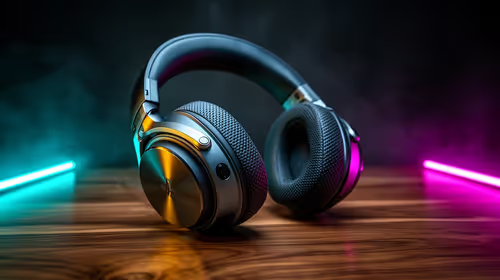
Gaming headsets are available at Evetech from R329 including VAT, and within a R1,000 ceiling the best options run from R899 wired up to R999 for wireless PDP Phantom Air.
Read more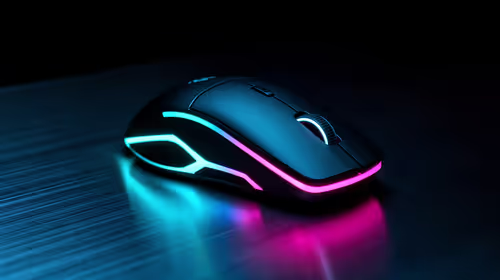
Gaming mice are available at Evetech from R199 including VAT, with 25 models in stock under R500. The strongest options run from R399 up to R499 wireless tri-mode mice.
Read more
Wi-Fi 7 vs Wi-Fi 6e for cinematic story games comes down to router support, latency goals, device compatibility, and coverage. SA buyers should match the choice to the real network setup.

The real world difference between PCIe 5.0 and PCIe 4.0 for MMO and live-service games is usually about loading, patches, and headroom. SA players should weigh NVMe speed, GPU lanes, CPU limits, and platform cost.
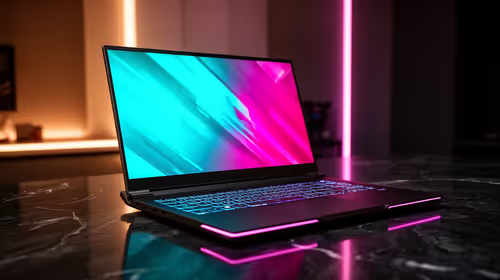
Windows 11 gaming laptop dead pixel checks begin with a full-screen colour test. This how to fix dead pixel windows 11 gaming laptop guide helps SA users compare settings, drivers, external screens, and warranty routes.
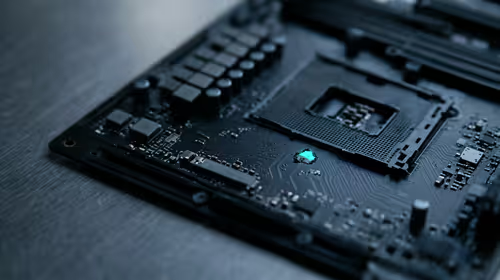
AM5 motherboard stuck pixel fixes in South Africa start with panel, cable, GPU output, and Windows checks. Use a clean test path before blaming the motherboard or replacing screen hardware.

FPS drops blamed on a wireless mouse often point to input, driver, USB, network, or system-load checks. Use a quick SA-friendly troubleshooting flow to isolate software, firmware, thermals, storage, and game settings before replacing hardware.

How to fix fps drops on steam deck starts with power profile, shader cache, storage health, and per-game settings. For South Africa, check charger quality, heat, and download stability before assuming the handheld needs repair. Retest after updates.

How to fix low FPS after an RTX 5080 build upgrade starts with driver cleanup, display settings, thermals, and power mode. For SA gamers, verify GPU usage, PCIe speed, RAM profile, and CPU limits before changing parts.
Hollow Knight Silksong at 4K needs a GPU matched to settings, VRAM, CPU balance, and monitor goals. Use this SA guide to compare tiers without treating FPS target or prices as fixed.
Wireless gaming headsets are available at Evetech from R499 including VAT, with 75 models in stock. The range runs to R999 for console-specific PDP Phantom Air models.
Gaming keyboards are available at Evetech from R399 including VAT, with 41 models in stock. The best keyboards run from R3,999 analog and Hall-effect boards up to R6,699 flagships.
Gaming headsets are available at Evetech from R329 including VAT, with 120 models in stock. The best headsets open at R6,499 and run to R15,499 for the Arctis Nova Elite.
Gaming mice are available at Evetech from R199 including VAT, with 105 models in stock. The best mice start at R3,699 for the Razer DeathAdder V3 Pro and run to R4,199.