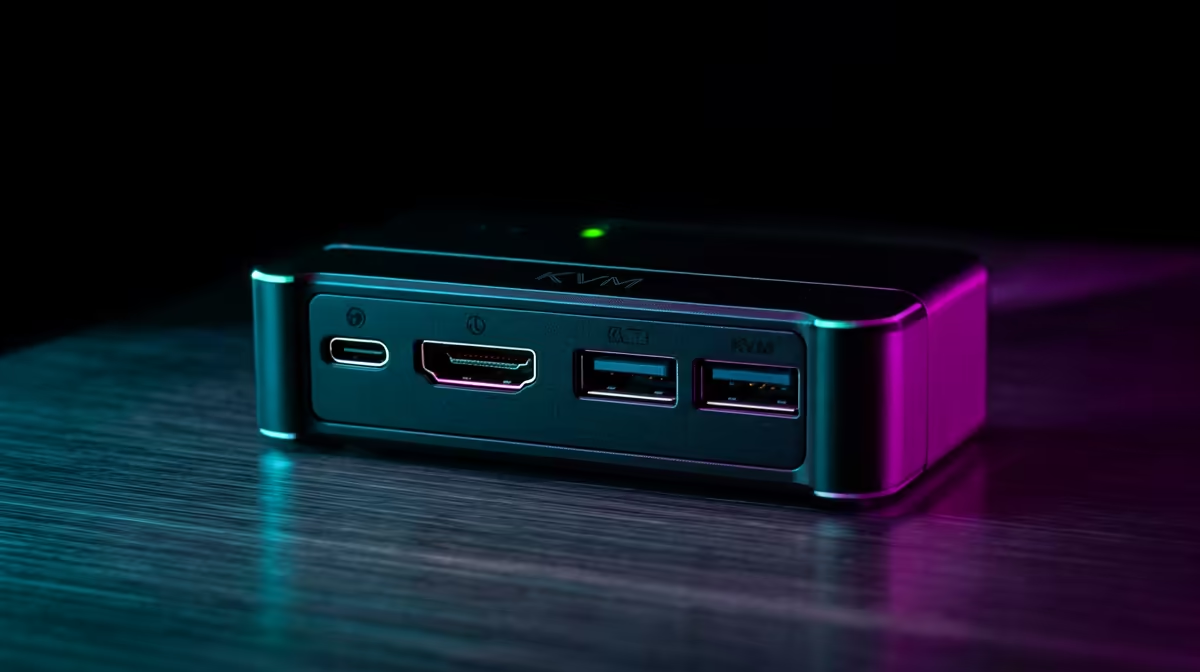
A KVM switch that seems broken is, nine times out of ten, a switch whose hotkey you simply do not know. The physical button on the box works, but the whole point of a KVM is to flip between machines without reaching for it: a quick KVM hotkey does it from the keyboard you are already typing on. The most common sequence is a double tap of Scroll Lock, though plenty of models use a double tap of Right Ctrl instead. Learn your model's trigger, rule out the handful of things that block it, and switching becomes instant.
Quick Answer
Most KVM switches change the active computer with a keyboard hotkey, usually a double tap of Scroll Lock or Right Ctrl followed by the port number. If nothing happens, the keyboard is often plugged into a data USB port instead of the dedicated keyboard port, or keyboard software is intercepting the keys. Confirm the sequence in your manual, plug into the right port, and it works.
The common hotkey sequences
There is no single universal hotkey, but a few patterns cover most switches on the market:
- Scroll Lock, Scroll Lock, then the port number (1, 2, 3, 4) is the classic sequence on many two and four port units.
- Right Ctrl, Right Ctrl, then the port number is the next most common, used where a keyboard lacks a Scroll Lock key.
- Scroll Lock, Scroll Lock, Enter cycles to the next port on some models rather than jumping to a numbered one.
- Some units add a function key step, so Scroll Lock, Scroll Lock, F1 might switch the trigger key itself between Scroll Lock and Right Ctrl.
The timing matters: the two taps need to land quickly, within about a second, or the switch reads them as two separate key presses and ignores the command.
Step by step: switch and confirm
- Find your model's hotkey. Check the printed manual or the manufacturer's support page for the exact sequence. Do not assume Scroll Lock, plenty of units default to Right Ctrl.
- Plug the keyboard into the dedicated keyboard port on the KVM. Many switches only watch for hotkeys on the labelled keyboard and mouse ports. A keyboard in a generic USB data port will type fine but the hotkey will do nothing.
- Press the trigger key twice, quickly. A short beep or an LED change on the box usually confirms the switch entered hotkey mode.
- Press the target port number. The video, keyboard and mouse should jump to that machine. If your switch cycles rather than numbers, press the cycle key or Enter instead.
- Test both directions. Switch away and back to confirm the sequence works reliably, not just once.
When the hotkey does nothing
Work through these in order:
- Wrong port. This is the single most common cause. The keyboard must be on the dedicated keyboard port, not a USB 2.0 or 3.0 passthrough port on the same box.
- Keyboard software intercepting keys. Gaming keyboard utilities and macro software can swallow Scroll Lock or remap Right Ctrl before the KVM sees it. Close or disable that software and retry.
- A keyboard with no Scroll Lock. Many compact and tenkeyless boards drop the key. Use the Fn layer if it has one, or switch the KVM trigger to Right Ctrl if the model supports it.
- Pass-through disabled. Some switches have a keyboard and mouse pass-through mode that must be on for hotkeys to register; the manual will list the sequence to enable it.
- Hotkeys turned off entirely. A few units ship with hotkey switching disabled by default and rely on the button until you enable it.
Keep the rest of the desk working for you
A clean multi-machine setup is about more than the switch. If you are running two computers from one keyboard, mouse and monitor for long stretches, the seat you do it from matters as much as the cabling. The gaming and ergonomic desk range at Evetech pairs naturally with a clean KVM workflow, and it is worth setting up a proper desk so the hours switching between machines do not cost you workspace comfort. For a quick read on what other buyers are adding to their multi-machine desks, the best-selling workspace accessories at Evetech give a fast shortlist.
Frequently Asked Questions
What is the most common KVM hotkey?
A double tap of Scroll Lock followed by the port number is the most widespread, with a double tap of Right Ctrl close behind. Always confirm in your model's manual, because defaults vary between manufacturers and even between models from the same brand.
Why is my KVM hotkey not working?
The usual reason is the keyboard being plugged into a generic USB data port instead of the dedicated keyboard port the switch monitors. Keyboard macro software intercepting the keys is the next most common cause. Fix the port and close the software first.
Can I change the KVM hotkey trigger?
On many switches, yes. A sequence such as Scroll Lock, Scroll Lock, F1 swaps the trigger between Scroll Lock and Right Ctrl, which is useful if your keyboard has no Scroll Lock key. Check the manual for the exact command your unit uses.
My keyboard has no Scroll Lock key. What now?
Use the Fn layer if your compact keyboard maps Scroll Lock there, typically Fn plus another key. If that is not available, switch the KVM trigger to Right Ctrl on models that support it, since Right Ctrl is present on almost every keyboard.
Does the double tap need to be fast?
Yes. The two presses must land within roughly a second so the switch reads them as a single command. Tap too slowly and it treats them as ordinary Scroll Lock or Ctrl presses and ignores the hotkey.
Running a two-machine desk? Make the setup as smart as your switching with a proper desk from the ergonomic desk range at Evetech. https://www.evetech.co.za/PC-Components/gaming-desk-331