Saving a file on your laptop and then emailing it to yourself so it appears on your phone is a habit worth breaking. When you sync files across all your devices with a NAS, that copy-and-send dance disappears: you save a file once, and it shows up everywhere automatically, on your phone, your desktop, your laptop, all mirrored from a central drive you own. The whole thing runs on your own hardware and your own network, with no monthly cloud subscription.
Quick Answer
You sync files across devices by installing a NAS sync client that mirrors a chosen folder between the NAS and each device. Save a file on one machine and it appears on the others within seconds, with no manual copying and no third-party cloud. All transfers stay inside your own network, so your data never leaves hardware you control.
Sync is not the same as sharing
It is worth drawing the line clearly, because people mix these up. Sharing means reaching across the network to open files that live on the NAS, the files stay on the NAS and you access them remotely. Sync means each device keeps its own local copy that is automatically kept identical to the NAS.
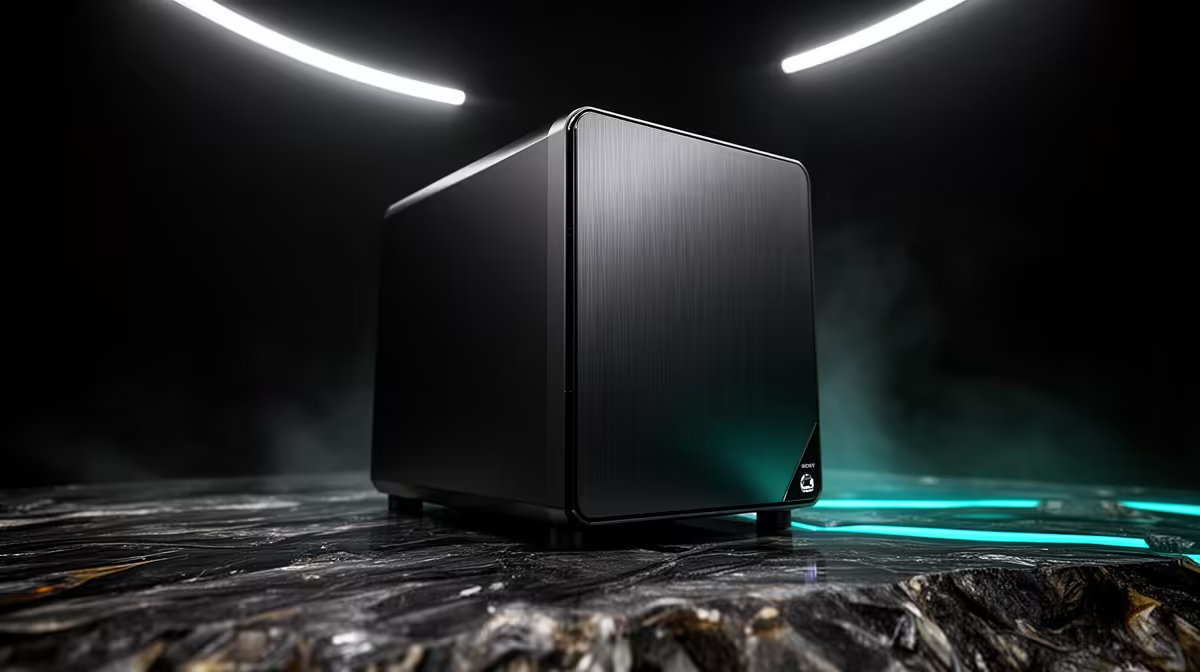
The practical upshot: synced files are available even when a device is offline, because they live locally, and they update across everything the moment you reconnect. For documents, photos and projects you bounce between devices, sync is the smoother experience. If you have not yet picked a unit, browse the diskless NAS options at Evetech to find an enclosure that suits your household.
Step-by-step setup
Most NAS brands offer their own sync app (Synology calls its tool Synology Drive, for example), but the flow is the same across vendors.
1. Install the sync server on the NAS
In the NAS app or package centre, install the sync server package. On many systems this is a one-click install that turns your NAS into the central hub all your devices will mirror against. This is what coordinates the syncing.
2. Install the desktop client on each computer
On every Windows PC, Mac or Linux machine, install the matching desktop sync client. Sign in with your NAS account so the client knows which NAS to talk to. Each computer gets its own client.
3. Create a sync task
In the desktop client, create a sync task. You choose two things:
- The NAS folder to sync, usually your personal home folder or a shared team folder.
- The local folder on the computer that will mirror it.
From then on, those two folders stay identical. Anything you drop into the local folder uploads to the NAS, and anything that changes on the NAS comes down to the local folder.
4. Choose your sync direction
This is an important setting. Most clients let you pick:
- Bidirectional: both the NAS and the device can make changes, and they keep each other updated. This is the normal choice for working files.
- Download only: NAS changes come down to the device, but device changes do not go up. Useful for a read-only reference folder.
- Upload only: device changes go up to the NAS, but NAS changes do not come down. Useful for a one-way backup of a folder.
For everyday document syncing, bidirectional is what you want.
5. Use selective sync to save space
If your synced folder is huge, say a 2TB media archive, you do not have to pull all of it onto a laptop with a small SSD. Selective sync lets you tick only the sub-folders you need on that device, such as just Documents, while leaving the rest on the NAS. Each device can sync a different subset. Choosing a drive from the SSD best sellers at Evetech can give you the local storage speed to hold a larger synced set without slowing the machine down.
6. Add your phone
Install the NAS vendor's mobile sync app on your phone and sign in with the same account. Now photos and files reach your phone too, and a document saved on your desktop is in your pocket minutes later. Test it: save a file on one device and watch it appear on another to confirm the chain works end to end.
Keep your sync healthy
A few habits keep things smooth:
- Turn on version history if your client offers it, so an accidental overwrite or deletion can be rolled back.
- Mind your storage. Each device only needs room for the sub-folders it syncs, which is exactly why selective sync matters on smaller machines.
- Remember sync is not backup. If a file is deleted, that deletion syncs everywhere. Keep a separate backup of anything irreplaceable.
Frequently Asked Questions
How is NAS sync different from cloud storage?
The behaviour feels similar, files mirrored across devices, but with a NAS the data lives on hardware you own and stays inside your own network rather than a third-party cloud. There is no monthly subscription, and you control where the files are stored, which is the main appeal of doing it on a NAS.
Will synced files be available when I am offline?
Yes. Because sync keeps a local copy on each device, your files are accessible even without a network connection. When the device reconnects, any changes you made offline sync up to the NAS and any updates from elsewhere come down, keeping everything consistent.
Do I have to sync the entire folder to every device?
No. Selective sync lets each device pull only the sub-folders it needs. A laptop with limited storage can sync just your Documents folder while leaving a large media archive on the NAS, so you are never forced to fit everything onto a small drive.
Is syncing the same as backing up my files?
No, and this matters. Sync mirrors changes including deletions, so if you delete a file it disappears everywhere. A backup keeps separate, recoverable copies. Use sync for everyday convenience across devices, but maintain a separate backup of files that would be irreplaceable if lost.
Can my phone sync with the NAS too?
Yes. Install the NAS vendor's mobile sync app, sign in with the same account, and your phone joins the sync chain. A file saved on your computer becomes available on your phone shortly after, and phone photos can sync back to the NAS automatically depending on the app.
Save once, have it everywhere, with no subscription and your data on hardware you own. Browse the NAS units at Evetech and set up automatic file sync across every device in your life.