


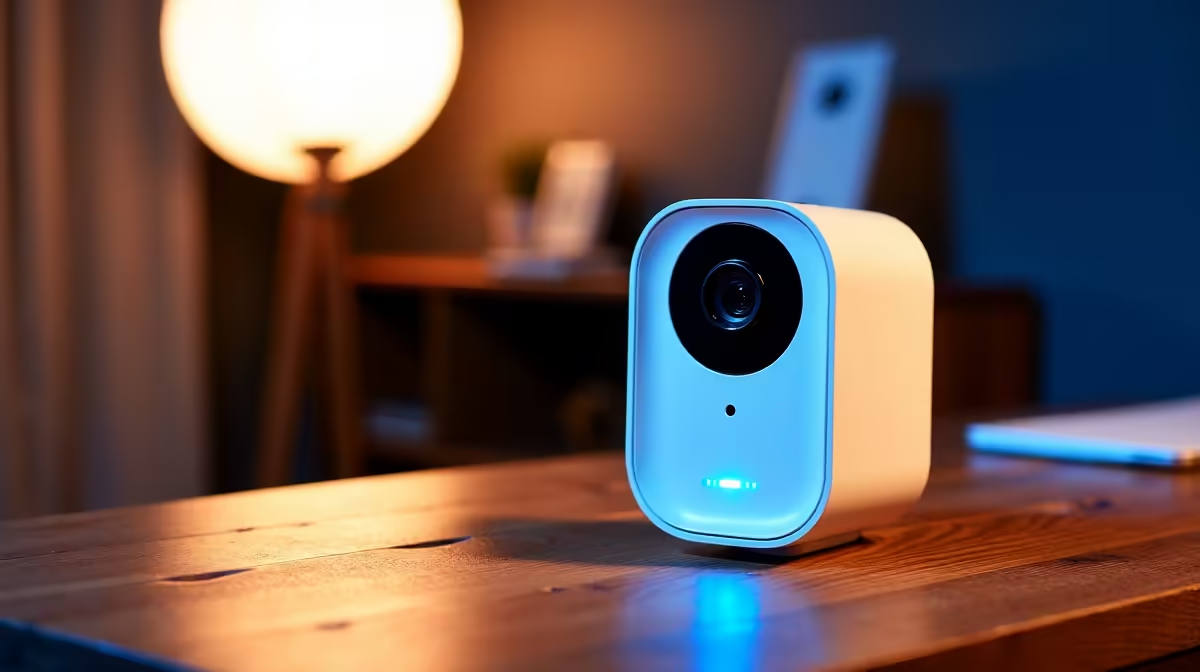
Being able to view security cameras on your phone from anywhere is what turns a recording system into a live one. The camera streams its feed over the internet to an app, and you watch in real time whether you are at work, on holiday, or just in another room. Setting it up cleanly comes down to one choice: the easy cloud-relay route that needs almost no configuration, or the manual port-forwarding route that gives you direct access. For most South African homeowners, one of these is clearly the better fit.
Quick Answer
To view cameras remotely you connect them to the internet and watch through the manufacturer's phone app. The simplest method is the app's built-in cloud relay, also called P2P, which uses the recorder's serial number to connect with no router setup. The alternative, port forwarding, gives direct access but needs router configuration and tighter security. For most homes, cloud relay over WiFi or mobile data is the right starting point.
Method one: the cloud relay app (P2P)
The path of least resistance is the app that came with your camera or recorder, using its peer-to-peer cloud relay. Most network video recorders made in recent years register themselves with the manufacturer's cloud using a unique serial number, and your phone connects to the camera through that relay. There is no router configuration, no fixed address to track, and no networking knowledge required.
- Connect your camera or NVR to your home network and confirm it has internet access.
- Download the manufacturer's official app and create an account.
- Add the device by scanning its QR code or entering its serial number.
- Set a strong, unique password, never the factory default.
- Open the live view; you can now watch from anywhere with a data connection.
This five-minute setup is why P2P has become the default. It works the same on home WiFi or out on mobile data, and it sidesteps every router headache.
Method two: port forwarding for direct access
Port forwarding connects your phone straight to the camera or recorder without going through a manufacturer's cloud. It gives you direct control, which some people prefer, but it requires configuring your router and comes with security responsibilities you must take seriously.
- Find the camera or NVR's local IP address and the ports it uses, listed in its network settings.
- Log in to your router's admin page and create port-forwarding rules pointing those ports to the device.
- Because most home connections do not have a fixed public address, set up a dynamic DNS name so you can reach your network reliably.
- Enter that address and port in the app or a browser to view the feed.
The catch is exposure: forwarding a port opens a door from the wider internet to your device, so it must be hardened. This is the more advanced route and is best left to those comfortable with router settings.
Mobile data, WiFi and the SA reality
Either method streams over whatever connection your phone has, home fibre, office WiFi, or mobile data. Streaming live video on mobile data uses a fair amount of data, so if you check in often, lean on WiFi where you can, or use the app's lower-resolution stream for routine viewing and reserve full quality for when you need detail. A stable home upload speed matters too, since the camera has to push its feed out to reach you; fibre handles this comfortably, and the cameras and recorders to build the system live in the smart home and security range.
Keep remote access secure
Remote viewing is only as safe as how you set it up, and a few habits matter regardless of method. Never leave default passwords in place on anything reachable from the internet, since exposed recorders with factory credentials are a well-known target. Keep the device firmware updated so known weaknesses are patched. If you use port forwarding, change default ports and prefer encrypted connections where the device supports them; a VPN into your home network is the safest option of all and avoids exposing the camera directly. The cables, routers and extras to finish a tidy install are in the accessories best sellers.
Frequently Asked Questions
What is the easiest way to view my cameras remotely?
The manufacturer's app using its cloud relay, or P2P. You add the device by serial number or QR code, set a strong password, and view from anywhere with no router configuration. It is the fastest and friendliest route for most homeowners.
Do I need port forwarding to watch cameras away from home?
No. Cloud relay through the app handles remote viewing without any router setup. Port forwarding is an alternative for those who want direct access and are comfortable configuring and securing their router.
Does remote viewing use a lot of mobile data?
Live video can use a fair amount of data, especially at full resolution. Use WiFi when you can, or switch the app to a lower-resolution stream for routine check-ins and reserve high quality for moments when you need the detail.
Is remote camera access safe?
It can be, if set up properly. Always replace default passwords, keep firmware updated, and prefer encrypted connections. If you use port forwarding, harden it carefully, or use a VPN into your home network to avoid exposing the camera to the open internet.
Why is my remote feed slow or laggy?
Usually your home upload speed or the phone's connection. The camera has to push its feed out, so a weak upload or poor mobile signal causes lag. A stable fibre connection at home and a lower-resolution stream on the move both help.
Set up the app's cloud relay for the simplest remote viewing, secure it with a strong password and current firmware, and your cameras are a tap away from anywhere. Browse the current security cameras and recorders at Evetech and keep an eye on home wherever you are.










