


Best AMD Monitor Under R2000 in SA 2026
Top AMD Monitor Under R2000 picks evaluated on performance, value & SA availability with current Rand pricing from Evetech.
Read moreInstall 2.5-inch SSD in your desktop PC quickly and safely—step-by-step instructions, required tools, mounting options, and troubleshooting tips. ⚙️💾
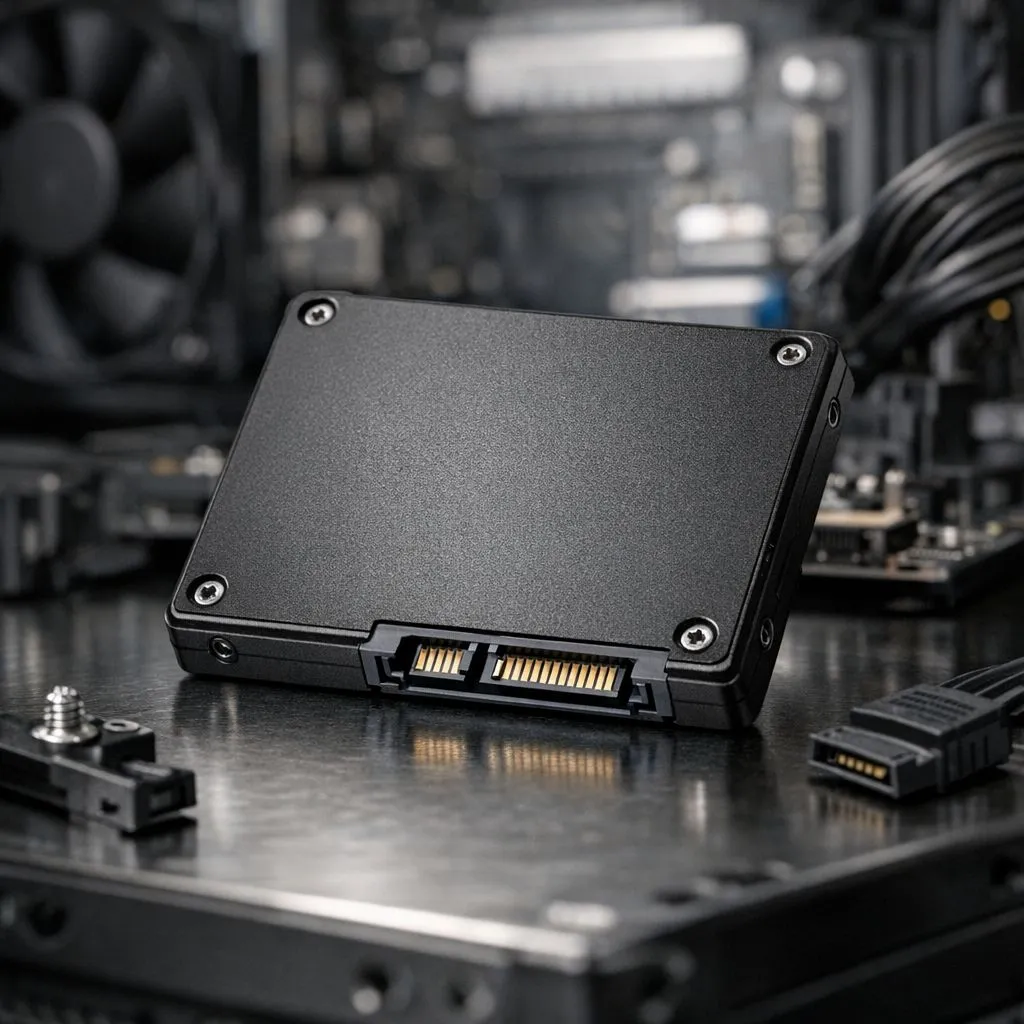
Is your PC taking ages to boot up while your mates are already halfway through a match? If you are still running games off an old mechanical hard drive, you are missing out. Knowing how to install 2.5-inch SSD in your desktop PC is the quickest way to fix those frustrating load times. It turns a sluggish machine into a snappy beast without breaking the bank. 🔧
Even with modern tech, the 2.5-inch SATA drive remains a South African favourite for bulk storage. It offers a massive speed boost over traditional hard drives. For those on a budget, high-quality options from ADATA provide incredible reliability. If you need something for heavy workloads, the range from Western Digital is hard to beat. These drives are perfect for storing your massive Steam library.
Before you start, ensure you have a Phillips-head screwdriver ready. You should also work on a non-conductive surface. Static electricity can damage sensitive components. It is always best to touch a metal part of your case first. This helps to discharge any static build-up. Browse our full selection of solid state drives to find the right capacity for your needs. ⚡
Follow these simple steps to get your new drive running...
Once you have installed the hardware, Windows might not show the drive immediately. You need to open 'Disk Management' and initialise the new volume. Format it as NTFS to ensure it works perfectly with your South African gaming setup.
While SATA is great, some users might need even more speed. If your motherboard supports it, consider PCI Express (NVME) drives. For the absolute cutting edge, Gen 5 (NVME) offers blistering performance for professional editors. However, for most gamers, the 2.5-inch SATA drive remains the sweet spot for value. 🚀
Sometimes you need your data to go where you go. In those cases, an external SSD is the perfect companion. You can find many drives in the External form factor that offer rugged protection. They are ideal for carrying your creative projects between home and the office. ✨
Ready to Speed Up Your Rig? A faster PC means more time playing and less time waiting. For the best prices and expert advice on storage in South Africa, we have you covered. Explore our massive range of SSD specials and find the perfect drive to supercharge your desktop today.
Power down, open the case, mount the 2.5-inch SSD in a bay or bracket, connect SATA data and power, secure it, then boot and format or clone.
If your desktop lacks a dedicated 2.5-inch bay, use a 2.5-to-3.5-inch mounting bracket or adapter to secure the SSD.
Yes if the motherboard has SATA ports. 2.5-inch SATA SSDs require SATA data and power connectors; NVMe needs an M.2 slot.
Use cloning software like Macrium or Acronis, connect the SSD, clone the system drive, then set the SSD as the boot device in BIOS.
You need a standard SATA data cable and a SATA power connector from the PSU for 2.5-inch SSD installation.
A 2.5-inch SSD improves load times and system responsiveness, but it won't increase GPU frame rates.
Check SATA and power connections, try another port or cable, enable SATA in BIOS, update firmware, or test the drive elsewhere.
Top AMD Monitor Under R2000 picks evaluated on performance, value & SA availability with current Rand pricing from Evetech.
Read more
UJ Eng: Monitor Setup Under R15000. Clear setup instructions with SA-specific considerations, troubleshooting tips & recommended components.
Read more
Top NZXT Monitor Under R15000 picks evaluated on performance, value & SA availability with current Rand pricing from Evetech.
Read more
Top 240Hz Monitor Under R20000 picks evaluated on performance, value & SA availability with current Rand pricing from Evetech.
Read more
Top Budget 4K monitor Under R5000 Gamers picks evaluated on performance, value & SA availability with current Rand pricing from Evetech.
Read more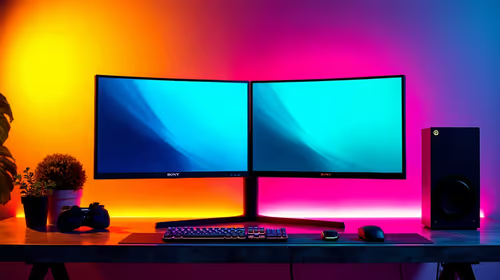
Stellenbosch Arch: Monitor Setup Under R15000. Clear setup instructions with SA-specific considerations, troubleshooting tips & recommended components.
Read more
When Will the RTX 6090 Launch in South Africa Detailed answer with SA data, expert analysis & practical recommendations for local buyers.

Top Valorant Settings for RTX 5070: FPS Optimisation picks evaluated on performance, value & SA availability with current Rand pricing from Evetech.

RDNA 3.5 Graphics in Ryzen AI 400? Can You Game. Plain-English explanation of what it means, why it matters & how it affects your buying decisions in SA.

GPU Price Index : December Report. Current stock data & price tracking for SA buyers. See what is available and where prices are heading.

Core i5-14600K + B760 + RTX 5060 Build Under. Full parts list, Rand pricing & expected performance. Build confidently with SA-available components.

RX 7600 Apex Legends at 4K: FPS Benchmark. Real-world benchmark data, FPS numbers & performance analysis. What SA gamers can actually expect.

RX 7900 XTX GTA 6 at 4K: FPS Benchmark & Optimal. Real-world benchmark data, FPS numbers & performance analysis. What SA gamers can actually expect.

Head-to-head comparison of RTX 5070 vs RX 9070 XT: Gaming Performance for SA gamers. Performance benchmarks, Rand pricing & which delivers better value.
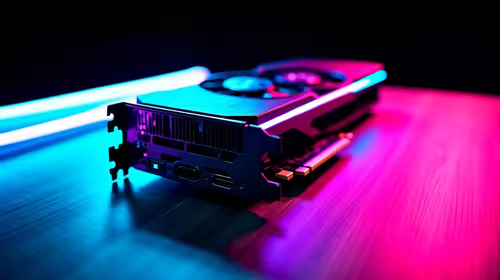
Starfield Max Settings on RTX 5070. Tested & verified settings for best FPS and visual quality on SA hardware budgets.
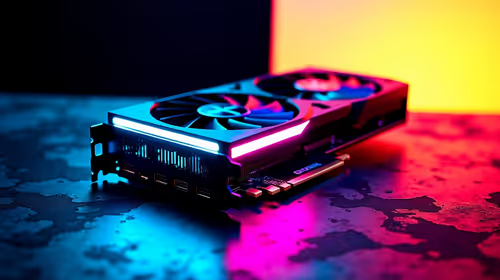
Top RX 7800 XT Model Under R8,000 picks evaluated on performance, value & SA availability with current Rand pricing from Evetech.
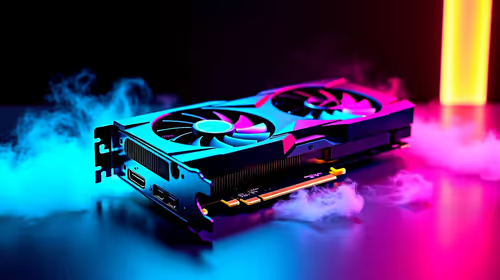
RTX 5070 Valorant Optimised Settings: Graphics. Real-world benchmark data, FPS numbers & performance analysis. What SA gamers can actually expect.

Top Laptop with Core i7 + RX 7700S: Picks picks evaluated on performance, value & SA availability with current Rand pricing from Evetech.